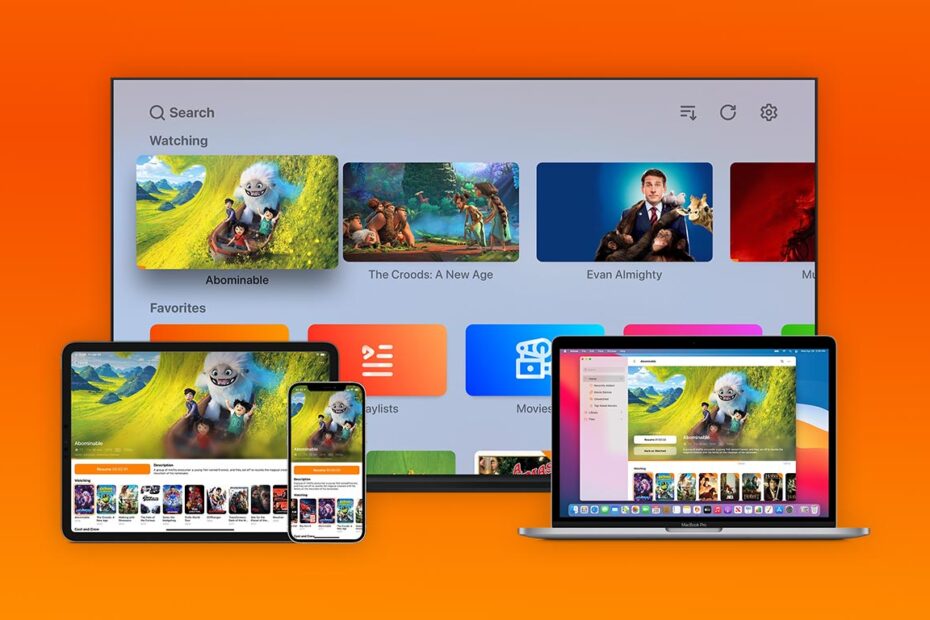

- Stream your video collection to iPhone or iPad using Infuse
- Share files via a web browser with no extra software
- What you’ll unlock with the optional paid upgrade
If you’ve got a video collection sitting on a hard drive somewhere, Infuse is the easiest way to watch it on your iPhone or iPad. It connects to your computer, cloud storage, or Plex account and turns whatever you’ve got into a tidy streaming library – no complicated setup required. We like it so much we even interviewed the developer for our Classics series. Here’s how to get it working via a web browser, which is the quickest method.

First, download the Infuse app onto your iPhone or iPad. It’s free to use in its basic form, or you can subscribe ($2 per month, $17 per year, $100 forever) to Infuse Pro for advanced features like Dropbox compatibility, more video formats, Dolby TrueHD audio support, AirPlay functionality and others.
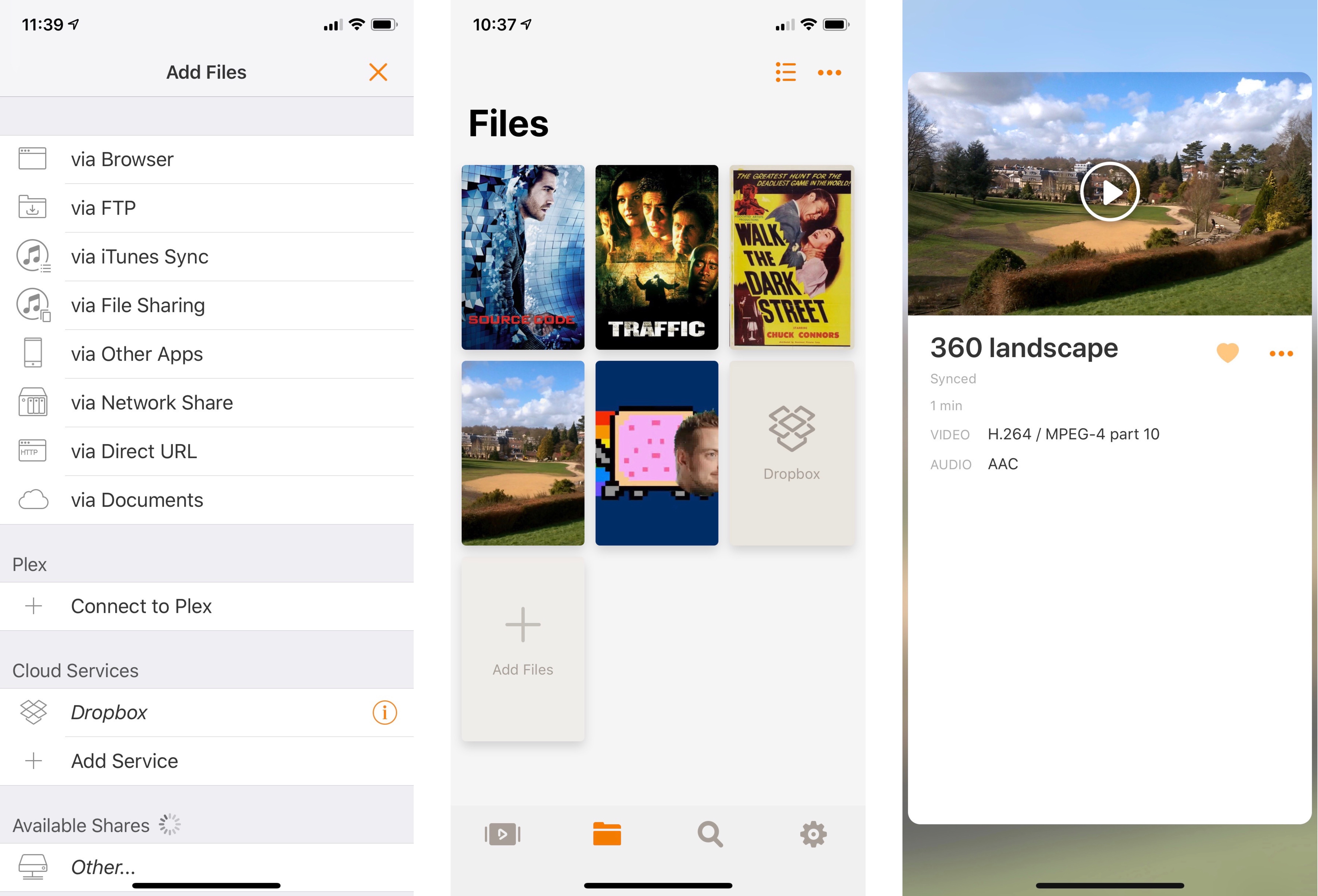
Ensure that your PC and your iPhone or iPad are connected to the same Wi-Fi network. Then, open the app on your iOS device, hit Add Files, and select the topmost via Browser option.
In the following screen, enter the web address listed under point 2 on your computer (it’ll be something like http://name-iPhone.local).
Enter the username and password listed and you’ll head into the above Infuse file select screen.
Hit the + icon in the Infuse browser on your computer and select the video files you wish to stream to your iOS device.
Once you’ve shared the relevant files, hit the X button in the top right corner on your iOS device to quit out of the connection screen, and you’ll be presented with the Infuse Files screen. Your shared videos should all be there, ready to play.
Note that if you’re sharing any home videos that you’ve labeled yourself, you might find that they’ve been attributed metadata (thumbnail images, descriptions etc.) from a similarly-named movie. If this is your main use for Infuse, we’d recommend turning off Metadata Fetching in Settings > General section of the app.