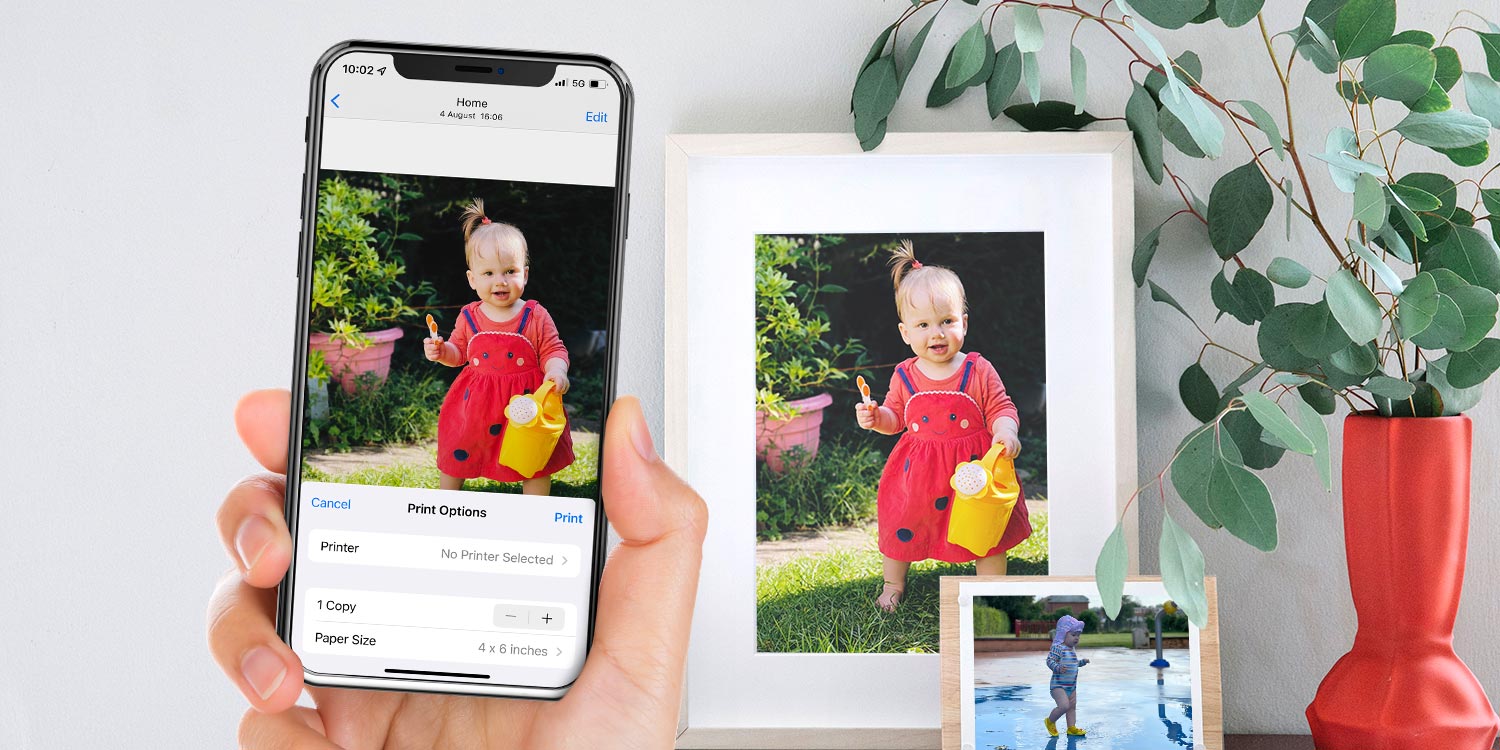

- Choose the right print size for your photo resolution
- Crop to the correct aspect ratio before sending to print
- Print at home with AirPrint or use an online service
Your iPhone takes excellent photos – but they’re meant to be enjoyed beyond the screen, too. Whether you’re framing a favorite holiday shot or creating a gift for someone special, a little preparation can make the difference between a sharp, vibrant print and a disappointing one.
Before you hit “print,” it’s worth understanding how resolution, aspect ratios, and cropping affect the final result. Here’s how to get the best possible prints from your iPhone photos, whether you’re using a home printer or an online service.
Choosing a print size
Most iPhones capture 12-megapixel images, which are perfect for prints up to 14×9 inches without losing detail. Even the latest 48MP iPhones save images at 12MP by default, so the same size guidelines apply.
If you want a larger print, quality will degrade slightly as you go beyond this size. A 30×20-inch canvas print is still passable for wall art viewed from a distance, but anything bigger may start to look blurry.
About aspect ratios
Your iPhone screen has a 16:9 ratio, but most standard print sizes use different proportions. If you don’t crop ahead of time, you might end up with unwanted cuts – or parts of your image stretched or clipped.
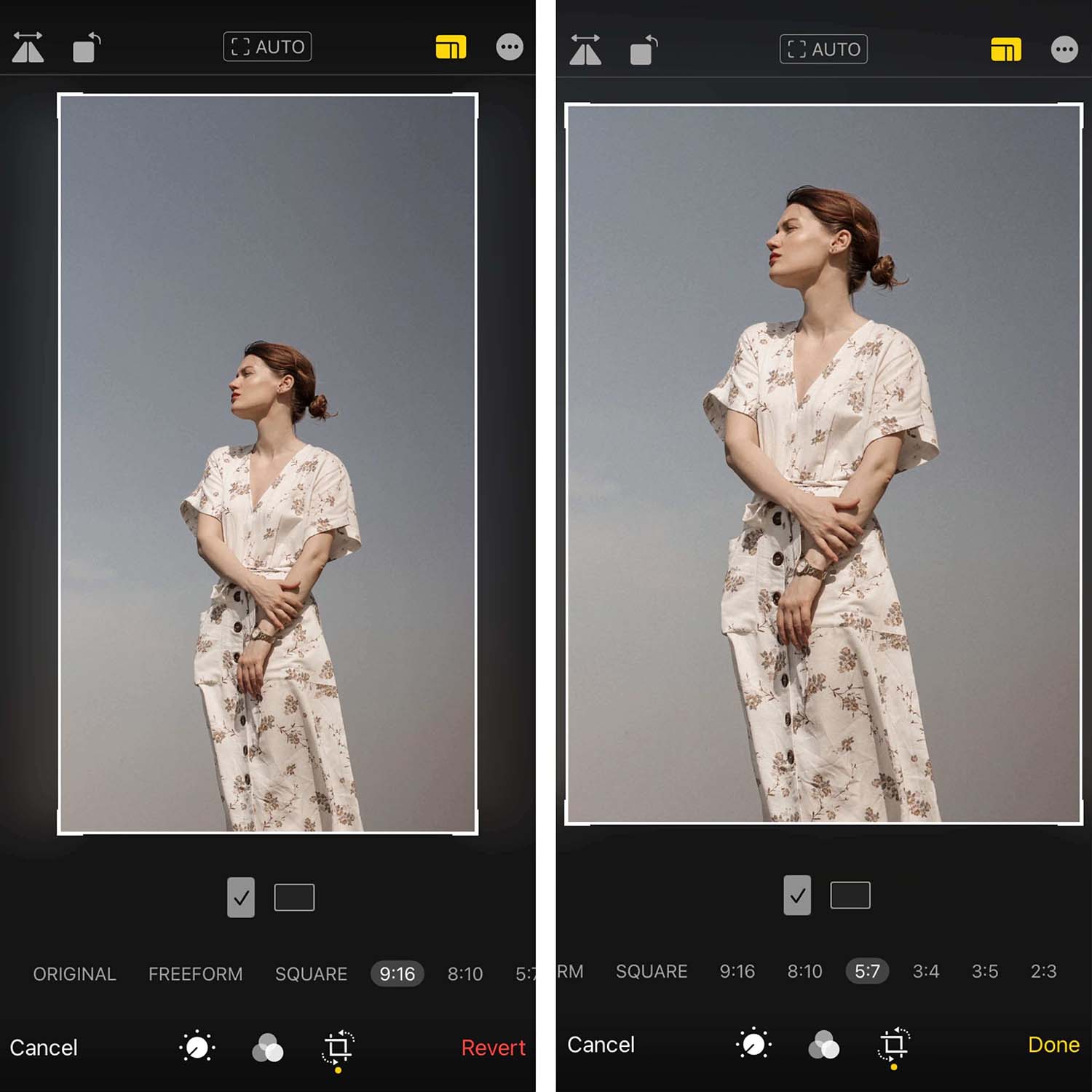
To prepare for this, open the Photos app and select your image. Choose Edit > Crop and then tap the aspect ratio button and select a preset based on the print size intend to use. Drag the corners to adjust the crop and tap Done. Refer to the following guide to decide which aspect ratio to use:
8×10 inches → 4:5
5×7 inches → 5:7
6×8 inches → 3:4
4×6 inches → 2:3
Avoid zooming in too much, as it reduces image quality. Also, keep in mind that low-light photos don’t print as well – they may appear grainy or blurry.
Printing at home
If you have an AirPrint-compatible printer, you can print photos wirelessly, direct from your iPhone or iPad. Simply open your photo and tap the Share button, then Print. Choose your printer, adjust settings if needed, and tap Print.
To check your print queue, swipe up to open the App Switcher and select Print Center. From there, you can cancel prints before they start.
Printing with an online service
For larger prints, bulk orders, or custom gifts, online printing services offer can offer better flexibility and convenience. There are tons to choose from, and the best service will depend on your location, budget, and print type. But to get you started, consider these:
FreePrints provides up to 1,000 free 4×6 prints per year, though you’ll pay for shipping and any extras or upgrades.
Snapfish lets you print in various sizes or turn your photos into personalized gifts like mugs and canvas prints.
Most printing apps offer built-in cropping tools, but adjusting your aspect ratio beforehand ensures your images print exactly how you want. Happy printing!