

I’ll start with the most important takeaway: your photos shouldn’t only exist on your iPhone. Too often, I talk to people who have run out of on-device storage and simply stop taking photos. Worse are panicked messages from anyone who’s lost their iPhone and wants to recover years of precious memories. But if the photos were only stored on that one device, the answer is brutally simple: you can’t.
Apple offers an easy safeguard: iCloud Photos. Turn it on (Settings > iCloud > Photos) and your photos and videos sync to Apple’s cloud. At least, if you have sufficient iCloud storage. (If not, upgrade your plan.) Also, you can keep full-resolution originals on your iPhone or enable Optimize iPhone Storage to store smaller versions locally and only download larger ones when needed.
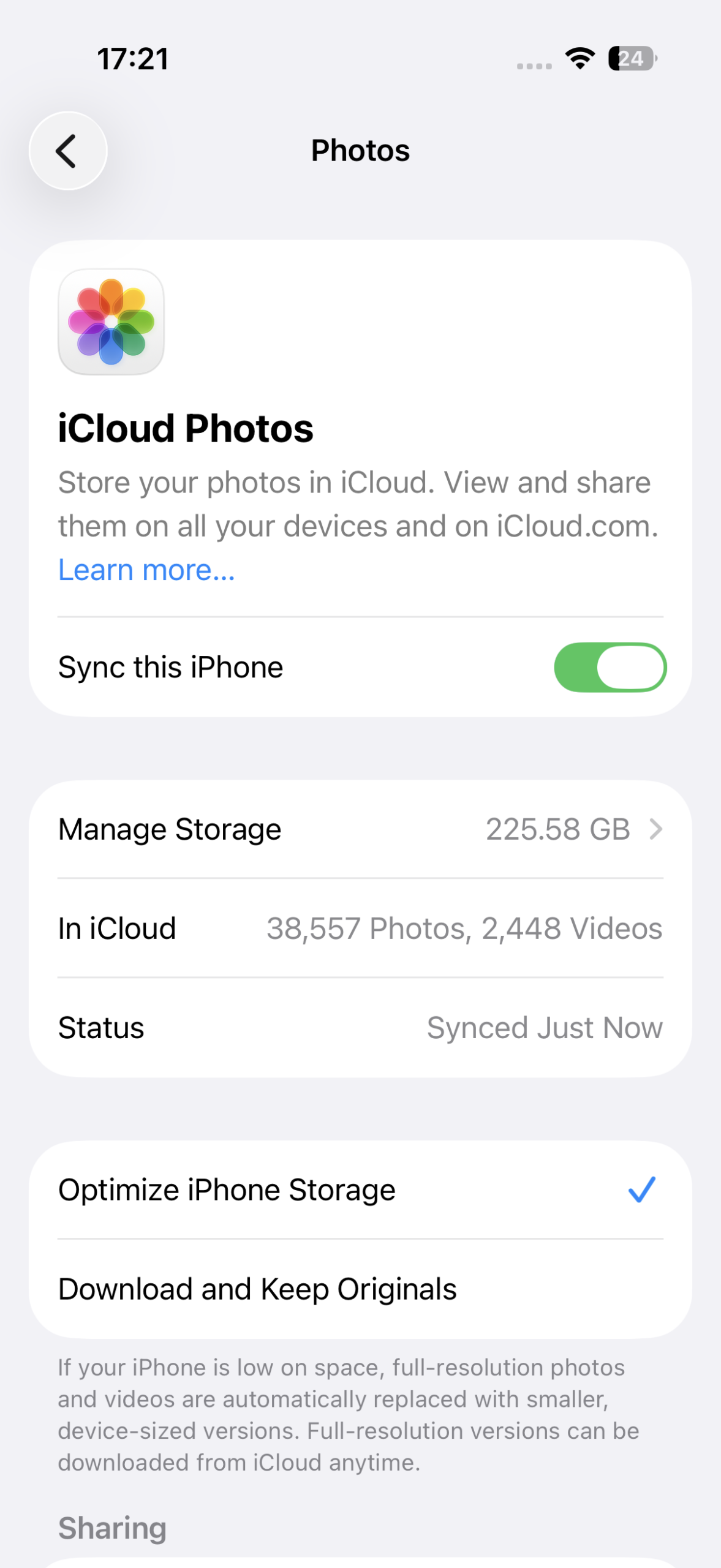
Settings in iCloud Photos.
Using iCloud Photos is a great start, not least in how it offers seamless integration with your iPhone. But it shouldn’t be your only line of defense.
The downsides of iCloud Photos
To be clear, iCloud Photos is generally reliable. But “generally” won’t cut it if disaster strikes. And glitches can occur, which may leave certain images or videos inaccessible. Worse, Apple has been known to abruptly close people’s Apple Accounts. That’s rare, but you won’t feel like you’ve won the lottery if it happens to you, because everything you’ve stored in Apple’s cloud will immediately be unreachable.
There’s also the issue of platform lock-in. If you use multiple platforms – say, an Android phone alongside an iPad, or an iPhone with a Windows PC – iCloud’s Apple-focused nature becomes a hindrance rather than a benefit.
Back up to a Mac or PC
A way to protect yourself from issues with iCloud itself is by making manual backups. On a Mac, download your full library to the Photos app. Go to Photos > Settings > iCloud, and ensure Download Originals to this Mac is on. Then make periodic backups of ~/Pictures/Photos Library to an external drive.
On Windows, install iCloud for Windows, and turn on iCloud Photos. As on Mac, you can opt to store high-resolution images locally, and back up the folder where they’re stored. Apple’s support documents explain how to set up Photos in iCloud for Windows, and how to download and view your library.
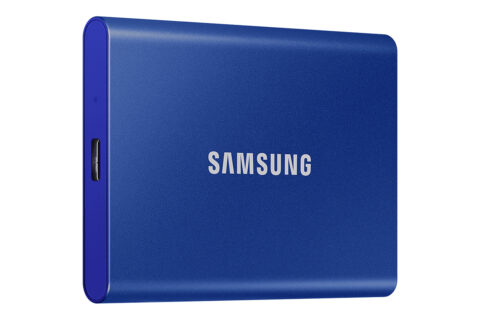
Consider an SSD for manual backups.
If you don’t own a Mac or PC, consider buying a USB-C SSD (such as a Samsung T7) and periodically exporting favorite images to it. Organize them into clearly named folders so you can easily find them later. And with any kind of regular manual backup, set a recurring reminder so you don’t forget.
Alternatives to iCloud Photos
Another option is to use a second cloud service. Many work across multiple platforms, which is useful if you mix Apple gear with Windows and Android. But even if you’re fully committed to Apple hardware, a second service adds valuable redundancy.
If using an alternate service for redundancy, treat it as a view-only backup. Continue organizing your library in Apple’s Photos app, and avoid enabling features that modify your iPhone’s storage. For example, Google Photos has a Free up space setting that deletes photos from your phone after they’ve been uploaded. Turn that on and you could end up with all your photos on Google’s cloud, but gone from Photos and Apple’s cloud, thereby defeating the point of using it as a backup.
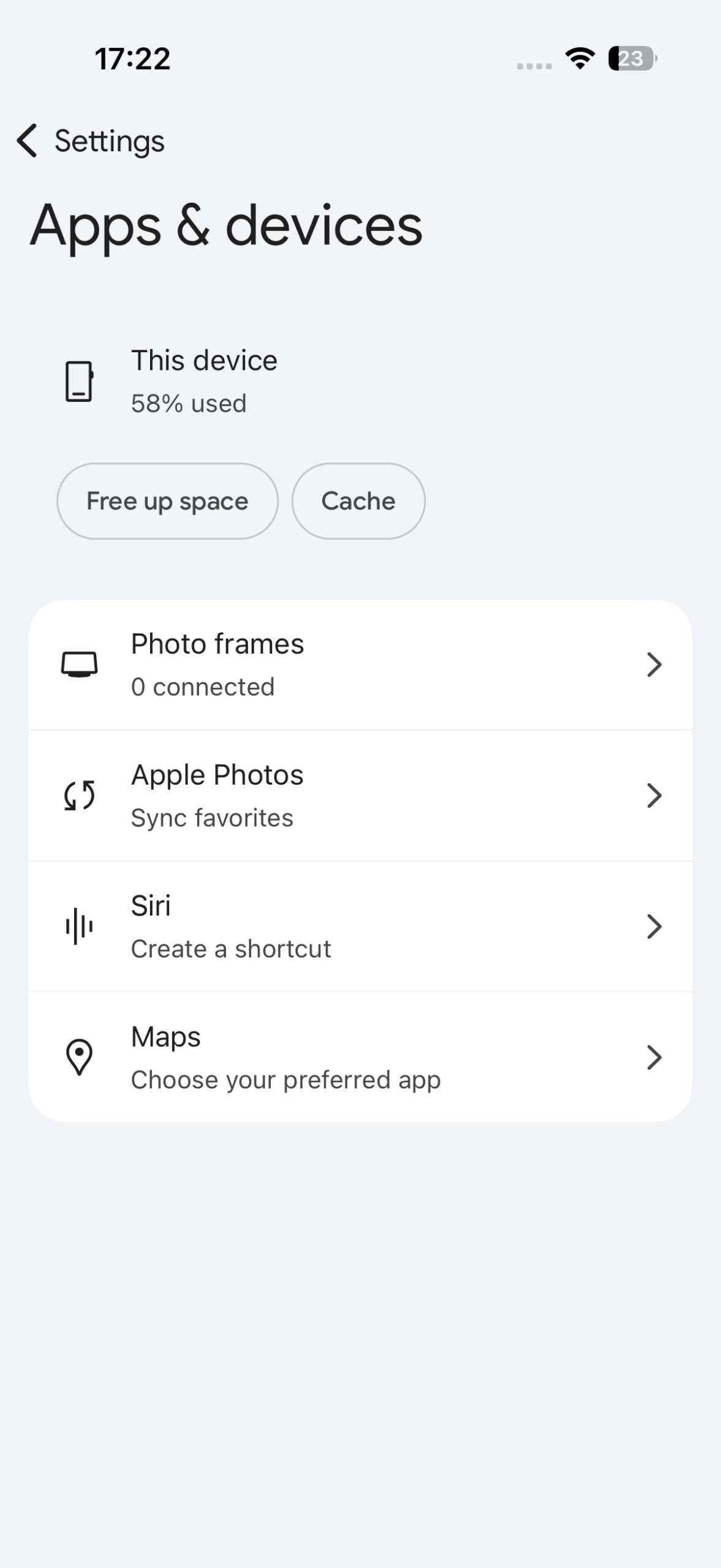
Be wary of potentially destructive settings in alternate apps.
Here are a few services worth trying out.
Google Photos (15GB free; then from $20/£16 per year): This industry giant is packed full of increasingly powerful editing and organization tools. Paid plans range from 100GB to 2TB, although note that storage is shared across all Google services you use.
Ente (10GB free; then from $30/£30 per year): This privacy-focused service lacks ads and tracking, offers end-to-end encryption, performs all AI on device, and takes automatic backups. Import and export is a cinch too – a rarity in this field. Paid plans range from 50GB to 2TB.
Dropbox (2GB free; then from $120/£96 per year): Although primarily a cloud storage service, Dropbox does offer automatic photo uploads. If you already use it for files, it’s a good option for storing your snaps too. Plans range from 2TB to 5TB.
Flickr (50 private photos free; then from $74/£62 per year): For professional and hobbyist photographers alike, Flickr has long been a great place to showcase your work. But it also works as a photo backup platform, and is unusual in the paid plan offering unlimited storage.
iDrive (10GB free; then from $3 per year): This backup service (from $100 per year for 5TB) is capable of working with all your devices. But there’s also iDrive Mini (from just $3 per year) for mobile, which will back up your photos, contacts, and calendar. Per GB, either option is a bargain.