Part of TroubleshootingTip 8 of 11
- Learn the multiple ways to use AirDrop
- Settings to double-check when it doesn’t work
- How to try proximity sharing instead
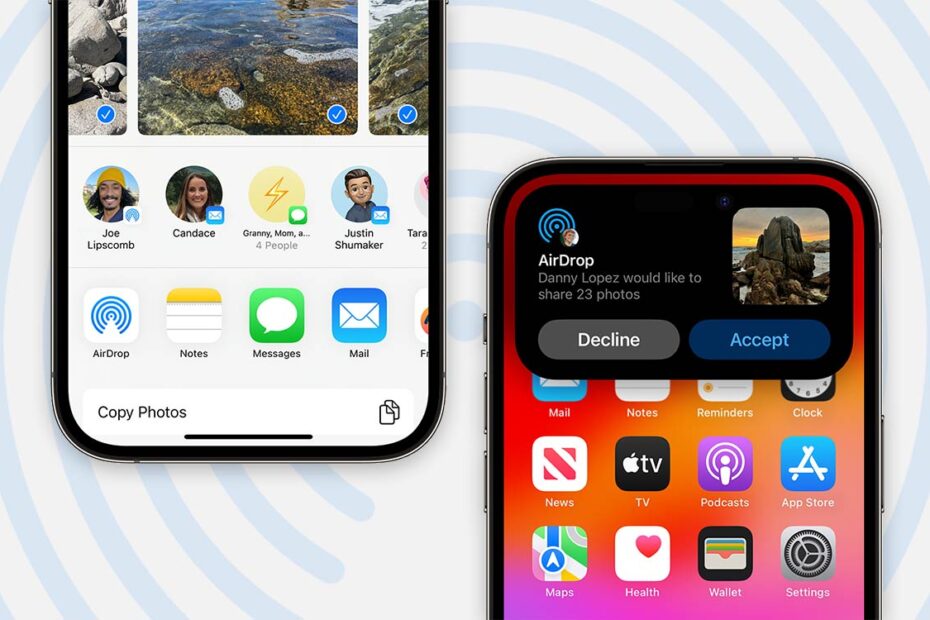
AirDrop is a great feature that allows you to quickly and securely transfer files between two Apple devices. Want to send a video to a nearby friend’s iPad or transfer some documents from your iPad to your Mac in an instant? AirDrop can help, with a single tap from the iPadOS share sheet.
When it works, it’s seamless and represents everything great about Apple’s various devices working in unison. Features like this (and Handover) showcase why Apple’s closed ecosystem can be so powerful.
But as a feature that relies on both Bluetooth and Wi-Fi to work, with various privacy settings that can block devices from being “found,” AirDrop doesn’t always work out as advertised. And when it doesn’t work, the magic falls away fast.
There are several things you can try if AirDrop isn’t working for you.
Check you’re not hidden
Double-check the visibility settings on both the device you’re sending from and the device you’re sending to. Head into the Settings app and tap through to General > AirDrop. Here you can choose who can send things to your device with AirDrop.
We’d recommend keeping it to Contacts Only most of the time, to stop random strangers trying to send you stuff in public areas. But if you’re trying to send something and it’s not working, there’s no harm in temporarily switching to Everyone to ensure the device can be found.
Reset your connections
It can help to reset your Bluetooth and Wi-Fi connections on both devices. Sometimes the “Airplane Mode shuffle” in Control Center will do the trick, but to fully reset the connections you’ll need to delve back into Settings. Simply head to the Bluetooth and/or Wi-Fi section and toggle the main switch on and then off again.
Reboot the device
If you’re still having trouble after all that, the next thing to try is a tech troubleshooting classic: have you tried turning it off and on again? Hold the Volume Up and Power buttons for a few seconds, and then run your finger across slide to power off to perform a full shutdown. Wait a moment, press the Power button again and pray AirDrop starts working again.
For the vast majority of cases, one of the above techniques should do the trick. But if you’re really stuck, the best solution is to speak to Apple’s official support team.