In this series, we dig into an app we think you should be using, and explain what it is, why it’s great, and how to get started. This time, we’re covering Portal.

What is Portal?
Essentially, a background audio white-noise machine to help you focus, relax, meditate, and sleep. But unlike other apps in this space, Portal pairs its audio with gorgeous videos from around the world.
What makes Portal great?
Aside from the video – which gives your eyes something to do as well as your ears – the app is easy to use while offering plenty of options to fine-tune your experience. The built-in timers and breathing aids are great too.
How can I get started with Portal?
Portal has a no-strings-attached 7-day free trial. If you don’t subscribe, you’ll have access to fewer portals and some features will be restricted. Subscriptions cost $3/£2 per month or $30/£20 per year, and a one-off $100/£60 lifetime purchase is also available. The tips below assume you’ve installed the app and started the trial.
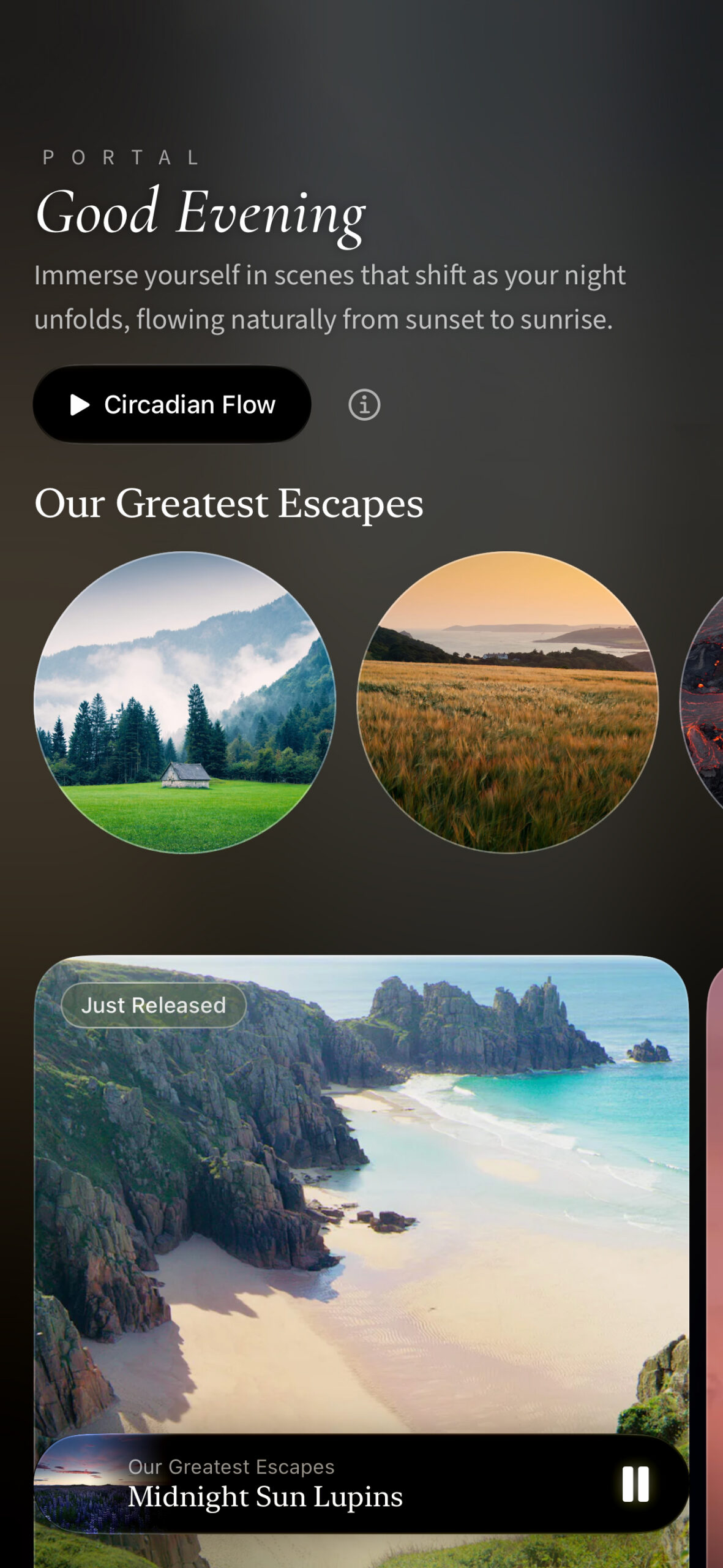
Pick a portal: Scroll the main screen to see what’s available. You’ll find new portals, recommendations for focus, creativity and escape, portals for different times of day, and collections grouped by destination or intended effect. To see everything, scroll right to the bottom and select All Portals.
Immerse yourself: Tap any portal to view its details, including information about video and audio quality, what you’ll see and hear, and a brief description. Tap the heart to favorite the portal, or go to … > Download to save it for offline playback. Otherwise, tap Play to enter the portal.
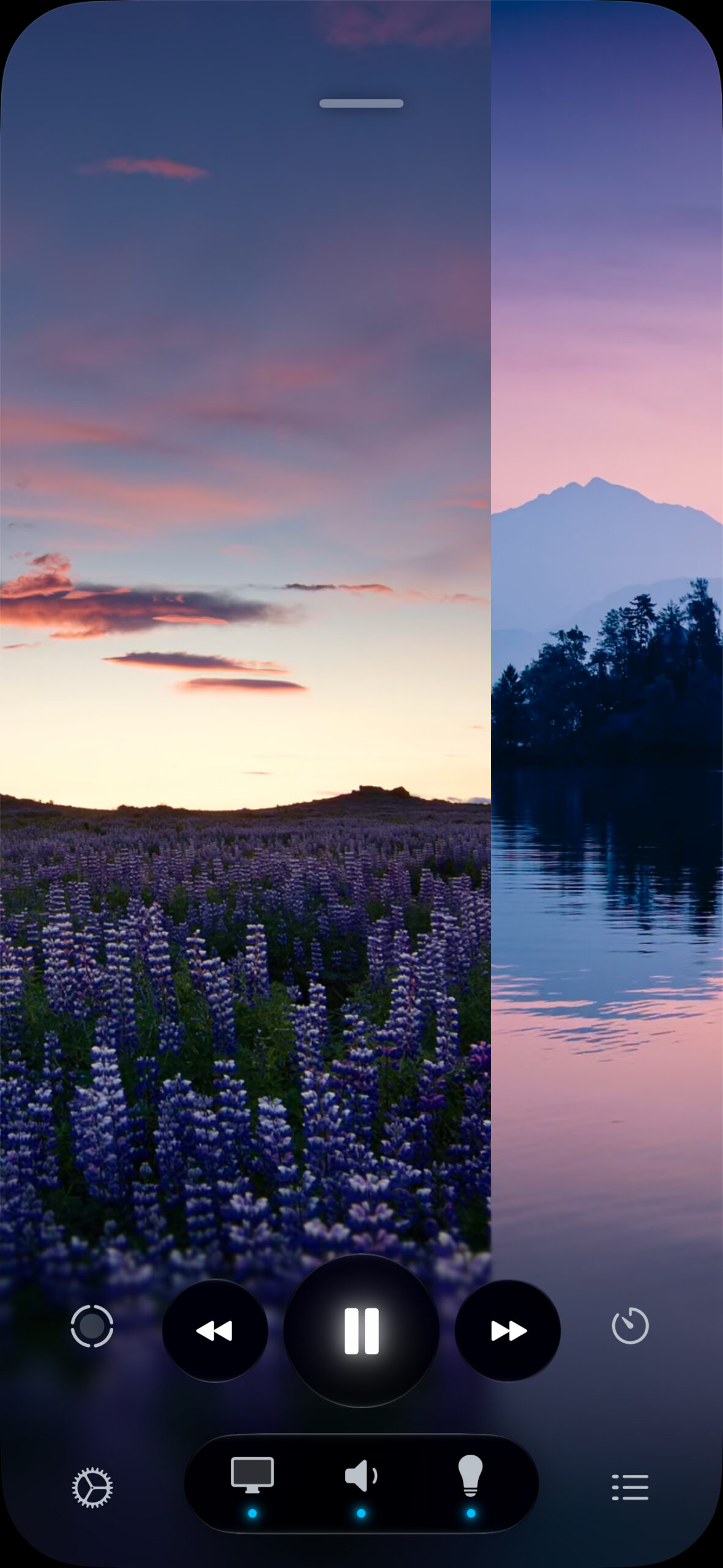
Switch scenes: Tap the screen to access playback controls. Use the play/pause button to suspend or resume playback. Use the back/forward controls – or left/right swipes – to move through scenes in the current collection or playlist. Tap the list button at the bottom right to see what’s available. Tap this panel’s Off button to access settings to cycle scenes after a set duration.
Control visuals: Bring up the controls and tap Visuals (the screen icon). Drag the panel up to see all the options. Use Motion visuals to turn the video into a still image, and Prevent display sleep to keep your display on while Portal is active. Use the Clock options to overlay a Liquid Glass clock on the scene.
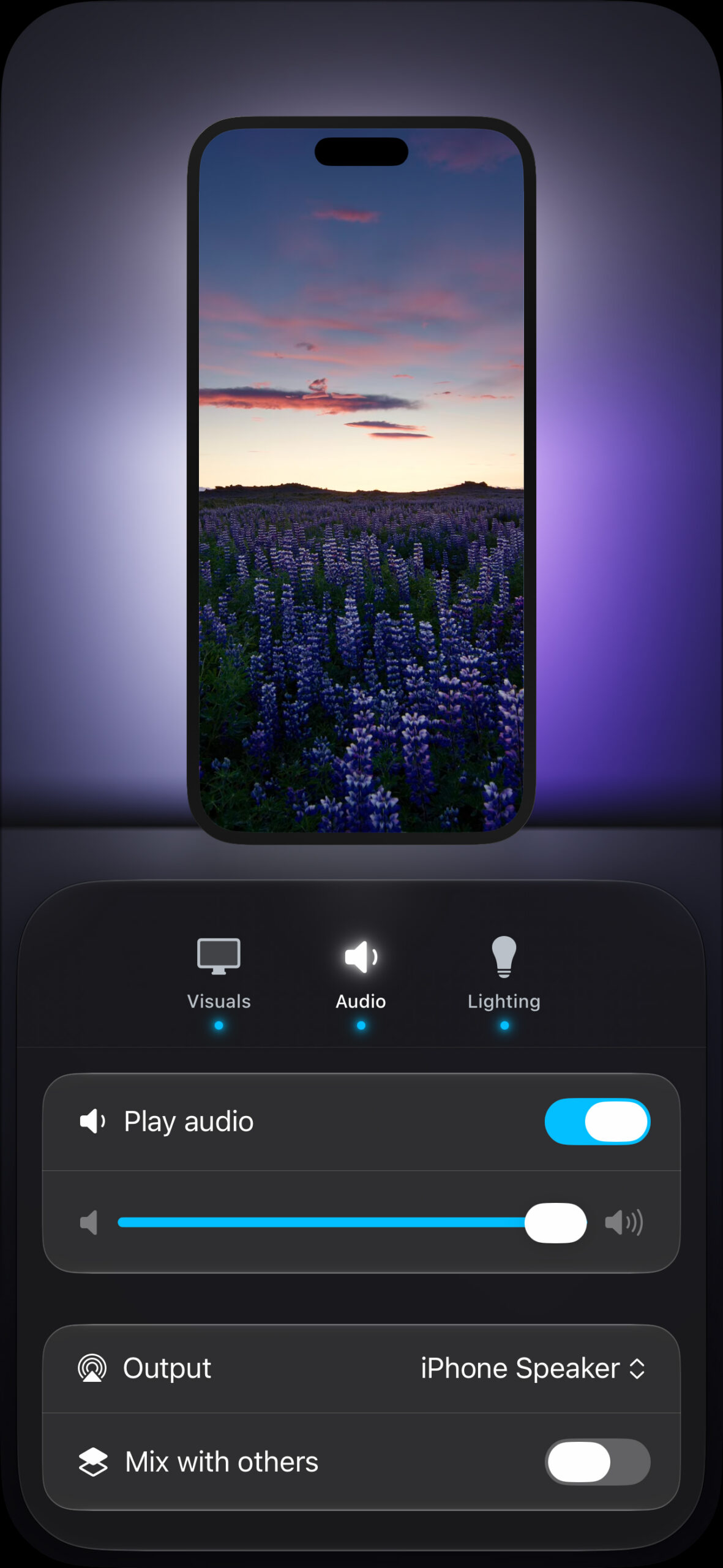
Adjust audio: Select the audio (speaker) option to choose where audio plays and how it sounds. You can mix Portal audio with other apps, adjust its balance, and change the format. The format defaults to Spatial Audio, but you can instead choose standard stereo – or even mono when using a single earbud.
Play in the background: Swipe down while in a portal to minimize it to a playback bar, which you can tap to return to the scene. Exit the Portal app entirely and its audio will continue to play. If your device has a Dynamic Island, you can tap it to return to the app. Portal also has a Now Playing widget you can add to a Home Screen.
Start Circadian Flow: Return to the top of the main screen and tap Circadian Flow. This starts a playlist designed for the current time of day, aligning with your body’s natural rhythm. The controls work in the same way as already discussed, and the app automatically switches scenes at the appropriate time.
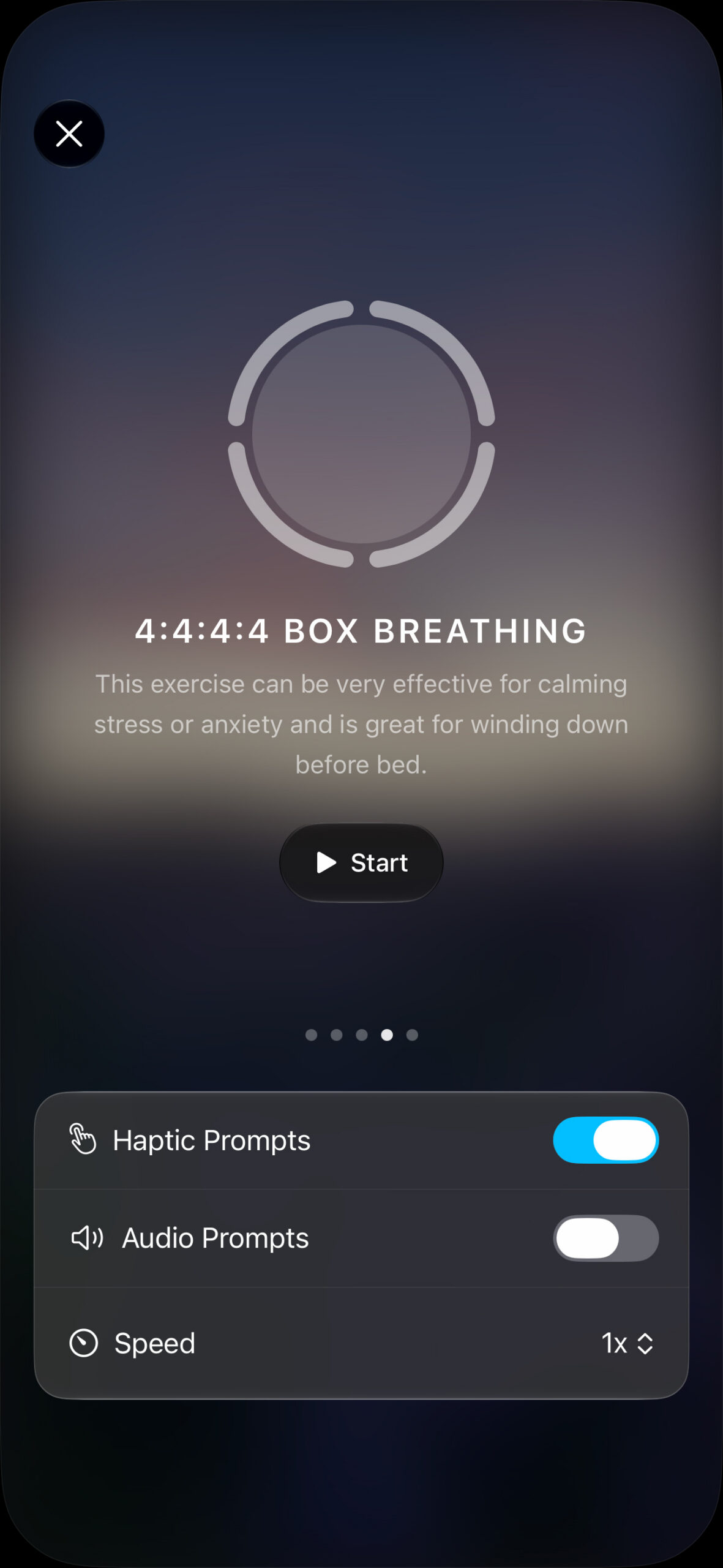
Take a breath: Bring up the controls and tap the button on the left to access breathing exercises. Swipe between the options, noting the response each one is designed to produce. Use settings to choose whether Portal gives you haptic and/or audio prompts, and to adjust the exercise speed. The last of those is useful if, for example, you struggle to hold your breath during box breathing, or want to lengthen breathing exercise intervals.
Set timers: Tap the timer button in the controls to access options for Focus, Sleep, and Pomodoro. Tap Customize to adjust durations, alarms, and configuration settings. With Pomodoro, for example, you can define work and rest durations, along with cycle counts, but also which audio and playlist is used during each period.
Manage data: Tap the settings button (cog) to access Portal’s settings. Most mirror the options covered already, but General is worth exploring. Here, you can control how Portal uses data, such as disabling autoplay on launch or restricting streaming to Wi-Fi connections. Use the Storage section to view how much content is cached locally, and use Clear Media Cache to clear it if you’re running low on iPhone storage.
Visit the Portal website or get Portal (free + IAP) from the App Store. Learn more on the app’s FAQ page