In this series, we dig into an app we think you should be using, and explain what it is, why it’s great, and how to get started. This time, we’re looking at Quiche Browser.
What is Quiche Browser?
A private, transparent web browser for iPhone, built by an independent developer. You can use it in place of – or alongside – Safari. It’s completely free, with an optional Quiche Plus subscription that supports the developer and unlocks extra features.
What makes Quiche Browser great?
It’s opinionated in all the right ways, stripping out web annoyances and AI-generated search engine results by default. Best of all, you can customize almost every aspect of the browsing experience and put the controls you most often use within easy reach.
How can I get started with Quiche Browser?

Start customizing: The first time you launch Quiche Browser, tap Start Customizing. Missed it? Head to “…” > [cog icon] > Tabs instead. Choose between the floating Liquid Glass toolbar or old-school Classic layout.
Pick your buttons: Open Toolbar Gallery, choose a layout, and tap Use this Toolbar to replace your existing setup. Then head into Buttons to add or remove individual controls. Use the drag handles to reorder them.

Adjust the address bar: Tap < then Address Bar. Use Contents to choose what appears in the address bar: the domain, the page title, or a mix. Use the two switches to toggle the website icon and a very handy “read time” indicator.
Alter address bar behavior: Under Gestures, you can define what happens when you tap or long-press the address bar. The latter usually opens Quiche’s menu – which I’d recommend you stick with – but there are alternatives. Back out and use Scroll Behavior to decide how the toolbar behaves when you scroll: nothing, Safari-style shrinking, or fully hiding.

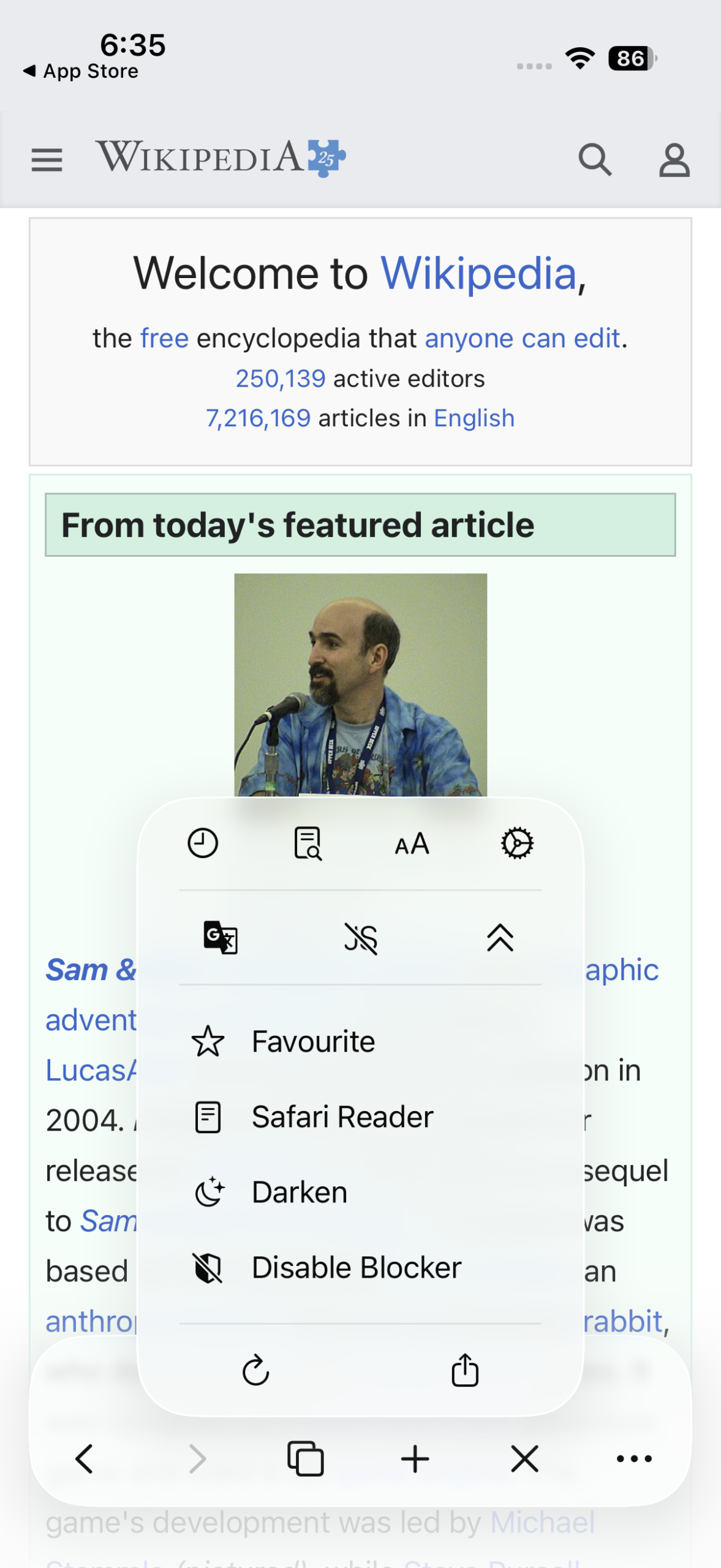
Pick menu items: Tap Menu to update the menu shown when you long-press the address bar or tap the “…” toolbar button. Add, remove and reorder actions, using Separator items to group them. Tap an action’s size indicator to choose whether it appears as a small icon, medium icon and label, or full-width button. Use Tap to Preview Menu at any time to see how your setup looks.
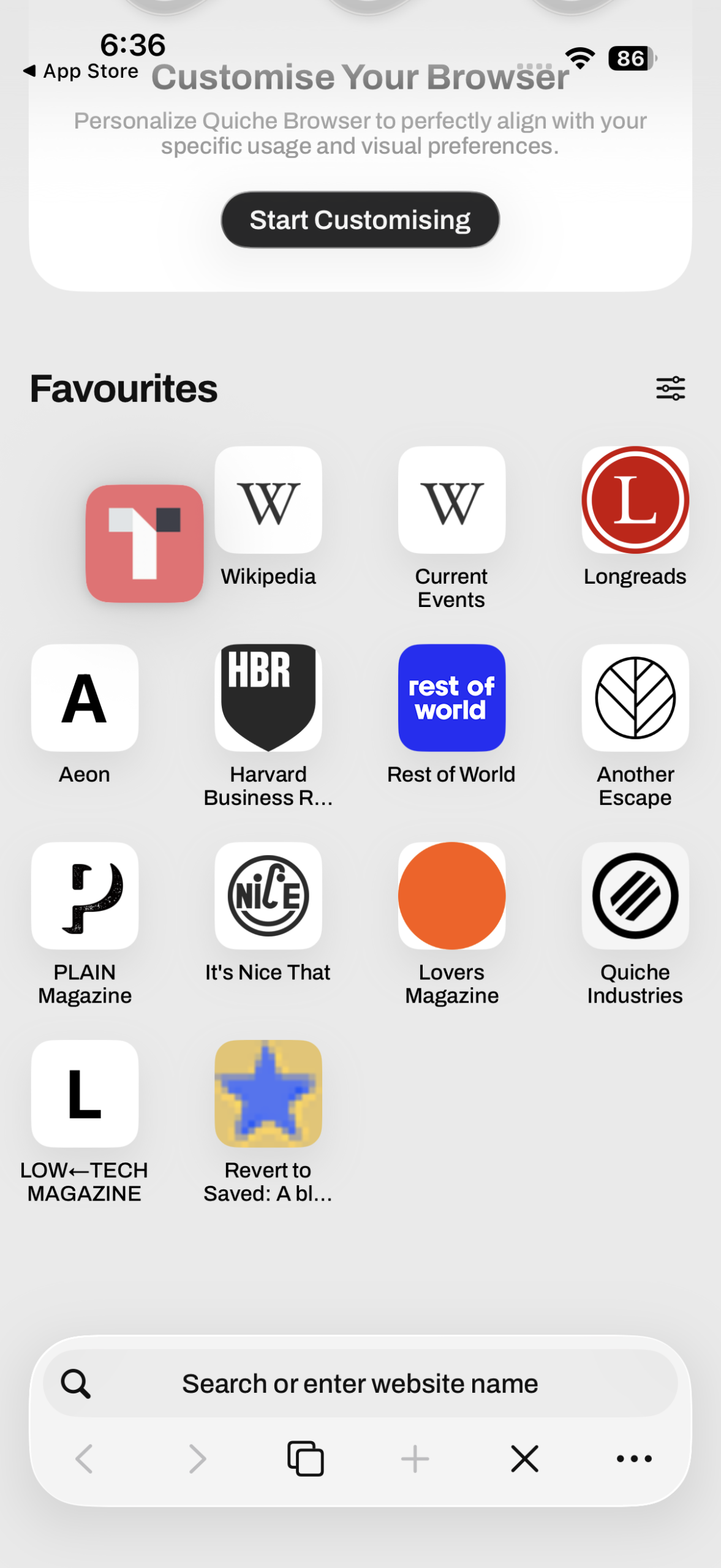
Start browsing: Exit settings and open a new tab. Preinstalled favorites appear. Tap one to load it. Long-press the address bar to reveal your custom menu. Try long-pressing toolbar buttons as well for quick actions, like the tab button’s New Tab and Close This Tab.
Manage tabs: Tap the tabs button for the Tab Overview. Long-press a tab to copy, share, duplicate, select or close it. Tap “…” and you can adjust how tabs appear – from text-based lozenges to large cards – sort them by age or reading time, or group them by website.
Save favorites: When viewing a site, long-press the address bar or “…” and select Favorite to save the site to the start page. Open a new tab and tap the settings button next to Favorites and you can switch between icon or list views. Tab-hold and then drag a favorite to move it. Note that matching favorites appear when searching, as do open tabs.
Fine-tune search: Speaking of search, head back to settings and tap Search. DuckDuckGo is the default but you can switch or choose Custom to use almost any search engine. Note the Disable AI Features switch. When this is on, you’ll get search results that aren’t infested with AI slop.
Go out with a bang: Quiche Browser does not support extensions like xSearch but you can approximate how that one sends searches directly to websites by using DuckDuckGo bangs. For example, ‘!w iPhone’ would directly search Wikipedia for ‘iPhone’. Some other search engines, including Kagi, offer a similar feature.

Increase your comfort: In the settings area beginning with Blocker, leave that option alone unless you want web nuisances back. Instead, open Link Menu to customize the menu that appears when you long-press a link. The other two items are for Quiche Plus users: use Darkening to force dark mode on specific sites, and use Comfort Mode to move favorites lower down the screen for easy reach.
Toggle JavaScript: JavaScript powers much of the modern web – and slows it down. You can disable it entirely in Advanced. A better bet is to add the Disable JavaScript button to your toolbar or menu, letting you turn it off only when needed.
Visit the Quiche Browser website or get Quiche Browser (free) from the App Store.