

In this series, we dig into an app we think you should be using, and explain what it is, why it’s great, and how to get started. This time, we’re covering Moodistory.
What is Moodistory?
A tracker designed to help you log your moods and emotions over time, alongside events and categories, thereby giving you useful context around how you feel.
What makes Moodistory great?
At its core, it’s extremely low-effort. You can get real value from simply logging how you feel each day. But when you want to go deeper, there’s plenty of extra detail and analysis waiting for you.
How can I get started with Moodistory?
Install the app and start the free trial. You’ll have seven days to explore all the features, after which you can choose to pay $7/£7 per month, $20/£20 per year, or $40/£40 for lifetime access. Alternatively, you can use the more limited (but still useful) free version.
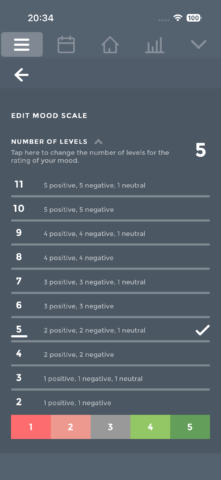
Define a mood scale: Tap the settings button (the one with three lines) and then Edit mood scale. Choose how many mood levels you’d like. Six is the default, but five often works better, since the middle option can act as a true neutral. You can also adjust Rating colors to suit your preferences, but remember to keep things intuitive. (Paid users can create fully custom themes.)
Set reminders: Go to Reminders and tap Add new reminder. Pick a time when you’d like a daily nudge to log your mood. The free version allows a single daily reminder, which is enough for most people. But if you’d like multiple, random, or smart reminders, you’ll need the paid tier.
Add an entry: Tap + and choose when you want to log your entry. You can backdate entries if needed. But for this first entry, tap Now, and then tap a dash or swipe left/right until the mood that best fits is displayed.

Add details: You can stop there, but adding context may make entries more useful. On the next two screens, you can log activities tied to your mood, and optionally add a location, a photo, and notes. Keep words simple and consistent – for example, if tracking triggers like specific foods or events – because that will pay off later.
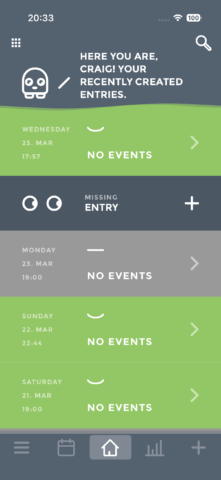
View your timeline: Tap the home button to view your timeline and scroll through recent days. Icons and color-coded backgrounds provide an at-a-glance view of each day’s average mood, while notes are displayed inline. Tap any event to open its details, or tap-hold to bring up a delete option.
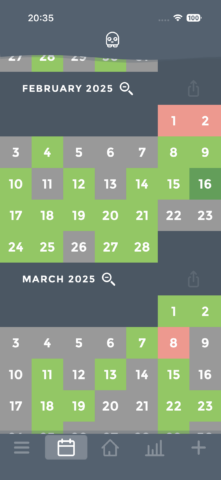
Explore the calendar: One of Moodistory’s standout features is its calendar view, which gives you a broader perspective on how you’ve been feeling over time. Use it to spot weekly, monthly, and seasonal patterns and trends. Tap the zoom control to pull back further and view an entire year on screen.
Search your history: This feature requires the paid tier. Tap the search button, select a time range, and filter by mood. You can also search for specific text or events. If you’ve been consistent with notes, this view can be a useful way to browse through a list of when specific triggers occurred.

Analyze your data: Tap the bar chart button to access the analytics view. For free, you can explore the past week or 30 days, how your mood changed over time, and your mood distribution. The paid tier unlocks more flexible date ranges, along with allowing you to look into which days you tend to feel at your best, and which activities correlate with positive and negative moods.
Back up your data: Create a recurring task in Apple’s Reminders app so you won’t forget to back up your data on a regular basis. To do the actual backup, open Moodistory’s settings, go to Backups & data and use Manual backup to save a copy of your data. Premium users can back up to (and restore from) iCloud as well, export data to CSV, and even create a PDF based on a range of entries.
Visit the Moodistory website or get Moodistory (free + IAP) from the App Store. Learn more at the Moodistory FAQ.