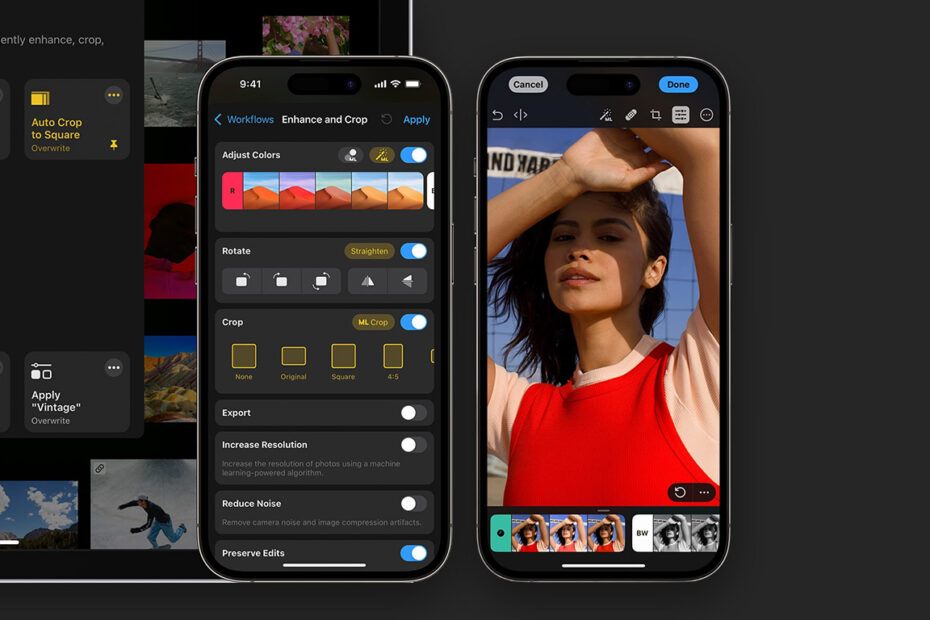

In this series, we highlight apps that deserve a spot on your iPhone, explaining what they are, why they matter, and how to get started with them. This time, we’re checking out Photomator, a sleek yet powerful photo editor that can make your shots look their absolute best.

What is Photomator?
A powerful photo editor that’s also really easy to use. It lets you quickly browse your entire photo library and apply nondestructive edits to single images or whole batches of snaps. Although suitable for lightning-quick fixes, it also has plenty of depth for those who want control.
What makes Photomator great?
In a hurry? You can use the one-tap Auto Enhance button and almost any photo will instantly look better. But open up the Color Adjustments pane and you can fine-tune every slider with the utmost precision. This mix of quick results and detailed editing makes Photomator ideal for beginners, keen amateurs, and pros alike.
How can I get started with Photomator?
Photomator is a paid app, but you can explore the entire feature set for free and save up to three edited photos. (You can use Cancel > Discard Changes to ditch any work-in-progress edit and not ‘lose’ a free edit.) Unlock unlimited editing across iPhone, iPad, and Mac for $8/£8 per month, $30/£30 per year, or $120/£120 for lifetime access. There’s a 7-day free trial. Also be mindful Apple bought Photomator’s creators in November 2024, which raises questions over the lifetime license. But there’s not yet been any indication Apple plans to shutter the app.

Navigate your photos. The ‘All Photos’ tab gets you to a grid of images, like in Apple Photos. Tap the top of the screen to snap to your oldest pics and the ‘All Photos’ tab to head to the latest. Adjust how the grid looks with zoom controls from the ‘…’ menu and tap ‘Aspect’ to toggle between square-cropped and rectangular thumbnails. Other tabs let you navigate by albums, favorites, or edited images – the last being Photomator edits only.
Perform a quick fix. Open an image, tap the Auto Enhance (‘ML’) button, and within a second or two your photo will be transformed. Adjustments are based on the app having been trained on thousands of professionally shot images. Alternatively – or additionally – tap the Color Adjustments (three sliders) button. If you don’t see any presets, pull the drag handle downwards, or tap ‘…’ at the top of the pane and then ‘Show Presets.’ Select any preset to apply it to your photo.
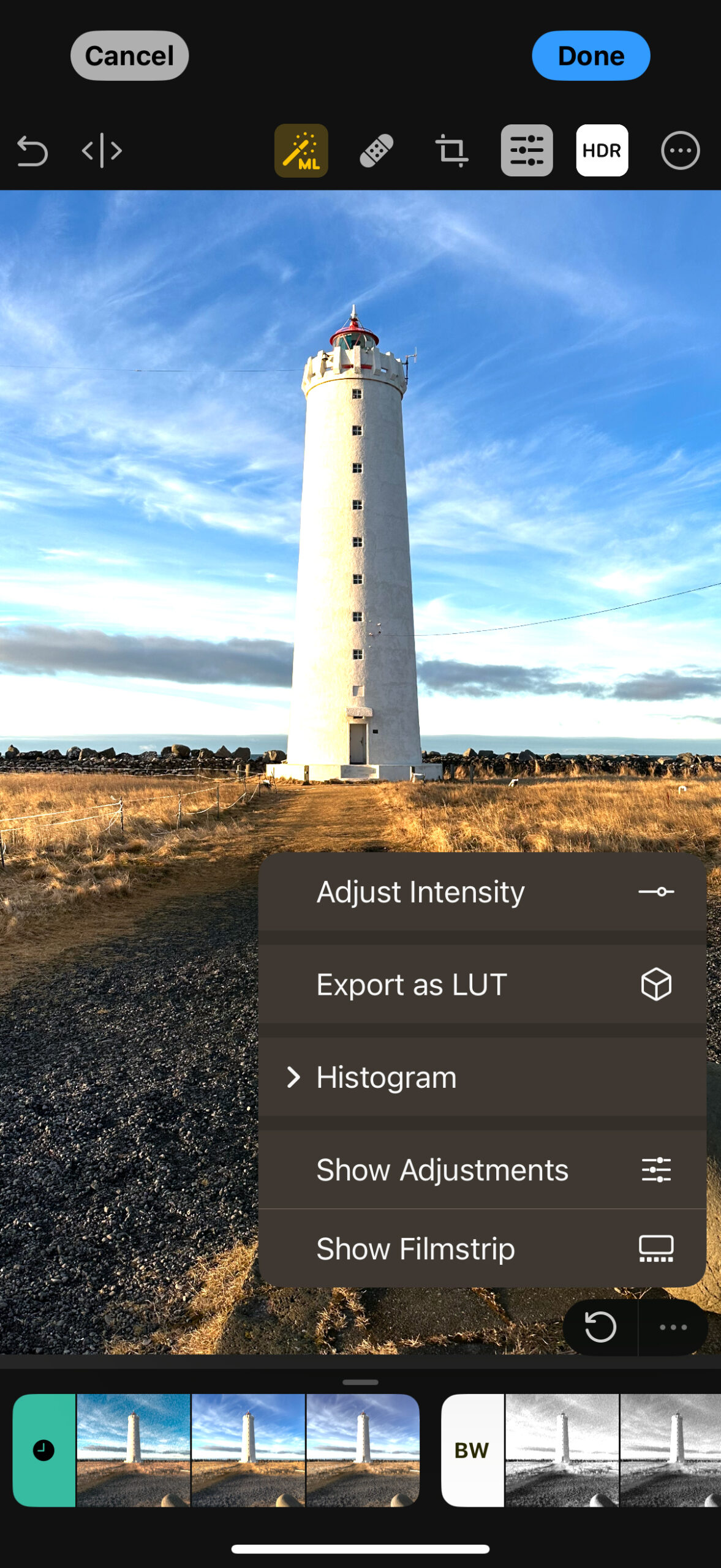
Revert an edit. Changed your mind? In any tab (such as ‘All Photos’), tap-hold a photo and select ‘Revert to Original.’ If you’d like to keep originals before experimenting, tap-hold a photo and choose ‘Duplicate,’ and then edit the copy. Remember that you’ll find all your edited snaps in the ‘Edited’ tab for easy access.
Dig deeper. When you like parts of an adjustment but not the whole thing, Photomator has you covered. Apply a preset or Auto Enhance to an image and tap the Color Adjustments button. If the presets row is showing, pull the drag handle upwards or select ‘Show Adjustments’ from the pane’s ‘…’ menu. You can then fine-tune individual sliders and toggle buttons, including Auto Enhance settings, which are denoted by ‘ML’ buttons.
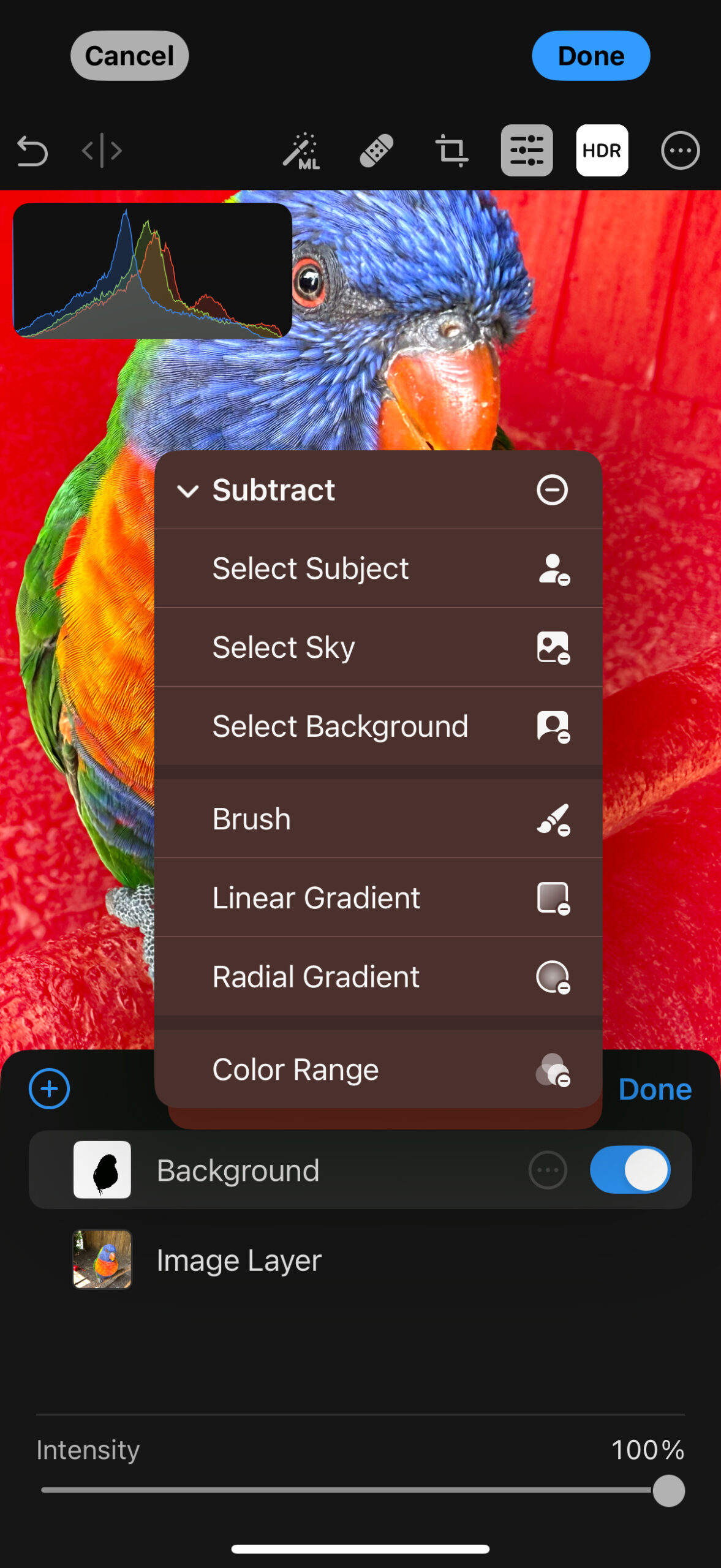
Use masks. When you want edits to affect only part of an image, Photomator lets you work with masks. Open an image with an obvious subject, and tap ‘Image Layer’ at the top of the Color Adjustments pane. Tap ‘+’ and then ‘Select Background.’ If the mask isn’t quite perfect, tap ‘…’ next to ‘Background.’ Refine it with ‘Add’ or ‘Subtract’ and ‘Brush.’ When done, tap on the Layers pane’s title again and then ‘Background’ so the entire background is selected. Tap ‘Done’ in the ‘Layers’ pane and make your adjustments, which will be applied only to the background. For example, lower ‘Hue & Saturation’ to make the subject pop.
Batch edit. To clone adjustments between images, you can long-tap a photo in ‘All Photos,’ select ‘Copy Adjustments,’ long-tap a second photo, and then choose ‘Paste Adjustments’ to apply your edits. With a lot of photos, batch editing is much faster. In any tab, choose ‘Select’ and tap several images, then ‘Edit [n] Images,’ and finally the Photomator workflow you’d like to apply to them all.
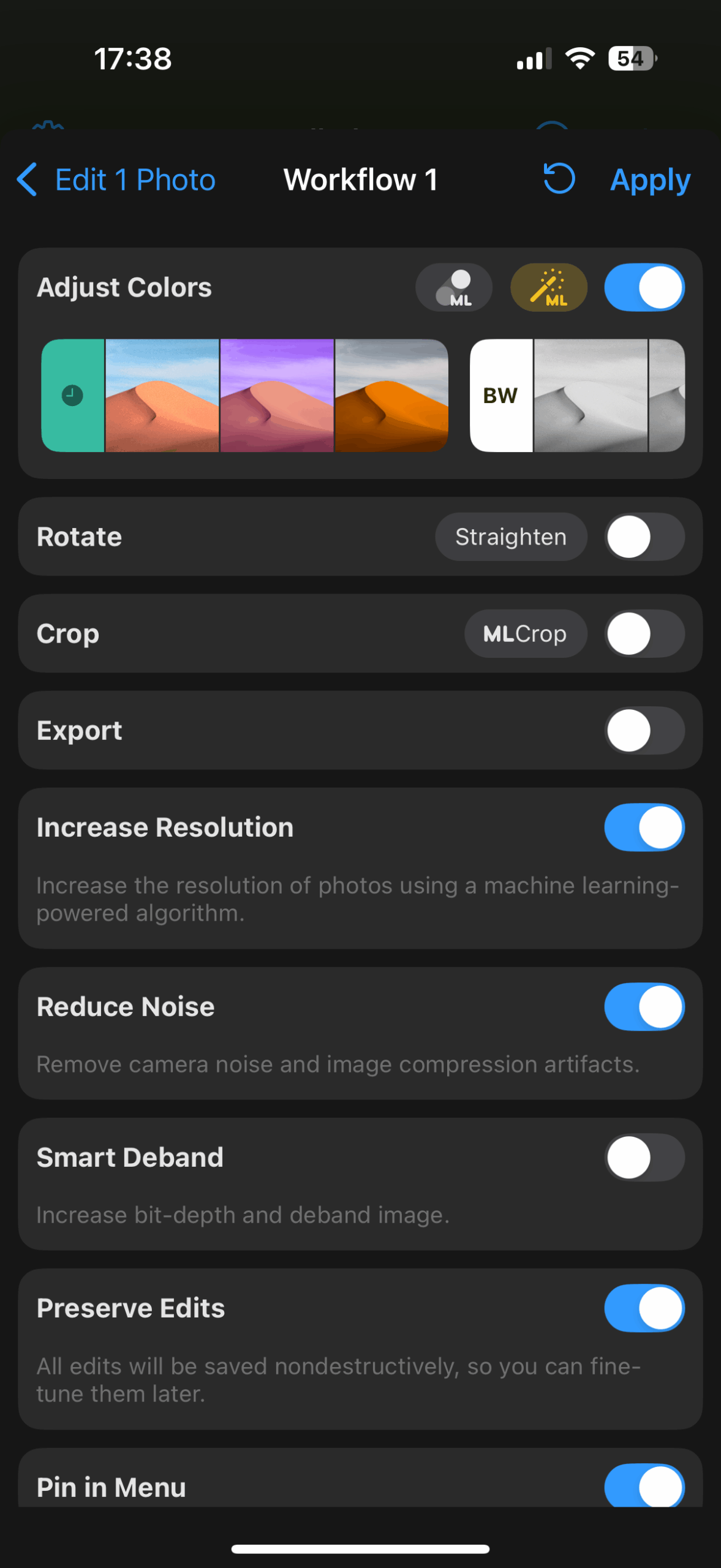
Create custom automations. If you create a set of adjustments you love, turn them into a preset. Collapse the Color Adjustments pane and tap ‘+’ or use ‘…’ at the top of the Color Adjustments pane and choose ‘Save as Preset.’ You can also define your own workflows. Tap-hold an image in ‘All Photos.’ In the contextual menu, go to Workflows > More Workflows. In the subsequent pane, tap ‘Create Workflow’ and choose adjustments to include. Presets can be assigned under ‘Adjust Colors.’ Tap-hold any preset in the overview to pin it to the contextual menu or rename it.
Rescue old snaps. You can breathe new life into images shot on old digital cameras by using the ‘Increase Resolution’ (for a larger image) and ‘Denoise’ (to reduce grain and compression artifacts) workflows. These can also be applied manually while editing: tap the ‘…’ menu at the top-right, and choose ‘Super Resolution’ or ‘Denoise.’ With the latter, cranking up the intensity will smooth things out but at the cost of some detail, so find the balance that best works for your photo.
Visit the Photomator website or get Photomator (free + IAP) from the App Store. Learn more from the full user guide.