


In this series, we dig into an app we think you should be using, and explain what it is, why it’s great, and how to get started. This time, we’re covering Apple’s Reminders.
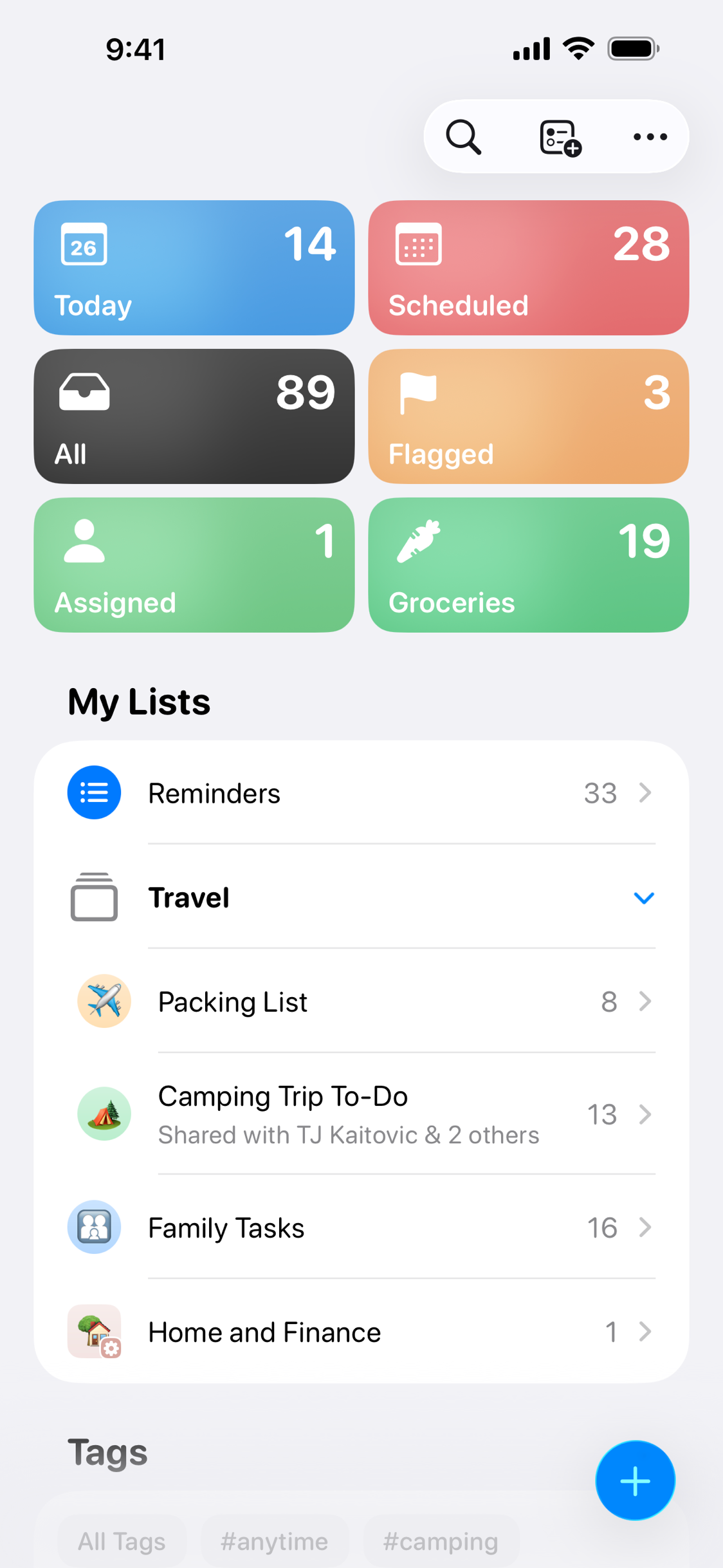
What is Reminders?
A task manager that lets you quickly jot down things you need to do and assign deadlines to them.
What makes Reminders great?
It’s preloaded on every Apple device and syncs using iCloud. Also, it’s simple to pick up yet packed with powerful features.
How can I get started with Reminders?
Note: this tutorial assumes you’re running iOS 26. Some interface elements may differ on earlier versions.
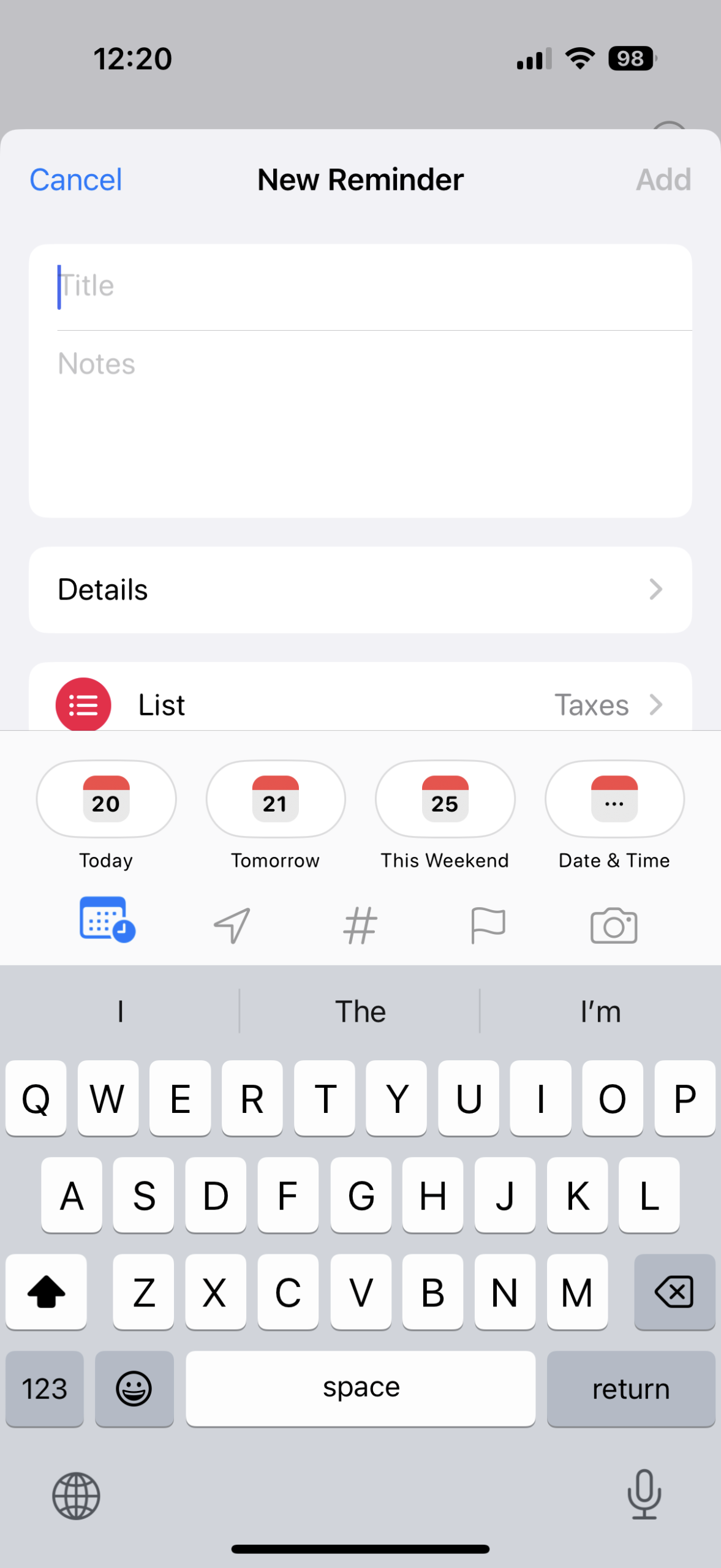
Add a reminder: Tap + and give your reminder a title. Under Date & Time, add a deadline. Omit a time to create an all-day event or “anytime” task, or set a time for a task that’s due at a specific moment. Tap Urgent if you’d like an alarm when the task is due.
A toolbar appears when you create a task in Reminders. It’s also displayed when you select a task. This provides fast access to dates, locations, tags, flags, and attachments.
Have tasks repeat: Once you’ve assigned a date, use Repeat to make a task recur. Use Custom for relative dates – for example, a Monthly task that repeats on the last weekday. Optionally, define when repeats should end, and if you’d like “early reminders” when the next upcoming date is looming.
Update deadlines: To change a single deadline, select a reminder, tap the toolbar’s date button, and choose a new date. To set multiple tasks to have an identical new date, head into a list, go to … > Select Reminders, pick your reminders, and use the date button.
Integrate Calendar: To quickly update multiple deadlines to a range of different days, open Calendar and turn on Scheduled Reminders to make reminders appear in the app. Turn your iPhone to landscape and drag and drop tasks to new dates.
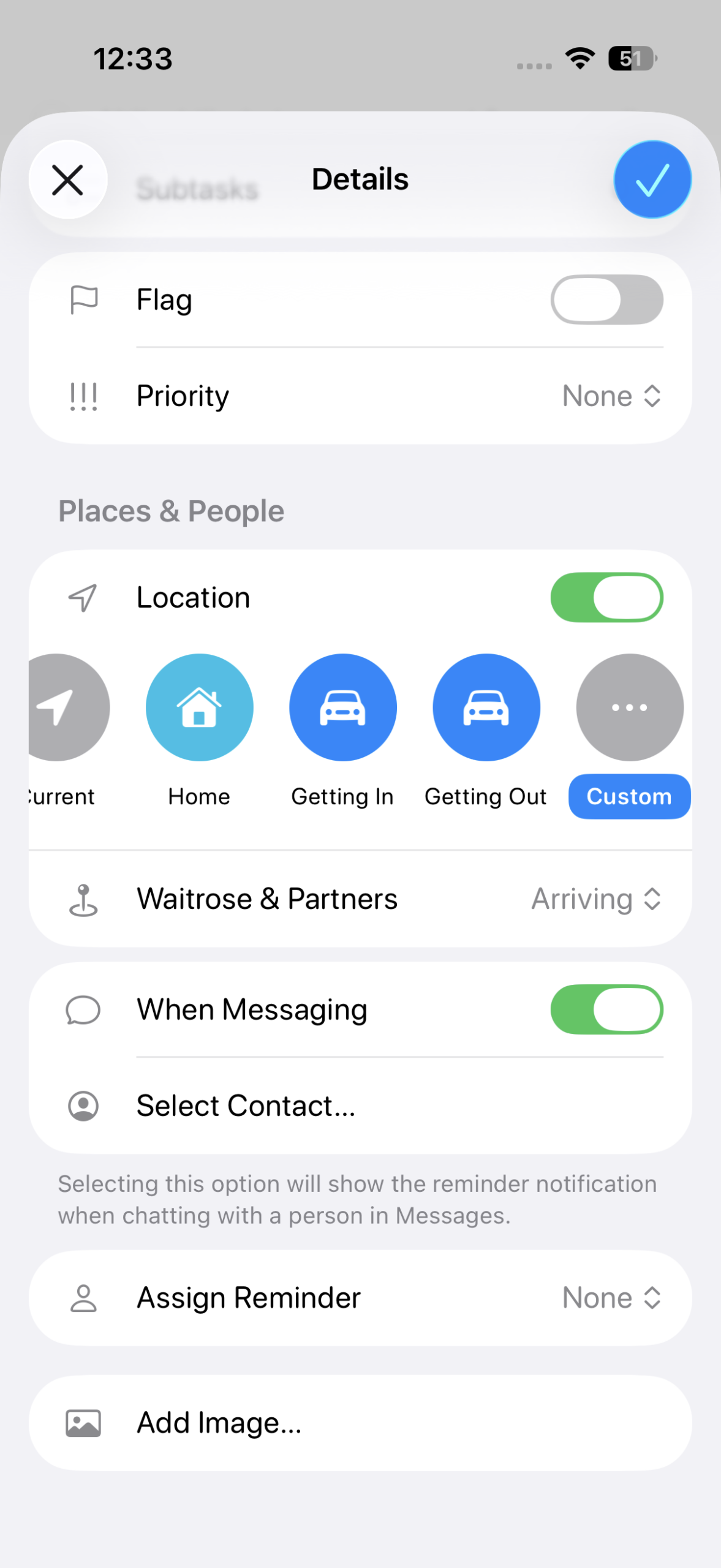
Add contextual details: Back in Reminders, open a task. Under Places & People, use Location or When Messaging to trigger notifications based on where you are or who you’re chatting with.
Integrate tags: Add tags like #work or #school in reminder titles or notes to “link” related tasks. Be consistent and don’t use too many. Back in the main lists view, scroll down and tap a tag to view all associated reminders.
Organize tasks in lists: Keep tasks manageable by placing them in lists. Tap the New List button (at the top, next to search). Name your list and set it to Standard. Select a color and icon. You can then assign tasks to lists via the List option in the Details view or by using the List button (second one in, bottom toolbar) after selecting multiple reminders.
Move reminders: In any list, tap … > Select Reminders, pick multiple reminders, and tap the Lists icon to move your chosen reminders to that list. You can also create groups of lists via … > Edit Lists and then Add Group, but try not to overcomplicate things.
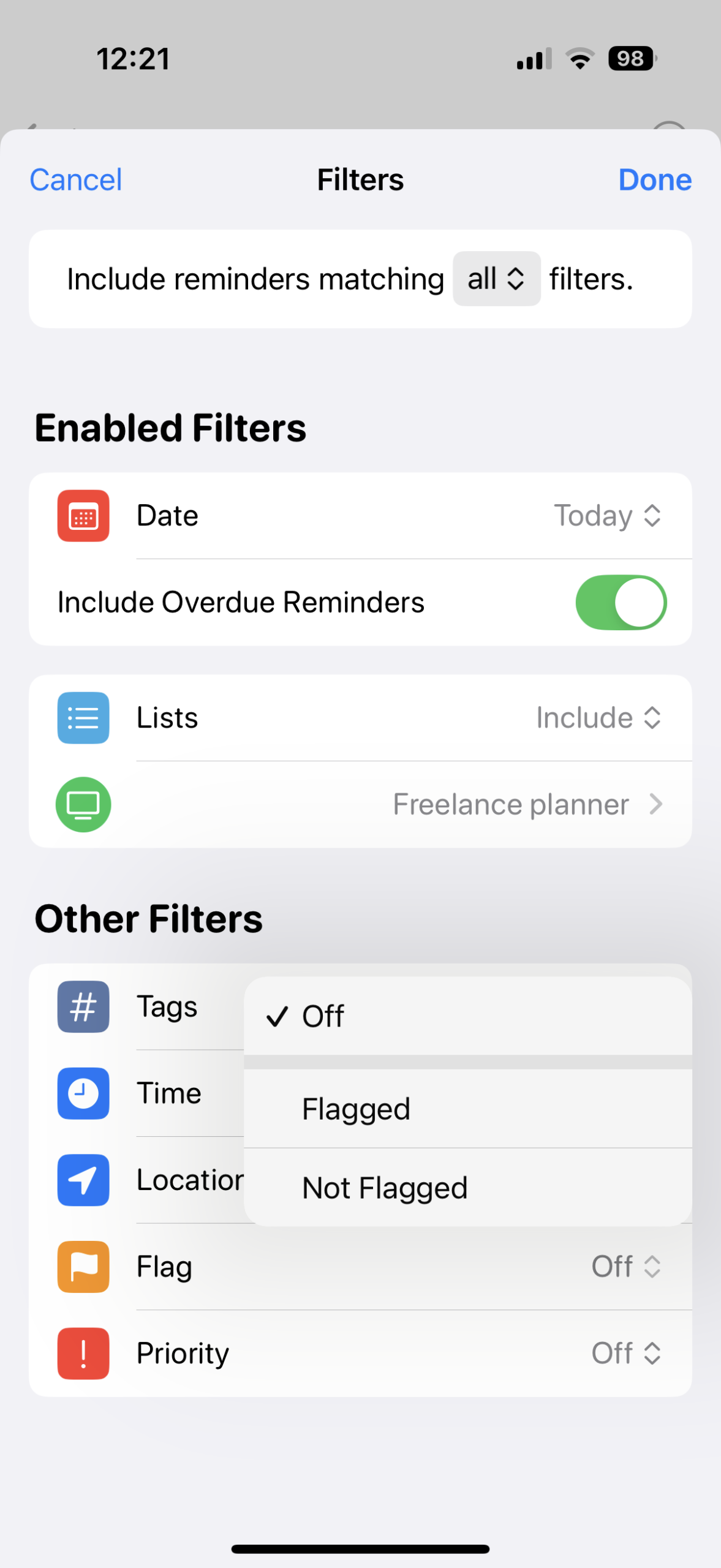
Make smart lists: Create a new list and set List Type to Smart List. Tap Edit Filters to define rules that automatically pull in matching reminders. For example, you could choose tasks tagged #work due within a week. Apple also provides a Shopping option, which sorts items into categories, each with its own heading. Speaking of which…
Add sections: Within a list, go to … > Manage Sections to create sections and edit existing ones. These act like subcategories, bringing organization and structure to a list – by week, workflow stage, or anything else that fits your system.
Auto-categorize lists: Rather than manually organize lists, have Apple Intelligence do the hard work. Go to … > Auto-Categorize and your tasks will be sorted into sections. Be careful, though, because this can’t be undone. A safer option is to duplicate a list using … > Save as Template and experiment with Auto-Categorize on the copy.
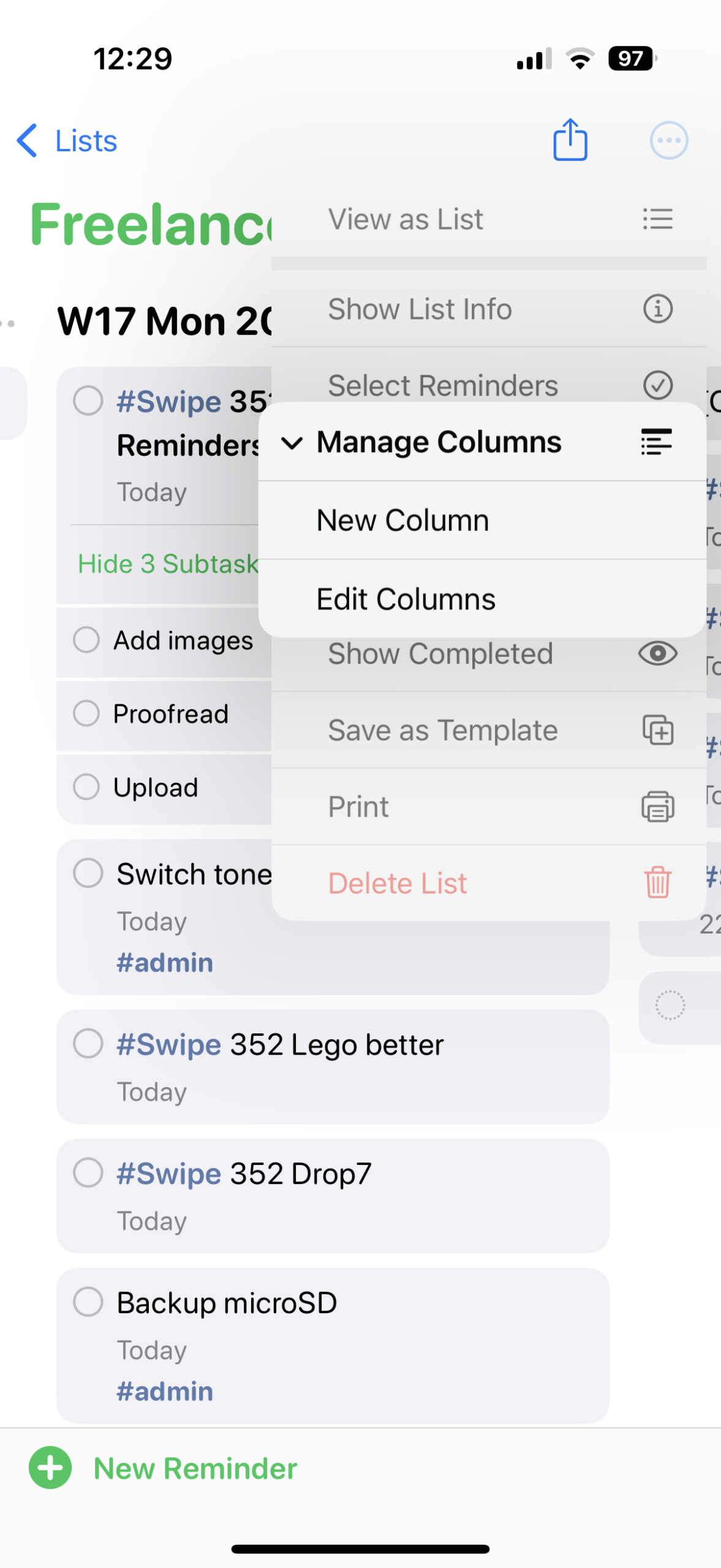
Use columns: Tasks are displayed in a list by default. Use … > View as Columns for a Kanban-style layout – handy for visualizing workflows and weekly plans, especially on the larger screen of an iPad or a Mac.
Share reminders: For group projects, tap the Share button, choose a contact, and within the message, set whether this person can invite others. Within existing shared lists, tap the Collaborate button (person in a circle icon) and then Manage Shared List to adjust permissions and notifications for when tasks are added or completed.
Assign tasks: You can nest tasks by dragging one onto another, or directly add subtasks in Details view. Within a shared list, use Details > Assign Reminder to assign a task or subtask to a specific user.
Highlight what’s important: Use flags to mark key items, and be consistent with how you use them – for example, to denote tasks that have been started. Tap-hold any list in the main view and choose Pin to place it at the top as a large, colored lozenge. Add Home or Lock Screen widgets for fast access to upcoming tasks.
Manage notifications: Reminders will alert you by default, but you can fine-tune how. In the Settings app, go to Notifications > Reminders. If tasks are vital, enable Time-Sensitive Notifications and ungroup alerts to make them more prominent. In Notification Center, tap-hold a notification to mark it as complete or delay it.
Get Reminders (free) from the App Store. Learn more at Apple’s support site.