

In this series, we dig into an app we think you should be using, and explain what it is, why it’s great, and how to get started. This time, we’re covering StopTheMadness Pro.

What is StopTheMadness Pro?
A Safari browser extension that can deal with the annoying tricks websites use that take control of your browser.
What makes StopTheMadness Pro great?
It’s sheer flexibility. You can switch it on and forget about it, letting the default settings improve your browsing. Or you can create custom rules so Safari behaves exactly how you want it to.
How can I get started with StopTheMadness Pro?
The tips below assume you’ve installed the app and activated its Safari extension.
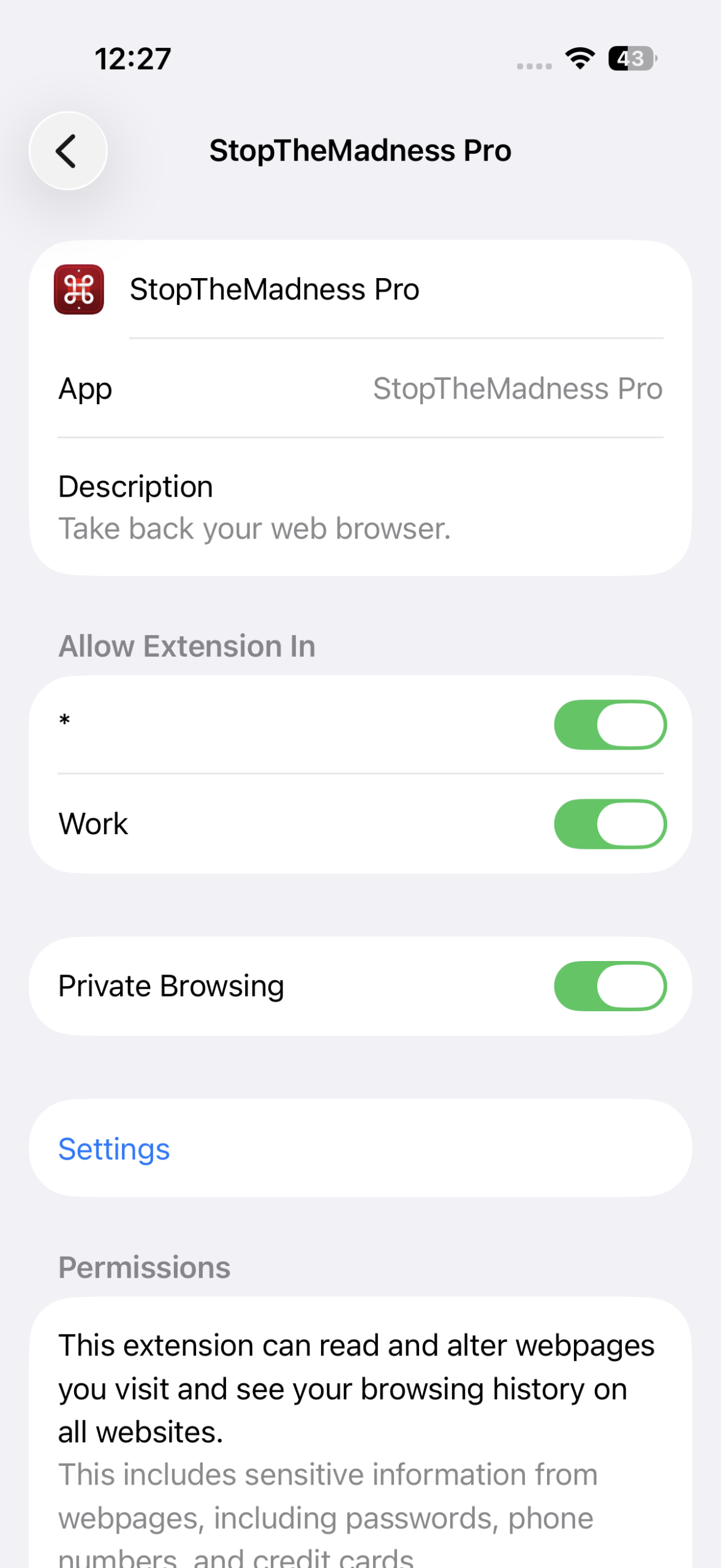
To do this, open Settings and go to Safari > Extensions > StopTheMadness Pro. Allow the extension to run with whichever Safari profiles you prefer, along – optionally – with private browsing. Set everything under Permissions to Allow.

Get started: In Safari, open any website, tap the extensions button (the puzzle piece) in the address bar, and select StopTheMadness Pro. Drag the panel upward to have it fill the screen when you need to see more options at once.

Turn it off: If a site misbehaves with your options or you just want to see how things would be without StopTheMadness Pro, uncheck Extension Enabled and then the big blue checkmark button at the top right to confirm. Re-enable it the same way when you‘re done. (And, yes, this might be an odd thing to start with, but it’s needed for the next tip!)

Override blocked features: Turn off StopTheMadness Pro for this tip. Some sites block basic browser features. Type apps.apple.com into Safari’s address bar and then the Go or arrow key to view the online App Store. Try copying text – you can’t! Turn StopTheMadness Pro back on. You can now select and copy text. (General Options has further settings that let you fine-tune features StopTheMadness Pro can protect.)
Manage tabs: Under Tab Rules, use Override window.open settings to force pop-ups into tabs – or block them entirely. Set Cross-site links in non-private windows to Force link into a new inactive tab to make external links load in the background instead of hijacking your reading. (You can always swipe left or right on the address bar to quickly move between open tabs.)
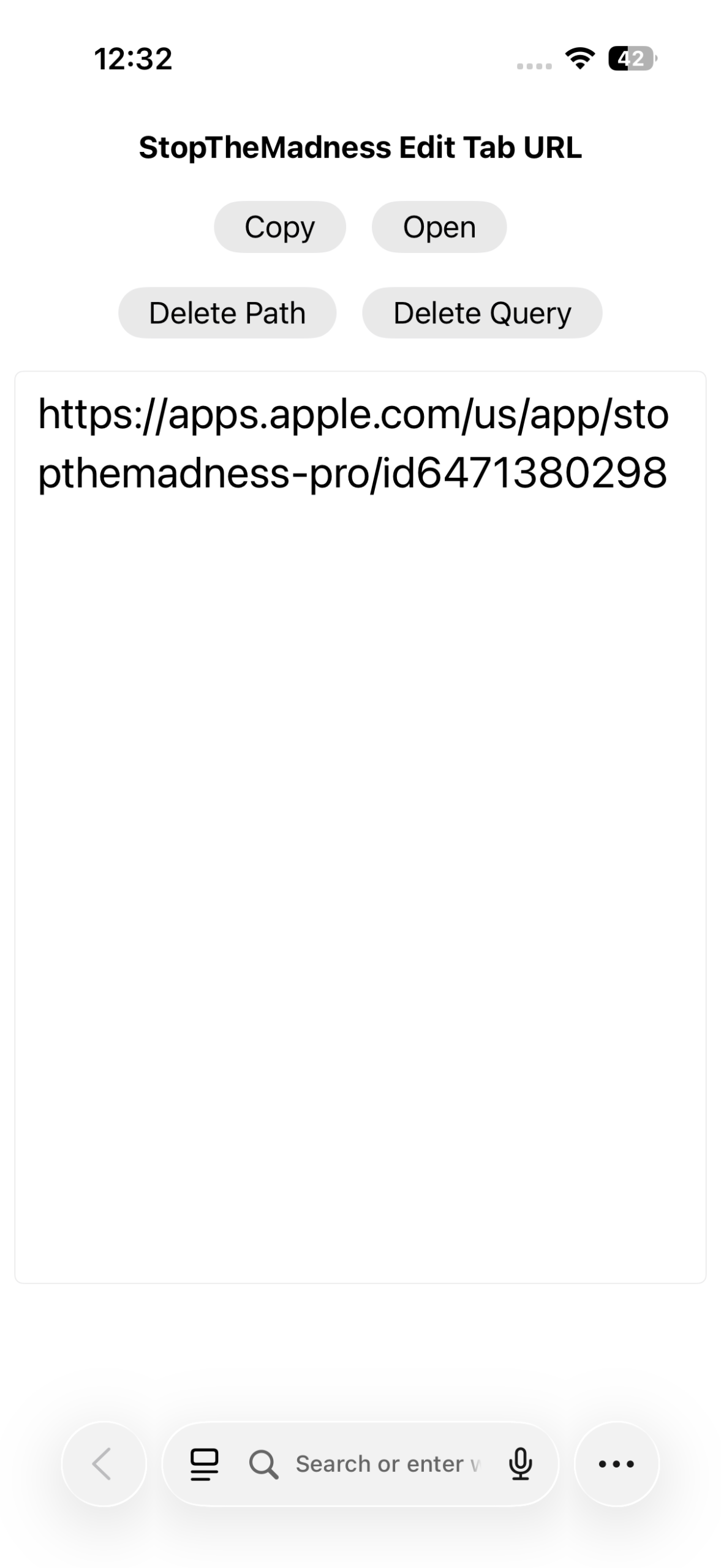
Edit a URL: Safari’s address bar isn’t great for editing long URLs. So in StopTheMadness Pro, tap the Edit Tab URL button (near the top of the panel) for a much larger editing field. When you’re done, tap Open to load the page or Copy to paste the link elsewhere.
Use native playback controls: Under Audio and Video Options, choose how media controls behave. Native controls are reliable and consistent, and disabling autoplay cuts distractions. Unsure which is best? Use Show video controls toggle to add a button that lets you quickly switch between native and custom controls – as shown in the following image.

Simplify YouTube: Under YouTube Options, adjust how the site works and looks in Safari. Force a preferred video quality to avoid random dips into blurry resolution. Hide YouTube Shorts to avoid mainlining endless bite-sized clips. Also experiment with ad-blocking and picture-in-picture, but be mindful YouTube is in a constant tug-of-war with browser add-ons overriding those features (which it considers premium).
Flag favorites: To avoid endless scrolling through the extension’s many options, tap Edit Favorites (right at the top) and then the star next to any setting to pin it to the top of the panel. Tap Save Favorites to confirm changes. Edit and tap a pinned-item’s star to remove the favorite.

Save presets: In the Website section, tap Add website to build a rule set for the current site. It will activate automatically when you visit. Alternatively, use Add preset to build a new custom configuration for all websites – handy if you, say, only want the aforementioned tab rules while researching. At any time, you can switch between saved presets by using the pop-up menu directly beneath the Website section heading.
Sync with iCloud: Scroll down and enable iCloud Sync to share your settings across devices. In the main StopTheMadness Pro app, use Export extension settings to a file to back up your setup, ready to later restore if you experiment a little too enthusiastically.

Dig deeper: There’s plenty more going on in StopTheMadness Pro, from hiding web page elements to stopping animations from triggering. Not sure what something does? Tap an option for a pop-up containing a brief explanation. And then try it out!
Visit the StopTheMadness Pro website or get StopTheMadness Pro ($15/£15) from the App Store.