


If your photos look hazy or washed out, the culprit might be something surprisingly simple – a dirty camera lens. With iOS 26, Apple is helping users catch this issue early thanks to an automated warning message. Here’s how it works, and how to give your iPhone’s camera a proper clean when the time comes.
How lens-cleaning hints work in iOS 26
On the base iPhone 15 and newer, iOS 26 monitors incoming light for the telltale signature of smudges or grime. Older devices sadly miss out. When it spots something off, you’ll see a subtle “Clean the camera lens” overlay in the Camera app.
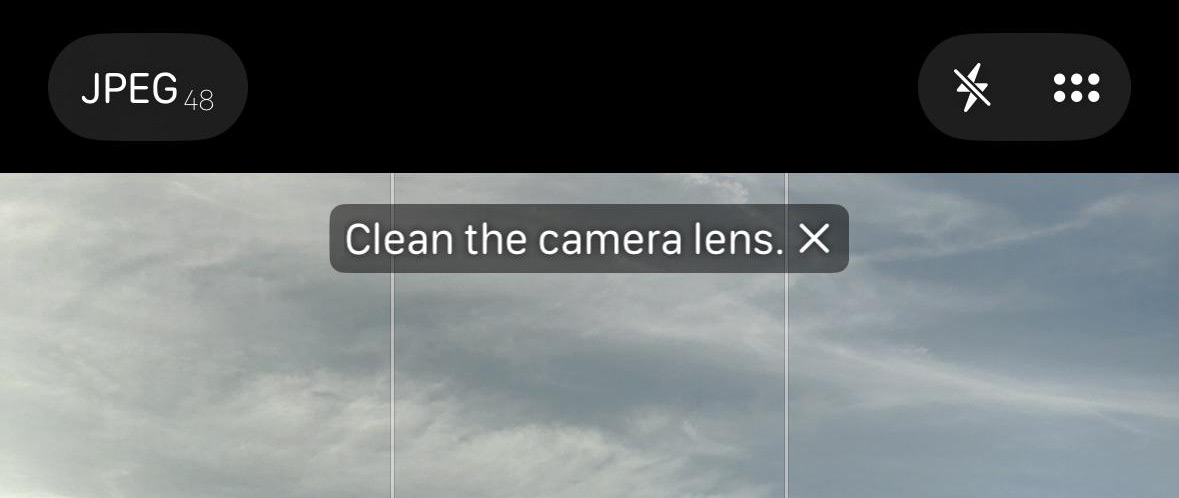
The feature should be enabled by default, but you can double-check under Settings > Camera > Lens Cleaning Hints. Toggle it off or on as needed.
It’s a surprisingly helpful addition – plenty of people never think to clean the lens at all, and image quality can improve dramatically once you do.
How to safely clean your iPhone camera lens
Cleaning the lens itself is simple. Start with a soft, lint-free cloth – ideally a microfiber camera lens cloth. Gently wipe the glass in small circular motions to lift fingerprints and dust. Avoid abrasive fabrics, harsh chemicals, cleaning sprays, or anything wet enough to seep into the camera housing.
Done right, this quick routine removes haze and glare from your shots and keeps your camera performing at its best.
For the rest of the camera array, including the metal ring and tiny crevices around the lenses, use a lightly dampened Q-tip to pick up trapped dirt, then a dry one to finish.