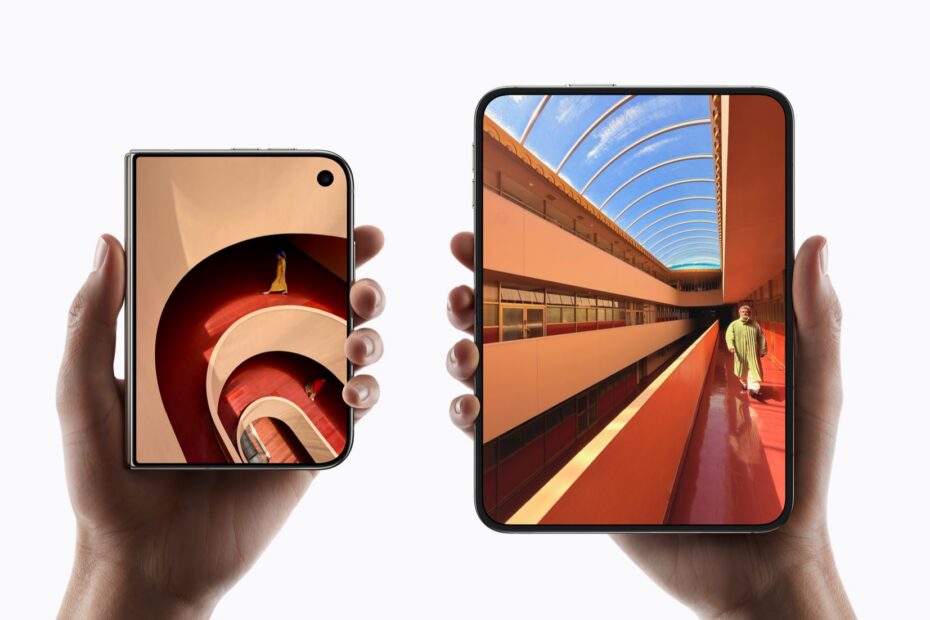
Moving to iPhone Duo is a bigger change than any iPhone upgrade I can remember. Apple’s first foldable has no Face ID, no Action button, and it doesn’t lock when you shut it. After a few days with mine, I’ve found ways round most of the things that tripped me up. None of them take more than a couple of minutes, and you can set up all five tonight.
1. Make it lock when you close it
Shut a laptop and it goes to sleep. Shut iPhone Duo and it carries on, unlocked, on the outer screen. It’s all too easy to close it, put it down and leave it open to anyone who picks it up.
There’s no setting to change this, but you can create a Shortcuts automation that locks the phone whenever you close it. It only takes a couple of minutes.
In iOS 27, automations live inside shortcuts rather than in a tab of their own. Open the Shortcuts app and tap the + button to start a new shortcut, then tap Edit to build it yourself rather than describing it to Siri. Tap Automation, go to the Display triggers and choose Opened or Closed, then set it to Closed, so the trigger reads When iPhone is Closed. Underneath, add the Lock Screen action, which shows up as Lock the screen. Give the shortcut a name – I called mine Lock on Close – and you’re done.
If the shortcut stops to ask before it runs, open its settings and look under Privacy for Allow Running When Locked.

The whole shortcut is just two steps: the trigger and the action.
There’s a catch. Sometimes you close the phone on purpose to carry on in the same app on the outer screen, and then you’d have to unlock it all over again. Stephen Robles has shared a cleverer version that only locks the phone if you’re on the Home Screen when you close it. If an app is open, it stays open on the outer screen.
2. Put your Action button on the Lock Screen
The Duo has no Action button. If you’d set yours up to do something you rely on, the closest replacement is a button on the Lock Screen.
On the Duo’s outer screen, the two Lock Screen buttons sit one above the other in the bottom-right corner: the torch and the camera. You can safely lose the camera one, because the Duo has its own camera button on the side – Camera Control – and you can still swipe left on the Lock Screen to open the camera.
To swap it, touch and hold the Lock Screen and tap Customise, then Lock Screen. Each button now has a minus badge. Tap the one on the camera to remove it, tap the + button that takes its place, and choose whatever your Action button used to do. Tap the tick in the top-right corner to save.
For me, the Action button launched ChatGPT, so that’s what sits there now. Other people use theirs for very different things – turning on Silent Mode or a Focus, recording a voice memo, translating, or running a favourite shortcut – and you’ll find all of those in the same list of controls.

My Lock Screen editor, with ChatGPT in the camera’s old spot above the torch. Tap a minus badge to swap either button.
It isn’t a perfect replacement. You can’t press it without looking, as you could the Action button. But it’s a single tap from the Lock Screen. If you want several, put up to six shortcuts in a Shortcuts folder and choose Run Shortcut with that folder as the control. Tapping it then pops up the whole folder.
3. Let your Apple Watch unlock it
Face ID spoiled us. You looked at the phone and it opened. On the Duo, you have to find the side button first, and that small hesitation adds up over a day.
If you wear an Apple Watch, it can do the work instead. Go to Settings > Touch ID & Passcode and enter your passcode. Scroll down to Unlock with Nearby Devices and turn on the switch next to your watch.
From then on, when you’re wearing your watch and it’s unlocked, just wake the Duo and swipe up from the bottom of the screen. You’ll feel a tap on your wrist to say the watch unlocked it.
You’ll need an Apple Watch Series 9 or later, an Ultra 2 or later, or an SE 3, with a passcode and Wrist Detection turned on. It’s the closest thing to Face ID you’ll get on a Duo.
It still isn’t perfect. That tap on the wrist comes every time the watch unlocks the phone, which is a lot of times a day. I get so many that I’ve started to tune them out, and now I find myself ignoring the taps for messages that have actually arrived.
4. Add a finger for every way you hold it
Setup only asks for one fingerprint, and that’s a mistake on this phone. The Duo spends its life being opened, closed and turned around, and each time a different finger ends up near the side button.
The way to choose is to spend a few minutes picking the phone up in every way you normally do, noticing which finger lands on the button each time. I’ve enrolled three. My left index finger is for when I’m holding it in my left hand, with my fingers curled round to the button. My right thumb is for when it’s in my right hand. And my right index finger is for when the Duo is lying on the table and I reach over to wake it.


Left to right: left index finger, right thumb and right index finger. The red dot marks the side button.
Your list may well be different. If you open the Duo and turn it on its side, for example, you may find a little finger is the one that ends up on the button.
To add each one, go to Settings > Touch ID & Passcode, enter your passcode and tap Add a Fingerprint. Hold the phone the way you really would, rather than the way that’s comfortable for setup. Often it isn’t your fingertip that touches the button but the side of your finger or the pad nearer the knuckle, and that’s the part Touch ID needs to learn.
You can store up to five fingerprints, so choose the grips you use most. Tap a fingerprint to give it a name like “Left index, open”. If you’ve run out of slots, rest a finger on the button while you’re on that screen: the matching print lights up, so you can see which ones you’re actually using.
While you’re there, check Rest Finger to Open, which you’ll also find in Settings > Accessibility > Side Button. With it on, resting your finger on the side button unlocks the phone and takes you straight in, without pressing anything.
5. Make the volume buttons follow the way you hold it
Open the Duo, turn it on its side, and the volume buttons can end up the wrong way round, so the top button turns the volume down. One setting decides how they behave.
Go to Settings > Sounds & Haptics and find Fixed Position Volume Controls. Turn it off and the button on the top or the right always turns the volume up, however you’re holding the phone. Turn it on if you’d rather each button always did the same thing, as on other iPhones.
There’s more on how it works with Rotation Lock in our guide to iPhone Duo’s volume buttons.
Was it worth the effort?
Yes. None of this makes the Duo feel like the iPhone you had before, but together they smooth over most of the little annoyances of the first few days. If you’re new to Touch ID, start with the Apple Watch and the extra fingers, because you’ll be unlocking the phone dozens of times a day. For more, see our guide to Touch ID on iPhone Duo and the rest of our iPhone Duo tips.