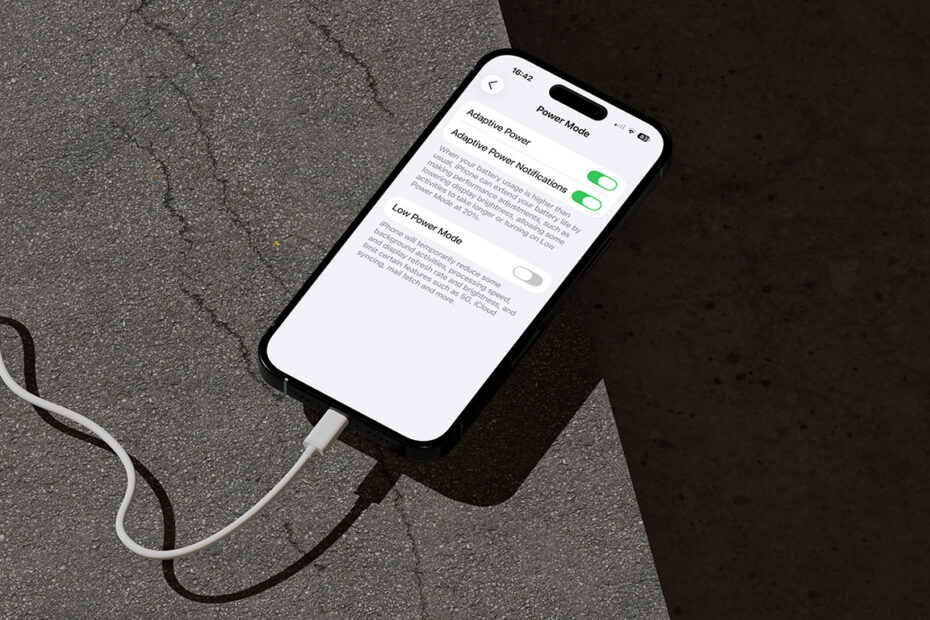

Most iPhone users are familiar with Low Power Mode – that yellow battery icon that kicks in at 20% to squeeze a bit more life out of your phone when it’s running low. But there’s a newer, much smarter feature that helps conserve energy before you reach that point. It’s called Adaptive Power Mode, and it’s designed to quietly manage your iPhone’s power use throughout the day without noticeably slowing you down.
What is adaptive power?
Adaptive Power Mode uses on-device intelligence to learn your habits and predict when you’ll need extra battery life. It builds a profile of when and how you typically use your iPhone, then makes subtle changes to help you last through the day. These tweaks might include lowering brightness a touch, scaling back background activity, or slightly adjusting performance when you’re not doing anything intensive.
The feature is smart enough to know when not to step in. It won’t limit performance when you’re using the Camera, playing games in Game Mode, or doing other demanding tasks. And if your battery eventually dips below 20%, it can automatically switch on Low Power Mode to keep you going even longer.
Supported devices
Because it relies on Apple’s new on-device AI systems, Adaptive Power Mode is available only on newer models — specifically the iPhone 15 Pro and later. It’s switched on by default for the iPhone 17, 17 Pro, 17 Pro Max, and iPhone Air, while users of the iPhone 15 Pro and iPhone 16 range can turn it on manually in Settings > Battery > Power Mode.
It’s also worth noting that it takes a week or so to “learn” your habits, so you might not see much effect immediately after turning it on. If you enable it, give it some days of typical use before judging how well it’s working.
Stay in the loop
If you don’t want to guess when it’s acting, you can enable Adaptive Power Notifications in Settings > Battery > Power Mode to get alerts when it engages. That gives transparency about when your phone is adjusting itself. Turning notifications off won’t disable Adaptive Power; it will continue working silently in the background.
Also remember you can still use Low Power Mode manually if you’d rather have direct control – just open Control Center and tap the battery icon. That way, you can choose between smart automation and old-school manual management depending on your needs.