Part of New in iPadOS 27Tip 11 of 14
- How Smart Event Details works
- Adding events from a photo with Siri Mode
- How to switch back to manual entry
Apple’s Calendar app has always made you work for a simple event: tap a field, scroll a wheel, tap another field, repeat. Third-party apps like Fantastical have offered natural language entry for years – iPadOS 27 finally brings it to Apple’s own app, letting you skip the pickers and just type in your own words.
This feature is called Smart Event Details and it runs on Apple Intelligence, so you’ll need an iPad that supports Apple Intelligence (any model with an M1 chip or later, or iPad mini with A17 Pro).
How it works
Open Calendar, tap the + button, and start typing what you’re doing – something like “Enchilada night with Jason at 9pm on Sunday.” As you type, Calendar highlights the parts it’s picked up: the person, the time, the date. Tap a suggestion to confirm it, or keep typing and let it fill in automatically.
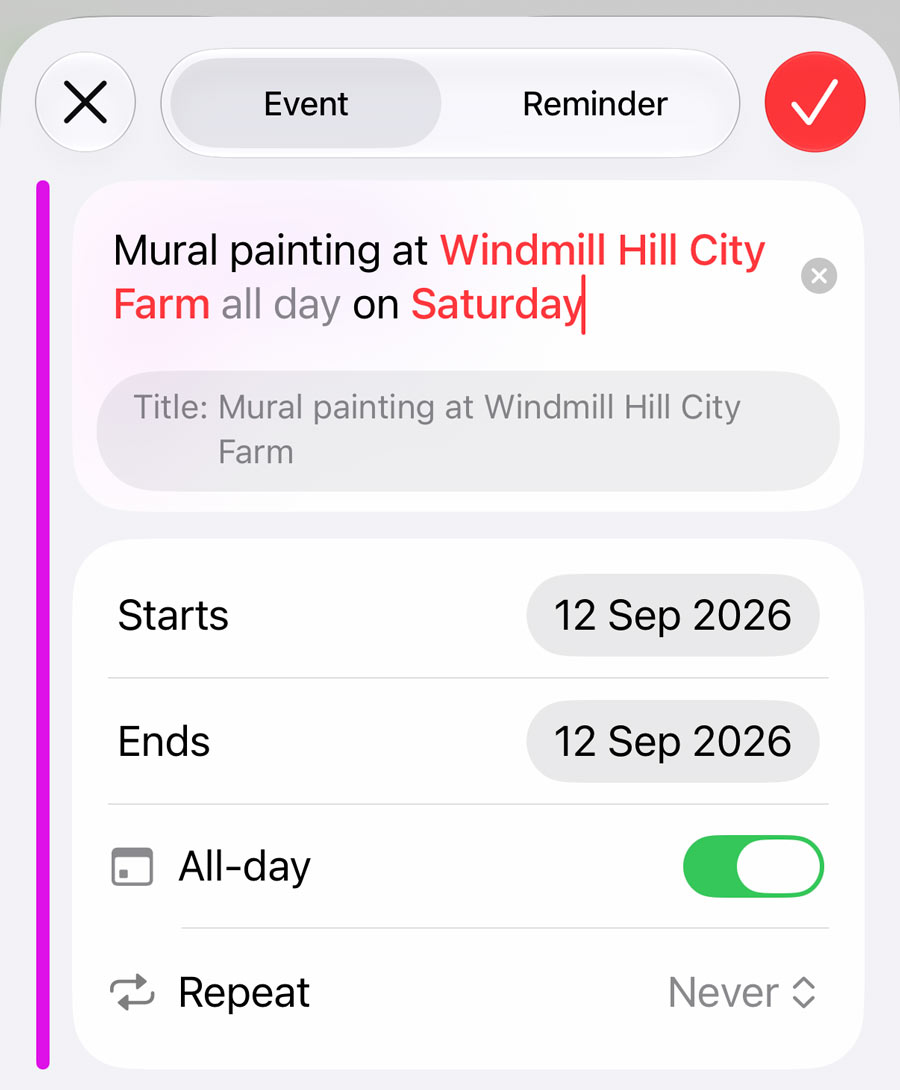
It’s not quite as hands-off as the best third-party apps. If you type a date that isn’t today, you’ll usually need to tap the date suggestion above the keyboard to confirm it, rather than have Calendar assume you meant it. Times, on the other hand, get set automatically without any extra tapping.
You can also describe recurrence in the same sentence – add “every week” and Calendar sets up a repeating event. Editing later works the same way: change “every week” to “every other week” in the description, and Calendar adjusts every future occurrence to match.
It works for Reminders too
The same natural language input carries over to the Reminders app. Type “Remind me to go to the grocery store at 2pm on Wednesday” and Reminders sets the date and time without you touching a picker.
Adding events from a photo with Siri Mode
Typing isn’t the only new way in. Open the Camera app, swipe to Siri Mode, and point it at a printed schedule, a fixture list, or a term calendar. Siri can pull every date on the page and import them as separate calendar events in one go, rather than you typing each one in individually. This can be really handy for speeding up laborious bulk scheduling.
Of course, you can also add events with your voice using Siri, and it will understand all the same syntax we discussed earlier.
Switching back to manual entry
If you’d rather have the old date pickers and time selectors back, there’s a toggle for that in Settings > Calendar.