Part of TroubleshootingTip 2 of 11
- The warning signs that your Apple Account has been compromised
- How to regain access and reset your password
- The steps to lock things down and stop it happening again
Your Apple Account is the master key to your iPad – accounts, payment details, personal data, all of it. If someone gets hold of it, the damage can be significant. Here’s how to spot the warning signs, reclaim your account, and make sure it doesn’t happen again.
Has my Apple Account been stolen?
There are a few tell-tale signs that your Apple Account might have been stolen. They can all be summarised as changes that are made to your account or device that you didn’t instigate yourself.
These changes might include the following:
1. An email or notification that your Apple Account was used to sign in to a device that you don’t recognize
2. An email from Apple stating that your Apple Account information has been changed or updated when you haven’t made any changes
3. Your device is remotely locked or placed in Lost Mode by someone else
4. Messages appear that you didn’t send, or items go missing that you didn’t delete
5. Charges or notices appear for purchases you never made
6. Your Apple Account password no longer works
7. Some of your account details are unfamiliar to you
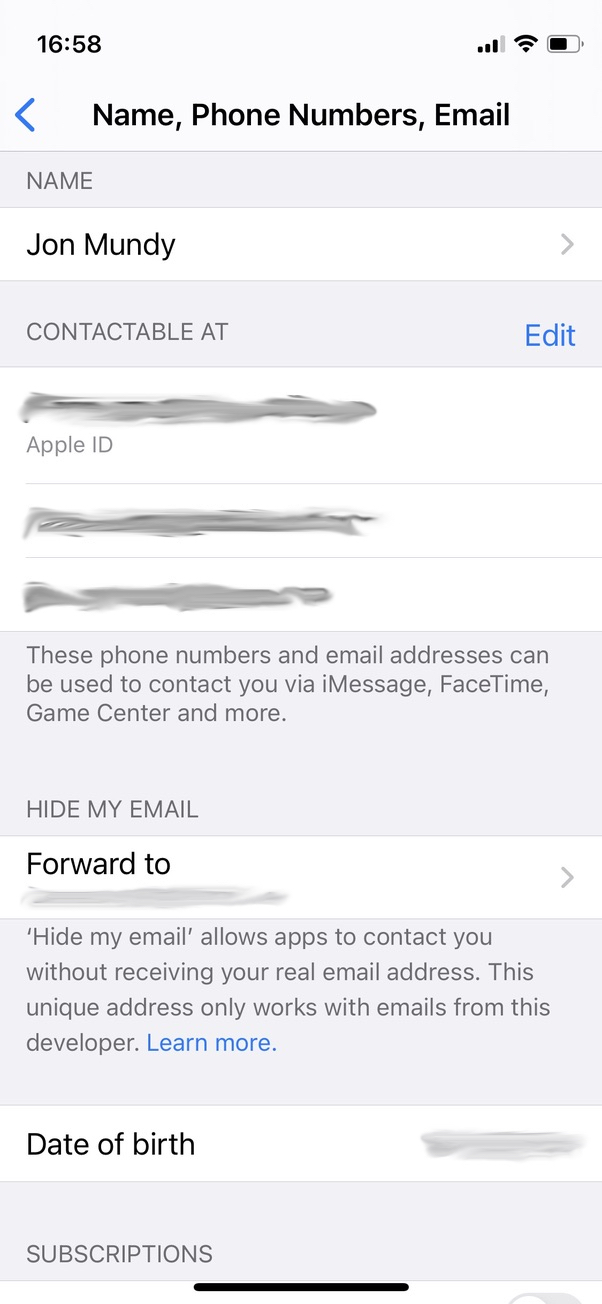
That said, also be aware of scamsters that may pretend to be Apple and tell you your account has been compromised. If in doubt, find another way to check the claim of any incoming texts or emails – and see our guide to phishing scams to make sure you know what to look out for.
How to regain control of your Apple Account
If you suspect that your Apple Account has been stolen, follow these steps.
The most important thing to do is to reset your password by heading to Settings > Your Name > Password & Security > Change Password.
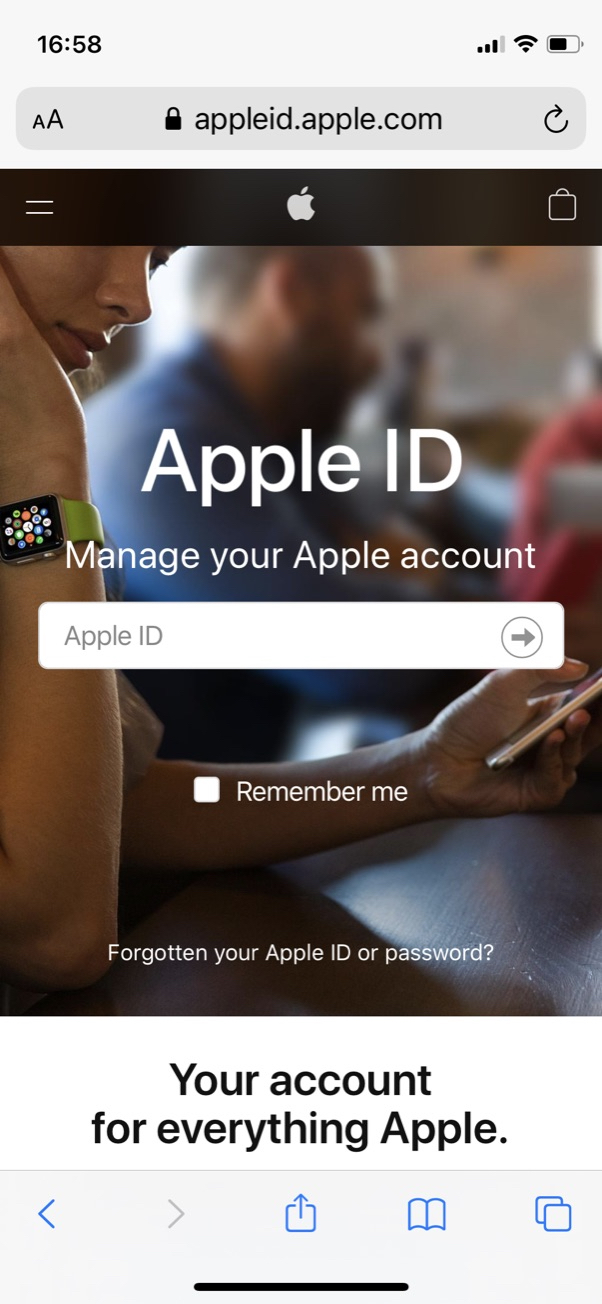
If you can’t access your account in the first place, head to your Apple Account page and click the Forgot password? option. Enter your Apple Account email or phone number and select the option to reset your password.
You’ll be given a choice over how to reset your password, including a security question, an email prompt, or the Recovery Key you set up when you activated two-step authentication. (You can also set up Recovery Contacts who can help you regain access to your account.)
Once you’ve gone through these steps, sign in using your new password.
Further steps to take
Before you log out of the Apple Account page, take a moment to check through all of your personal account information. Update any information (email accounts, address etc.) that isn’t accurate.
Also, check which devices are associated with your Apple Account if you’re using two-step authentication. Change any security questions that might seem easy to guess.
Finally, if you haven’t set up two-factor authentication, we strongly suggest that you do so right now. Head into Settings > Your Name > Password & Security and tap Turn On Two-Factor Authentication. Add your phone number when prompted, along with the ensuing code, and that number will be used as an extra layer of verification in future.
Away from your Apple Account page, you should also check in with any email providers associated with your Apple Account. It’s well worth considering changing these passwords with the appropriate provider (Gmail, Outlook etc).