
- Plan multi-stop routes in Apple Maps ahead of your trip
- Create a custom guide to keep track of places you want to visit
- Download offline maps and share your location with friends
Despite a rocky start over a decade ago, Apple Maps has quietly become a very capable travel planning tool. Custom guides, multi-stop routing, offline maps, and a few clever tricks for traveling with others – it’s all in there. Here’s how to make the most of the app’s features to plan your next trip.
Custom guides
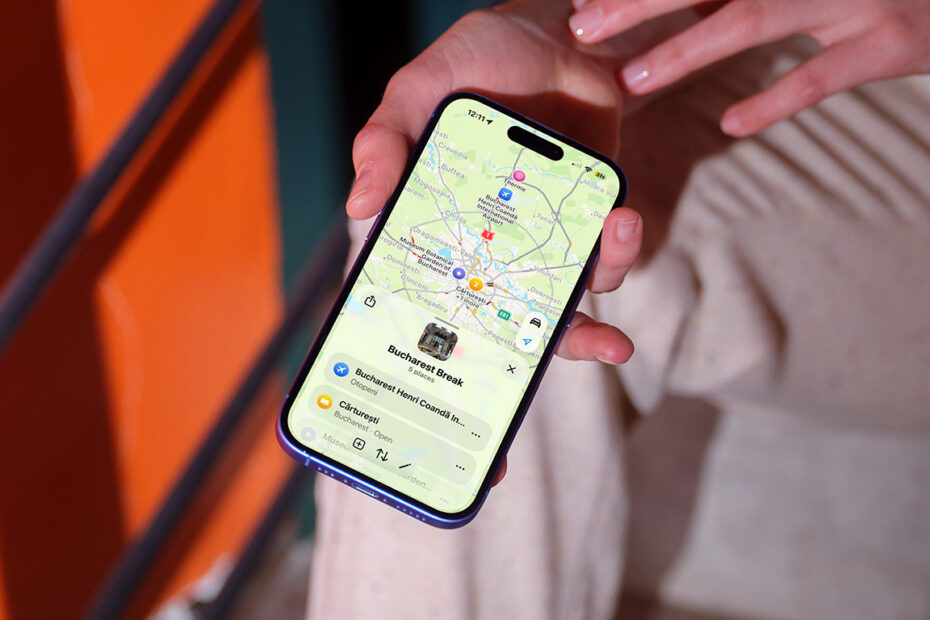
This is an underrated features and the best way to plan in advance. A guide is essentially a saved list of locations – restaurants you want to try, museums, viewpoints, whatever – all in one place.
To create one, open Maps and swipe up on the card at the bottom of the screen to reveal the full menu. Tap Your Guides and find the + button. Give your guide a name.

To add a location, search for it in Maps and tap the place card. Tap More (…) and choose Add to Guides, then select the guide you want to add it to. Alternatively, while viewing the guide itself, hit the + button and search directly from this interface to add new items straight into the guide.
Once built, your guide pins all the locations on the map at once, so you can see where everything is relative to each other – useful for planning which places to group together on the same day.
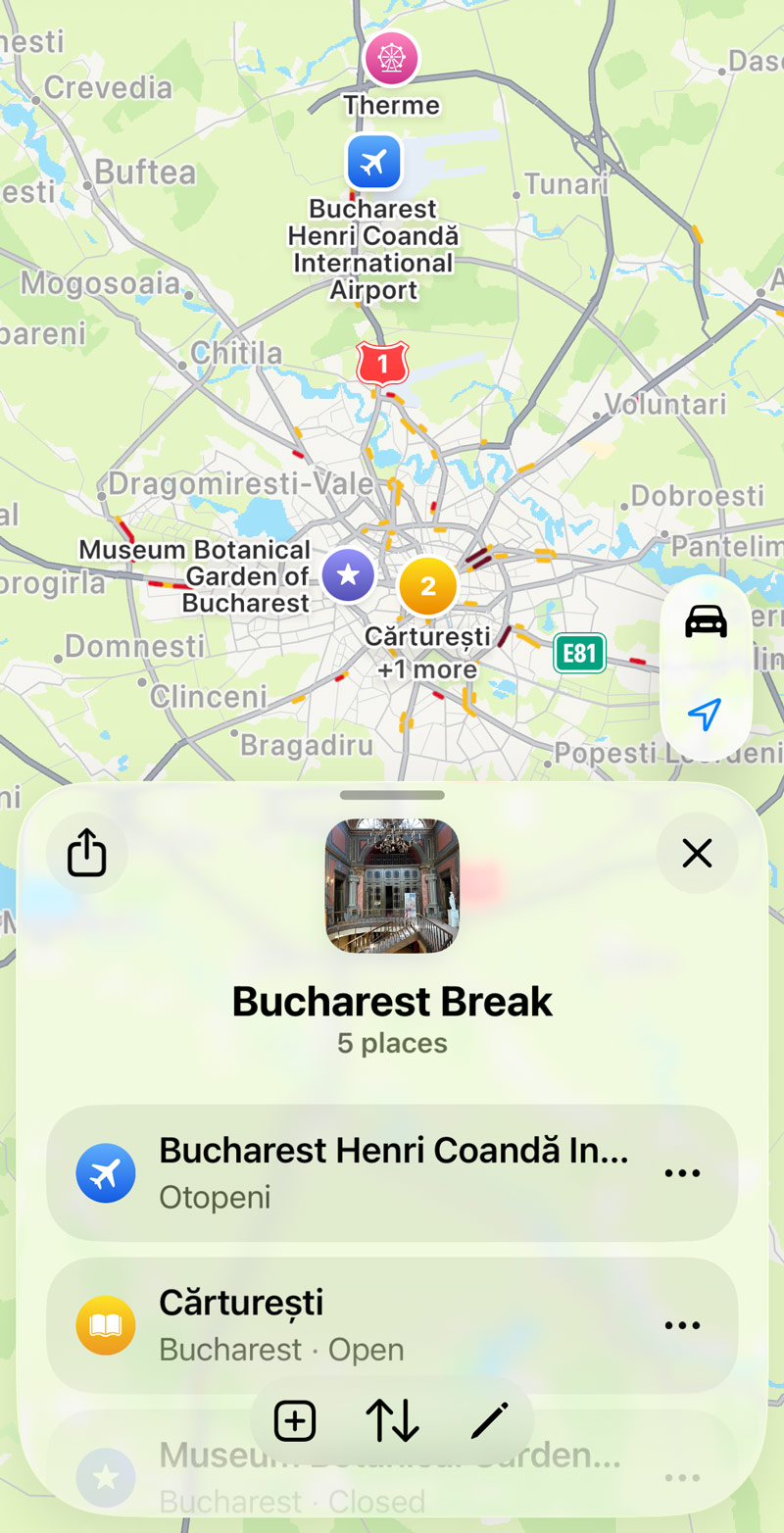
You can share a guide with travel companions via the share button at the bottom of the guide card. Bear in mind that guides shared this way are view-only – recipients can’t add to or edit your guide. If you update it after sharing, you’ll need to share it again for others to see the changes.
Premade guides
For many major cities, Apple offers curated publisher guides covering places you might want to visit. When you search for a city, scroll down in the search results and look for the Guides section. These can be a handy starting point, and you can add individual locations from them directly to your own guide by tapping the + icon next to any listing.

Multi-stop routes
Apple Maps supports up to 15 stops on a single route, which is more than most people will ever need. To set one up, search for your destination, tap Directions, then tap Add Stop at the bottom of the directions list. You can add as many stops as you like and reorder them by dragging the handles on the right. Maps will show you the travel time for each leg and a total ETA at the bottom.
One thing to be aware of: multi-stop routes can’t be saved. If you tap End Route midway through, you’ll have to rebuild it from scratch. But it’s still good for planning ahead when you need to figure out the most efficient order to visit multiple spots.
Offline maps
Before you travel, it’s worth downloading an offline map of your destination. Roaming data can be expensive, and you might find yourself somewhere with no signal. Offline maps mean navigation keeps working regardless.
To download one, search for a city or region in Maps and tap the name at the bottom of the screen to open its information card. Scroll down and tap Download next to the Maps section, then adjust the area and confirm. The map will be available for navigation even without a connection.
Find your friends
If you share your location with friends or family via the Find My app, their approximate location will show up directly in Apple Maps while you’re navigating. Before your trip, open Find My, tap on the person you’re travelling with, and make sure location sharing is set to Share Indefinitely – otherwise it may cut out. This is a handy way to stay in sync without constantly texting each other to ask where everyone is.