Part of New in iPadOS 27Tip 13 of 14
- Passwords app find and replace compromised logins
- Fix everything in one go, or work through accounts one at a time
- Why you should be careful trusting this job to AI
Most people reuse the same handful of passwords across dozens of sites. Even if you’ve since got into the habit of letting a password manager generate something strong and remember it for you, chances are that wasn’t always the case – so you’ve still got accounts out there sharing a login. And if just one of those services is careless with your data, a single breach can hand over every other account using the same email and password.
Apple’s Passwords app has long been good at flagging this, nudging you to change anything compromised. Now it goes a step further and offers to go full robot butler, doing it all for you. Given the faff of changing a password manually (log in, find the reset button, wait for the email, copy the verification code, type and retype a new one), it’s no wonder Apple reckons automation is the answer.
That said, be careful trusting this kind of thing to an AI. One wrong step and you could be locked out of an important account. It’s worth checking each account afterwards to make sure the change went through. Here’s how it works.
Note: this feature needs iPadOS 27 or later.
How to let Passwords fix your logins
Open the Passwords app and tap into the Security section. Here you’ll see every login the app has flagged as weak or compromised.

Tap any one to deal with it yourself, or hand the job over with Automatically Fix Passwords. It works through the busywork for you – signing in, generating a new password, saving it – and checks in to confirm before changing anything permanently. To start, hit Get Started, then Continue.
One step at a time
That first prompt offers to change everything in one sweep, which isn’t always what you want. In my case plenty of the flagged accounts were my partner’s, a friend’s, or old work logins I’d signed into once years ago and never touched again. It’s not my place to change those. So rather than blanket-fixing the lot, tap See Details for each account and press Fix Password on a case-by-case basis where it’s actually needed.
Either way, you’ll need to grant permission for the app to make changes – and that access expires after five minutes, so you’re not handing the bots a permanent key. If a fix fails you’ll get an alert and a prompt to finish the job yourself.
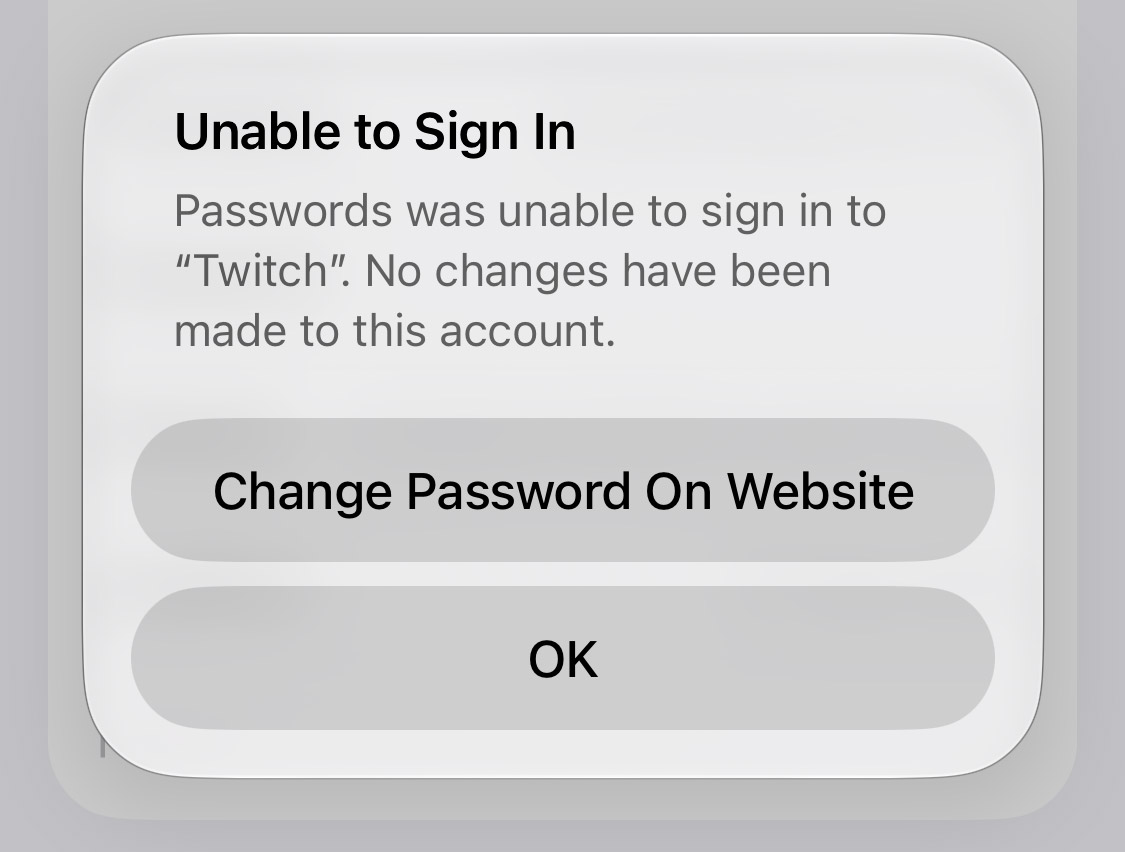
How much you trust an automated system with these changes is up to you. We’d suggest testing it on one or two unimportant accounts before letting it loose on the rest – one wrong step could leave you locked out.