- How to pair a Bluetooth keyboard with iPad or iPhone
- Apple’s keyboards vs. third-party options
- The most useful keyboard shortcuts to know
The iPad’s on-screen keyboard is fine for quick messages. For anything longer, a proper keyboard changes the game. Not only is it quicker and less fiddly, you also get that bottom third of the screen back so you can better see what you’re actually doing.
Choosing a keyboard
Of course, Apple makes bespoke ‘Magic Keyboards’ for iPad, which physically attach and instantly pair. This is the best possible typing experience for an iPad user, turning your device into an ersatz Macbook. But they start at an eye-watering $249. Meanwhile Magic Keyboards designed for the Mac start at a more palatable $99, and will pair with an iPad (or iPhone) just fine. Third-party options are often even cheaper, while those of you who already own a Bluetooth keyboard can safely reuse it here without spending a dime.
Whatever you choose, here are a few tips for making the most of that full-sized keyboard.
How to connect a Bluetooth keyboard
If you have an iPad Magic Keyboard, this part is beyond simple. Magnetically attach the keyboard and it automatically connects. Done.
With a regular Bluetooth keyboard, you’ll want to put it into pairing mode – usually by holding a sync button until a light flashes.
On your iPad or iPhone, open Settings > Bluetooth and tap the keyboard when it appears under Other Devices. You may be prompted to type a short PIN on the keyboard and press Enter.
Once paired, it’ll reconnect automatically whenever it’s in range.
Troubleshooting tip: if you’re struggling to connect a keyboard you’ve previously used with another computer, head to Bluetooth settings on that device and choose Forget This Device. This isn’t always necessary but is good to know if you’re stuck.
Essential keyboard shortcuts
You can be pretty efficient if you know what you’re doing with a keyboard.
The most universal shortcuts are all here, including copy (⌘ + C), paste (⌘ + V), and undo (⌘ + Z). In fact, most of the basic shortcuts from the Mac carry straight over, so if you’re familiar with any of those give them a try here and you’ll be an expert in no time.
We also recommend teaching your muscle memory how to quickly open Spotlight (⌘ + Space), switch between apps (⌘ + Tab), and take a screenshot (⌘ + Shift + 3).
On Apple keyboards, the Globe key unlocks a handful of iPad-specific shortcuts: Globe + H goes to the Home Screen, Globe + A shows or hides the Dock, and tapping Globe on its own opens the emoji picker. If your keyboard doesn’t have a Globe key, head to Settings > General > Keyboard > Hardware Keyboard > Modifier Keys and you can ‘map’ another key to act as the Globe.
For the full list, Apple’s keyboard shortcuts page has everything.
An instant cheat sheet
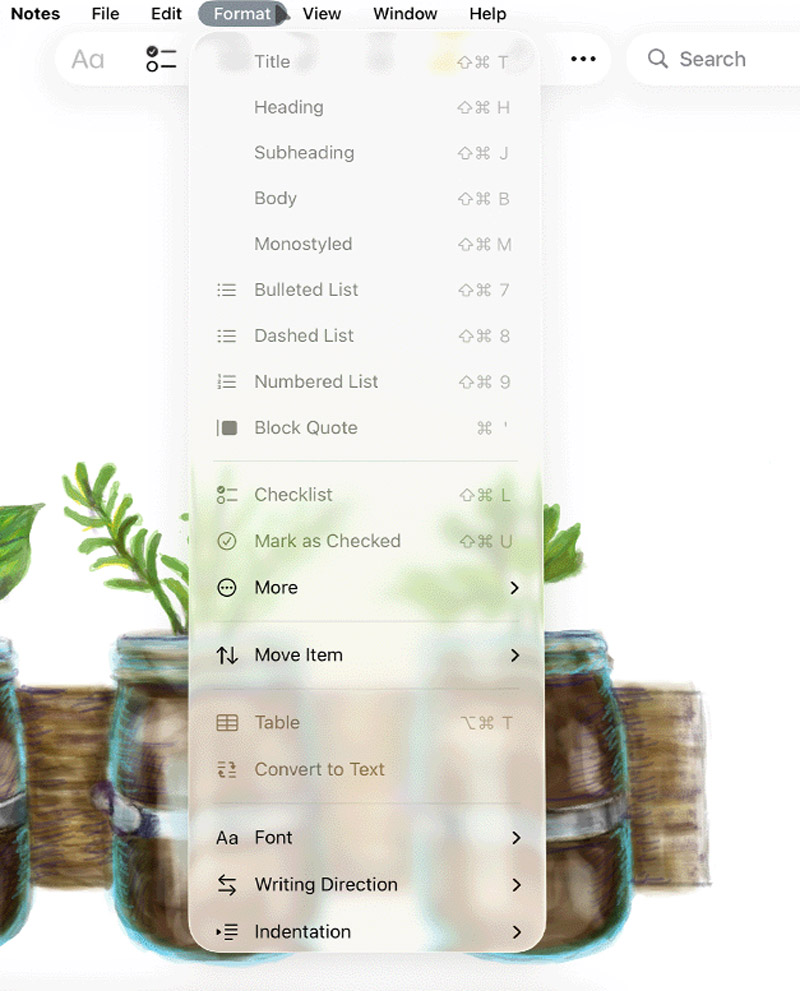
One last handy tip: when using an app, you can check which shortcuts are available to you from the menu bar along the top. Swipe down from the top edge if the menus are hidden, then examine the drop-down lists for a sneak peak of all possible shortcuts in the app.