Part of Important SettingsTip 10 of 11
- Add a new email address to your Apple Account
- Make it the primary login address and remove the old one
- Reasons why this might not always work
Here’s a common question from iPhone and iPad users: is it possible to change the email address associated with your Apple Account?
Thankfully, the answer is (in most cases) a resounding yes.
Whether you’ve switched email providers, lost access to an old email account, or simply want to streamline your digital life, updating your Apple Account email is a wise move. Keeping your details up-to-date enhances the security of your account, especially if your old email is compromised or inactive, and updating the email instead of creating a whole new Apple Account means your contacts, purchases, and other account information remain intact.
Let’s walk through the process.
Adding a new email address
Before we can change your Apple Account email, we need to add a secondary email to your account.
Linking a second (or third) email address to your Apple Account is a savvy move if you frequently alternate between emails. This way, friends and family can find and contact you on Apple services using either email. It becomes a functional part of your Apple Account without replacing your primary email. You’ll need to register a secondary address before you can change your primary one.
To add a new address, open the Settings app and tap your name at the top to see your Apple Account details. Alternatively, to make the change from a computer, visit appleid.apple.com and sign in using your existing email.
Press Sign In and Security, then hit Edit next to the email section. Choose Add email or phone number. Type in your chosen email, and then head to your inbox to look for a verification code to prove you own the email address in question. Enter it, and make sure to respond to the prompt asking if you’d like this new email to be associated with iMessage and FaceTime.
Changing your primary email
Now, if you’re set on changing your primary Apple Account email, be mindful this will be used to sign into all things Apple in the future. There’s no going back.
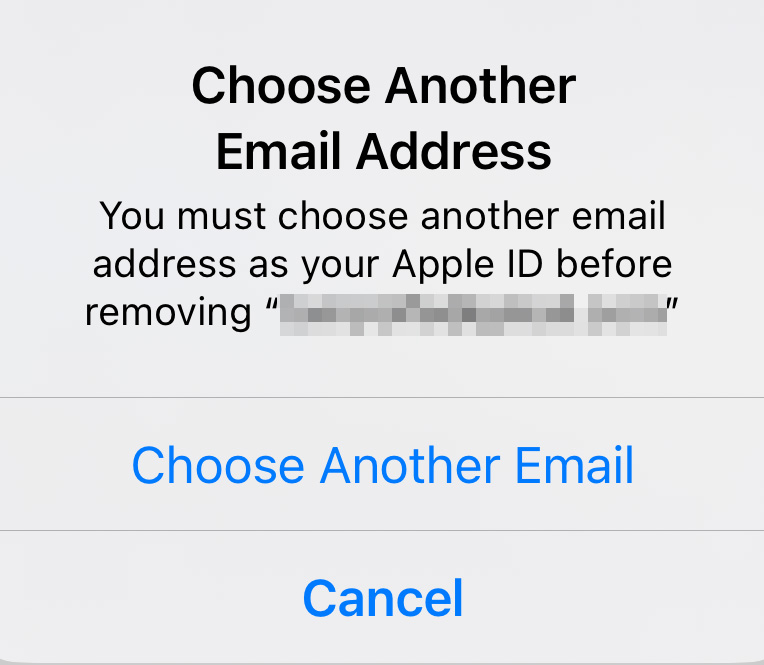
The easiest way to make the change is to return to the Sign-In and Security menu and swipe left on your existing Apple Account email. This will give you a delete option, after which you’ll be asked to choose another email address to be your main Apple Account email. Tap Choose another email and follow the prompts to select a secondary address you added earlier.
Sticking points
It’s worth noting that this change is only straightforward if you’re moving from a third-party email address (for example, @gmail.com, hotmail.com, or @yahoo.com) to another address that isn’t already registered to an Apple Account.
If your Apple Account is already tied to an Apple-run email account (for example, @me.com, @mac.com, @icloud.com) you can only replace it with another iCloud email address.
Finally, when you opt for a new primary email, remember that it can’t be one already linked to another Apple Account. If you’ve previously registered your preferred address as a secondary email for a friend or family member, they’ll need to remove it from their account before you can swoop in and claim it back.
Any issues with changing your Apple Account can usually be resolved via a quick chat with Apple Support.