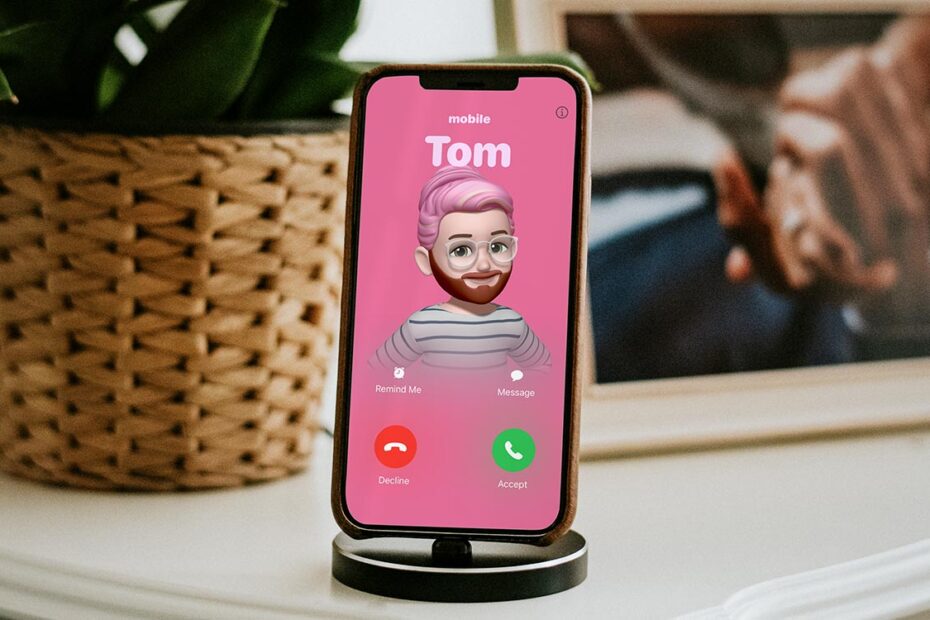

- Create a custom full-screen look for incoming calls
- Personalize your poster with photos, Memoji, fonts, and colors
- Control how your contact card appears when you call or share details
Personalized contact posters let you add a striking, full-screen visual to incoming calls, giving your contact card a look that’s unmistakably yours. The same design is also used when sharing contact details with others, making it a consistent way to represent yourself across iOS.
Setting one up is similar to designing a Lock Screen, with customizable photos or Memoji, bold typography, and color choices. The result is both practical and expressive – and it only takes a few minutes to create.
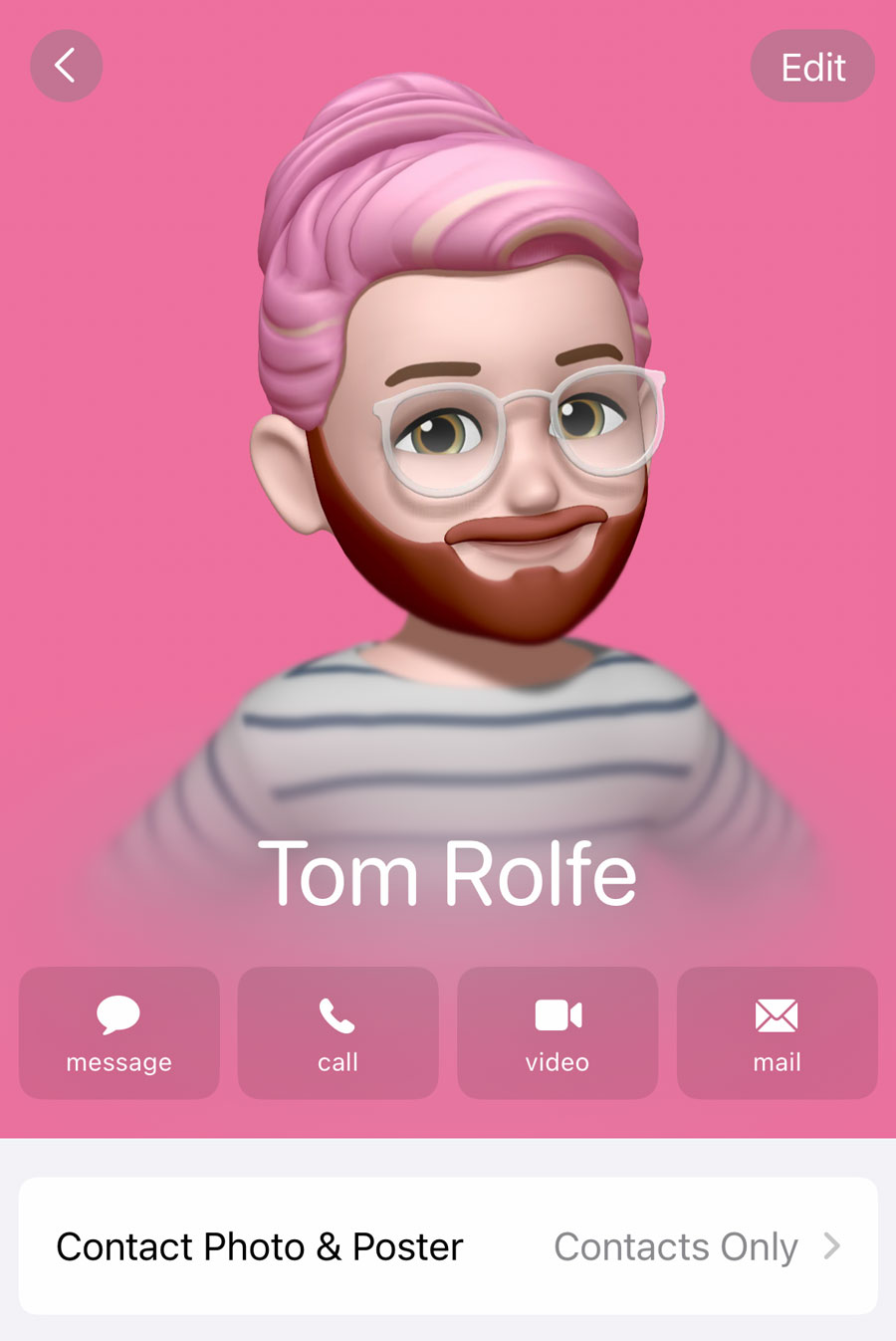
Design your poster
To start, open the Contacts app or the Contacts tab of the Phone app. Scroll to the top of the list and tap My Card.
Here, you’ll see all your saved contact information. Tap Edit in the top right, then Edit again under your existing contact photo.
Note you can swipe left and right between multiple contact posters, just like switching through Lock Screen designs. Tap Customize on an existing poster, or scroll to the right and choose Create New.
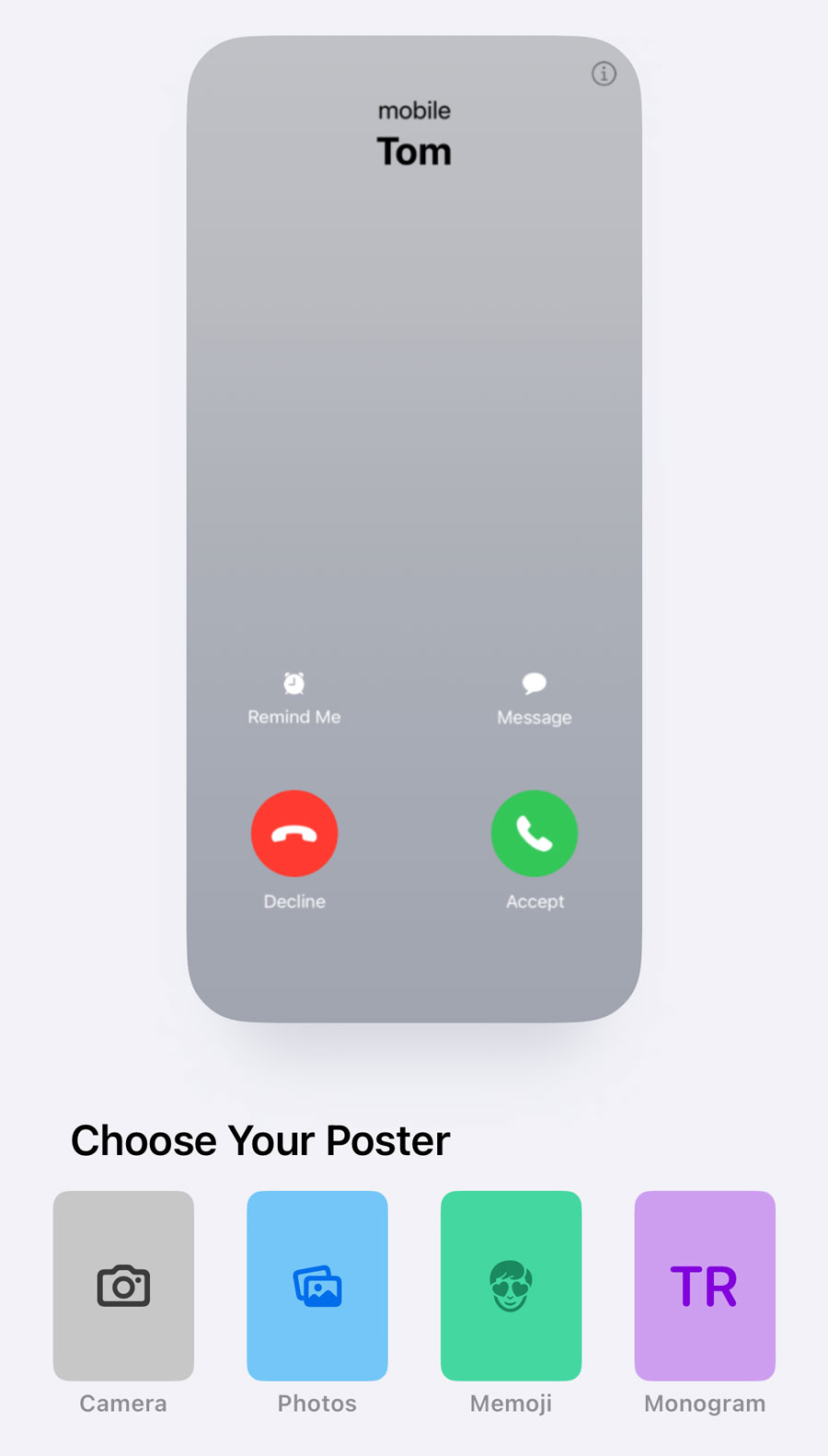
You’ll see a preview of the call screen alongside four options: Camera, Photos, Memoji, and Monogram. Choose the poster style you prefer you’ll be prompted to customize further.
Further customizations
If using a photo, we’d recommend something shot in Portrait mode. Contact posters can use the depth information to layer your name between foreground and background.
If using Memoji, you’ll have the choice between Apple’s preset sticker poses, or capturing your own facial expression using the front-facing camera.
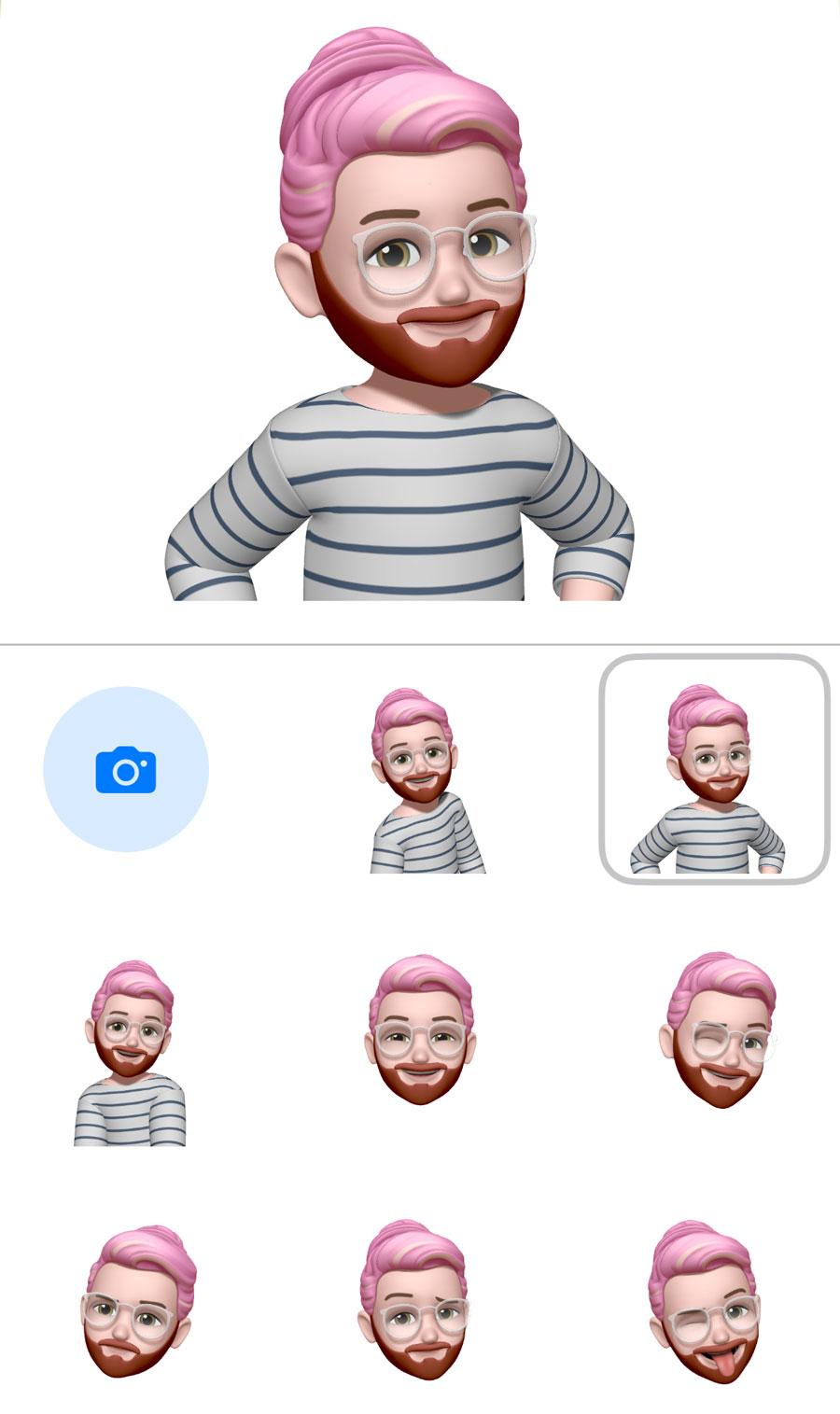
Once you’ve chosen a main image, you can continue personalizing the contact poster. Swipe left and right to try out photo filters, use the circle in the bottom left to change Background Color, or tap your name to adjust the Font & Color of the text. There are four distinct fonts to choose from, and a slider to tweak the font weight.
Contact Photos
Hit Continue if you’re happy with the design. You’ll then get the opportunity to create a matching Contact Photo if you want to. Use the Crop button to ensure your design fits within the circle and hit Update.
The Contact Photo is still used in some contexts where the new Contact Poster doesn’t fit, and it’s also what anyone without iOS 17 will see, so it’s a good idea for them to match. However, you can Skip or Customize if you’d prefer.
That’s it! Hit Done and you’ll see your shiny new Contact Poster.