


- Every way to copy, paste, and cut
- How to copy on one device and paste on another
- What the clipboard actually does
The computer commands ‘copy’ and ‘paste’ have been helping office workers increase their productivity for decades, but it wasn’t always possible on iPhone – arriving two years after launch with iOS 3. In the 16 years since, Apple has made copying and pasting easier and more powerful than ever, including a universal clipboard that lets you copy on one device and paste on another.
Even so, these commands can still be a little confusing, and many people don’t know all the ways to use them. Here’s everything worth knowing about how it works on iPhone and iPad.
Explaining copy, paste, and cut
When you copy something – usually a block of text, an image, or a file – it goes to the clipboard. Think of it as a temporary holding area. It keeps one item (or group of items) at a time, and it stays there indefinitely until you copy something else. When you paste, a duplicate of whatever’s on the clipboard appears wherever you pressed. That might mean moving a few words from one paragraph to another, or moving a whole set of images to another app.
Note that as well as copy and paste, there’s also the cut command. This simultaneously copies something and deletes the original, which can be handy for moving things around without leaving duplicates everywhere you go.
How to copy and paste
There are a few ways to do it, depending on what you’re working with.
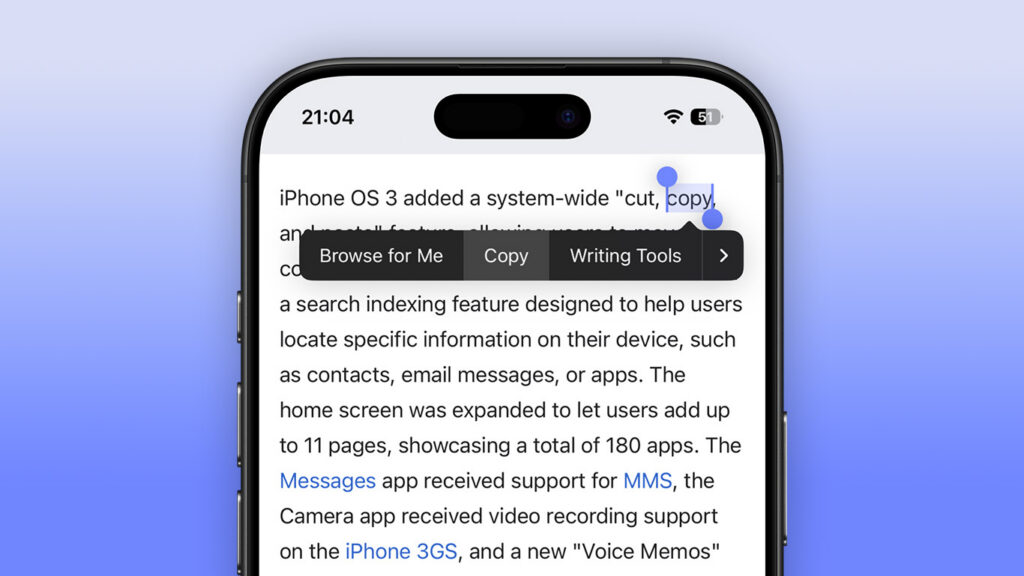
For text, press and hold on a word until the selection handles appear. Drag the handles to cover what you want, then tap Copy from the menu that pops up. To paste, tap and hold where you want the text to go, then tap Paste.

Double-tapping a word selects it instantly. Triple-tapping usually selects a whole sentence or paragraph, depending on the app.
For most other items, like images or files, you can long-press and choose Copy from the menu that pops up. Another option is to select something, press the Share button, and choose Copy from the Share sheet.
If you’d rather use gestures, iOS supports a set of three-finger shortcuts: pinch three fingers together to copy, spread three fingers apart to paste, and pinch three fingers together twice quickly to cut. They take a little getting used to, but they’re genuinely faster once you have them.
On iPad with an external keyboard, the usual Mac shortcuts apply: Cmd+C to copy, Cmd+V to paste, and Cmd+X to cut.
Universal Clipboard
If you have multiple Apple devices, the clipboard can work across all of them. Universal Clipboard lets you copy something on your iPhone and paste it on your Mac – or any other combination of iPhone, iPad, and Mac – as long as they’re all signed into the same Apple ID with Bluetooth and Wi-Fi switched on.
It’s part of the wider Handoff system, which also lets you pick up emails, browser tabs, and other tasks across devices. You can toggle Handoff on or off at Settings > General > AirPlay & Handoff.
Advanced techniques
Once you’re comfortable with the basics, there are a few more tricks worth knowing.
In the Photos app, you can select multiple images at once before copying – tap Select in the top right, tap each photo you want, then use the Share button to move them all in one go. The same works in Files: tap the three-dot menu, choose Select, pick your files, then copy or move them together.
If you’ve applied edits to a photo and want to replicate them elsewhere, Photos lets you copy and paste adjustments between images. Open an edited photo, tap the three-dot menu (…), and choose Copy Edits. Then open another photo, tap the same menu, and tap Paste Edits. It’s a quick way to apply a consistent look across a batch of shots.
Finally, drag and drop is worth knowing about – especially on iPad. Press and hold an item until it lifts, then drag it to another app or location. You can even use a second finger to navigate while dragging, keeping the item held in place. It’s a more tactile alternative to copy and paste for moving things between apps, and on iPad in particular it’s genuinely fast once you get the hang of it.