

- Build a working shortcut from a plain-English description
- Refine and fix it without digging through actions
- Drop into the manual editor whenever you want full control
Apple’s Shortcuts app can build helpful automations to do pretty much anything your imagination can cook up on your iPhone and iPad. But linking up actions, apps, and outputs can be a fiddly process for anyone who isn’t naturally tech-savvy. So many people miss out on it because the interface is overwhelming, or they’ve simply never spent the time to explore the possibilities.
That’s what the new Describe a Shortcut feature in iOS 27 sets out to fix. It’s the same hands-off idea behind describing custom memories in the Photos app, but for automation: you describe what you want in plain English, and Apple Intelligence assembles the whole thing for you. You’ll need an iPhone that supports Apple Intelligence (iPhone 15 Pro or later) with the feature switched on.
Note: this is a preview of an upcoming iOS 27 feature. To try it for yourself, join Apple’s beta testing program in July or wait for the public release in September.
Building a shortcut the easy way
Open the Shortcuts app and tap + New Shortcut. Instead of an overwhelming blank slate, you’ll get a welcoming bubble asking what you want your shortcut to do. Type your idea in plain English and the AI builds it for you.

Keep the request clear and the results get better – something like “when I leave work, text my partner an ETA based on traffic” is enough for it to wire up the location trigger, the Maps lookup, and the message on its own.
Refining the output
If the shortcut comes back slightly off, just describe the change you want and the AI tries again – add a step, swap an app, tweak the timing. Handy when it’s landed close to your goal but not quite on it.
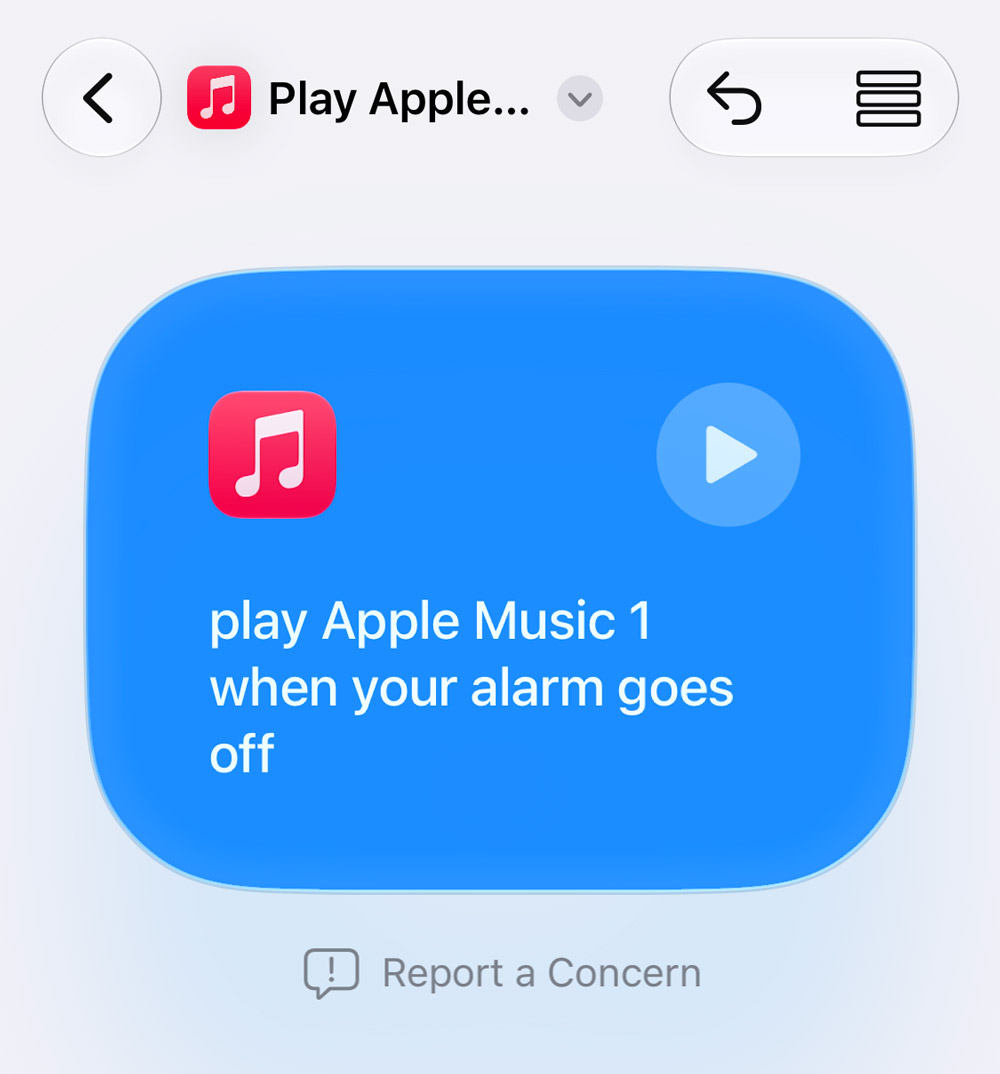
Switching to manual
Want to see how the shortcut is wired up? Tap the list button in the top right for the old manual view, which you can tweak to your heart’s content. You can even mix and match, swapping between doing things yourself and asking the AI for a helping hand.
The world is your oyster
That’s really all there is to it. The only thing left is to have some good ideas. Stuck for a starting point? Try something like “set my lights to warm white at sunset”, or “enable do not disturb mode and start my focus playlist when I get to work”. Or go one step easier than describing a shortcut and find a pre-made one from the app’s Gallery tab.