
- Tips for using Dictation mode
- How it differs from dictating to Siri
- Several other ways you can talk to your device
Typing on a small screen is fine, but talking is faster. Here are a few different ways to use your voice on iPhone, including some tips on getting the most out of the built-in dictation mode.
Keyboard dictation
Tap the mic button in the lower right of your keyboard to toggle Dictation mode on. It’ll keep listening as long as the mode is active – even if you pause mid-sentence or start typing instead. Tap the mic again to turn it off.
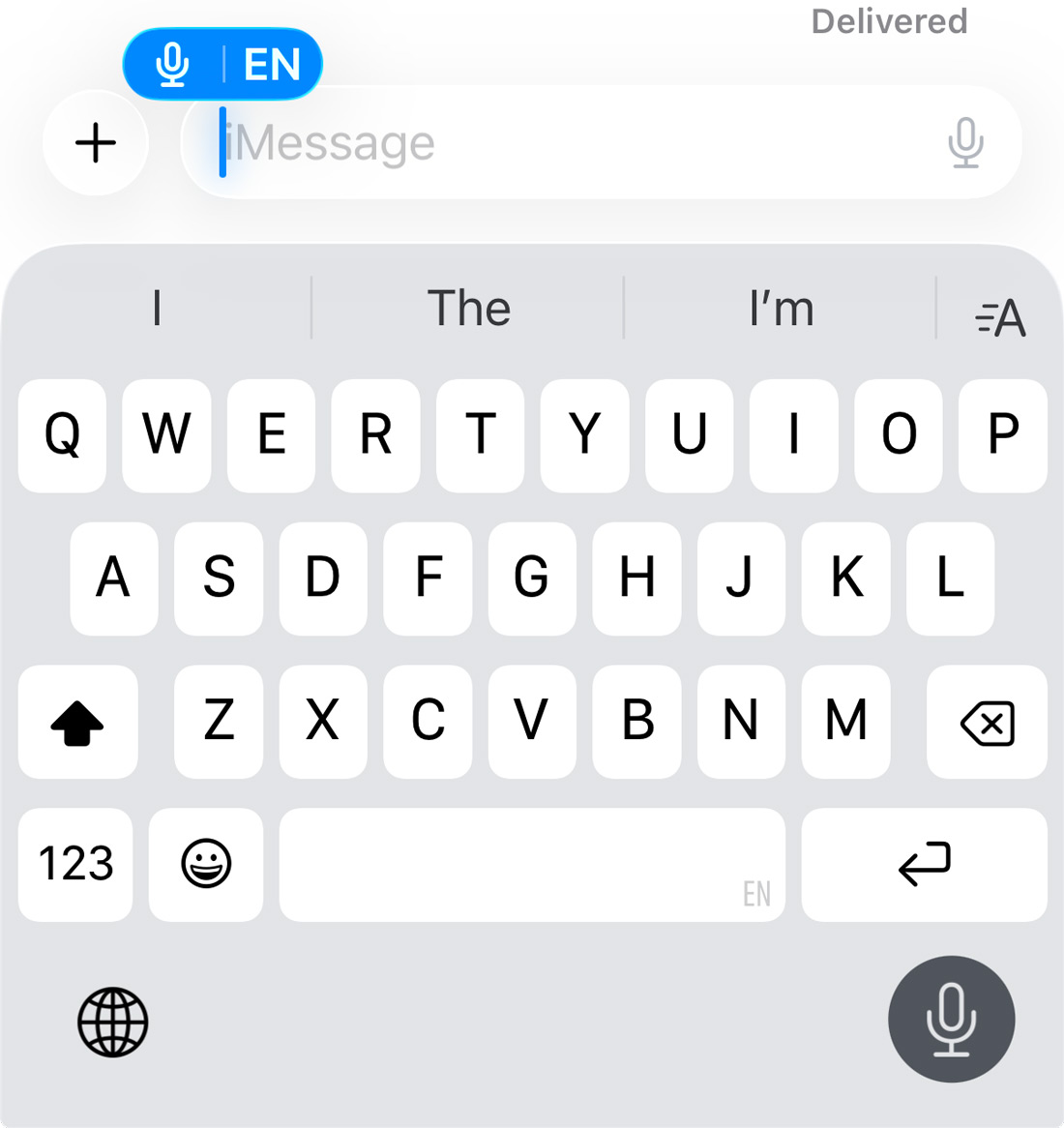
The big advantage is how fluidly you can mix voice and touch. Dictate a sentence, tap to fix a word or a name that got mangled, then carry on talking. You’re not locked into one mode or the other.
Punctuation and emojis
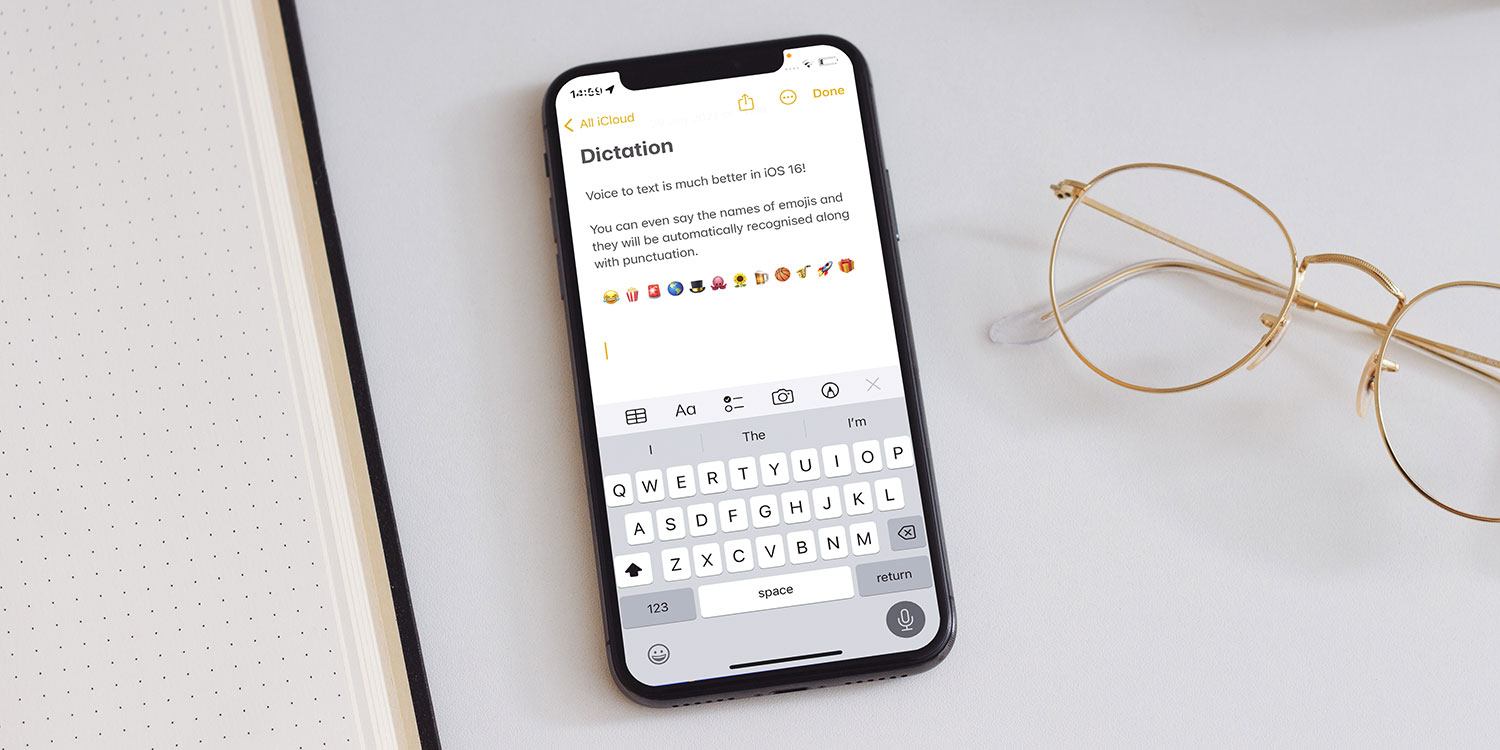
iOS will try to insert punctuation automatically based on your speech patterns – so you don’t necessarily need to say “comma” out loud. But if it’s getting it wrong, the commands still work: say “period”, “question mark”, “new paragraph” and so on to take manual control.
For emoji, say the name followed by “emoji” – “thumbs up emoji”, “fire emoji”, “poop emoji”. Stick to the obvious ones and it handles them well. Venture into the obscure corners of the Unicode emoji list at your own risk. 💩
Siri dictation
Siri handles things differently – instead of composing text yourself, you hand the whole job off. Say “Hey Siri, send a message to Dad saying I’ll be home at seven” and it’ll write it, read it back, and send once you confirm you’re happy with it.
Useful when your hands are full or you’re driving. Less useful when you want full control.
Talking to AI
Apps like ChatGPT and Claude have added a novel option: actual voice conversations. In one of these apps, tap the waveform icon, talk, and the AI talks back. No keyboard, no send button, just back-and-forth like a phone call.
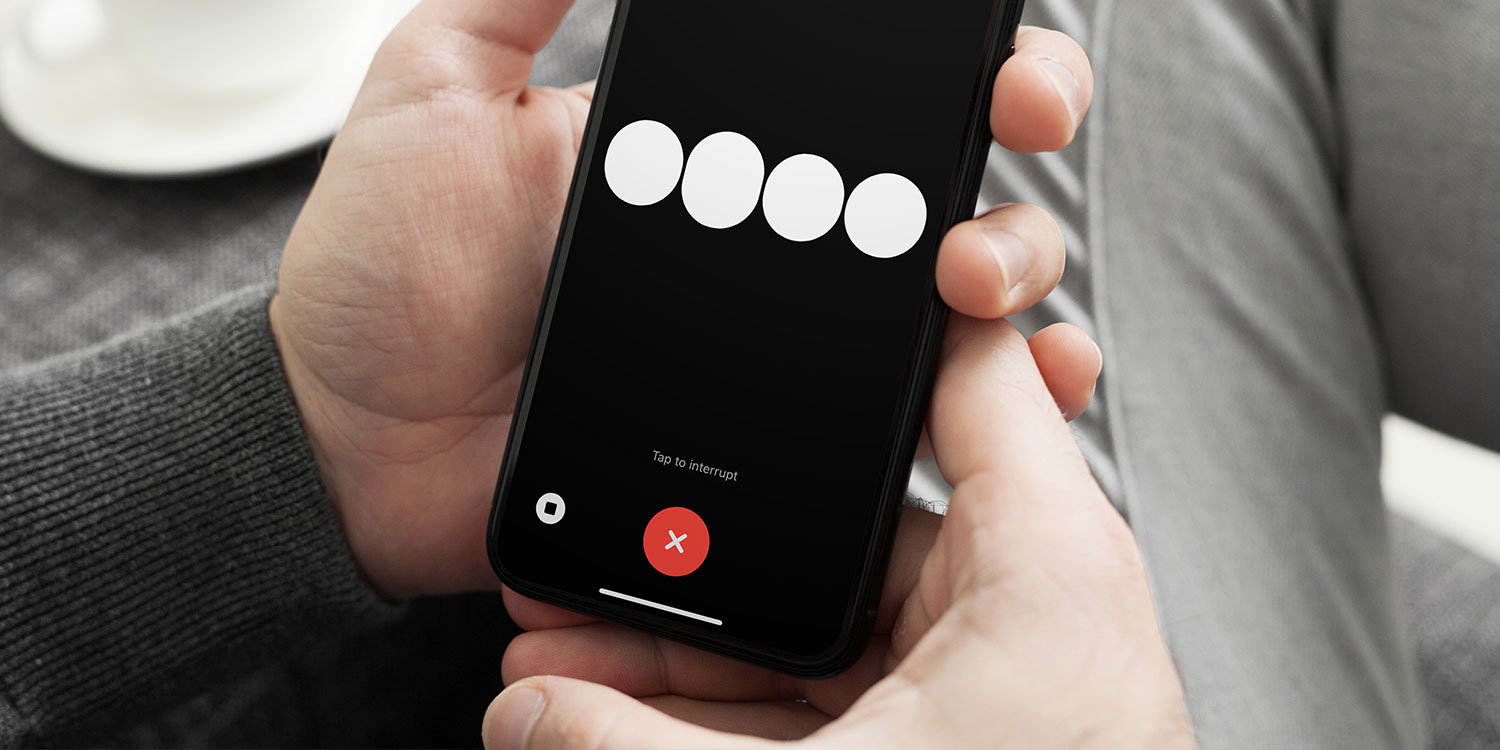
If you’d rather have more control, use the keyboard’s built-in dictation mode instead – speak your message, then review and fix the text before hitting send. The AI will respond in text, and nothing goes anywhere until you’re ready.
Live translation
This one’s a bit different – it’ll help you speak or type in another language in real time. You’ll need iOS 26.1 or above for this one.
In Messages, incoming texts in another language are translated automatically in the conversation thread – and likewise, you can dictate a message to someone who speaks another language safe in the knowledge it will be translated at their end.

The Phone app can automatically translate a call as it happens, speaking the translation aloud in a synthesized voice – and it all happens on-device, so it doesn’t matter what phone the other person is using. FaceTime works similarly but since you’re both on video, it shows live captions instead.
One more thing
If you want to go even further, Voice Control lets you operate your entire iPhone by voice – not just dictate, but tap, scroll, and navigate without touching the screen. We’ve got a full guide to it here.