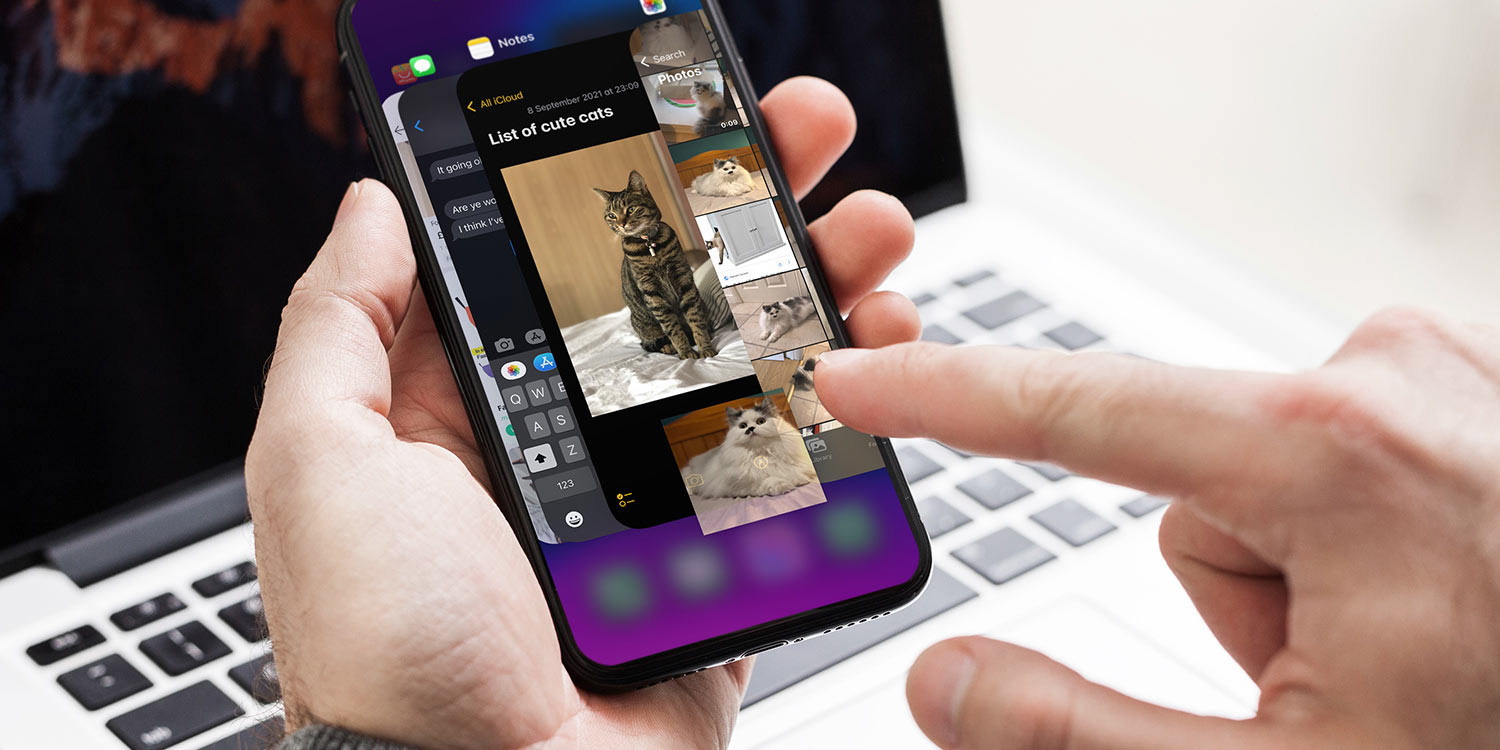

- Drag text, photos, and files between apps
- Use two fingers to move content without copying and pasting
- Works across many Apple and third-party apps
Drag and drop has long been a staple of the iPad experience, but it’s just as useful on iPhone once you know how it works. With a simple gesture — and often just one extra finger — you can move text, images, and other content between apps far faster than copying and pasting.
It takes a little coordination at first, but once it clicks, drag and drop becomes one of the quickest ways to work across apps on iPhone.
What a drag
Start by touching and holding the item you want to move.
For text, tap and hold to select it, then drag the selection handles to highlight the portion you want. Keep holding until the text “lifts” slightly, indicating it’s ready to move.
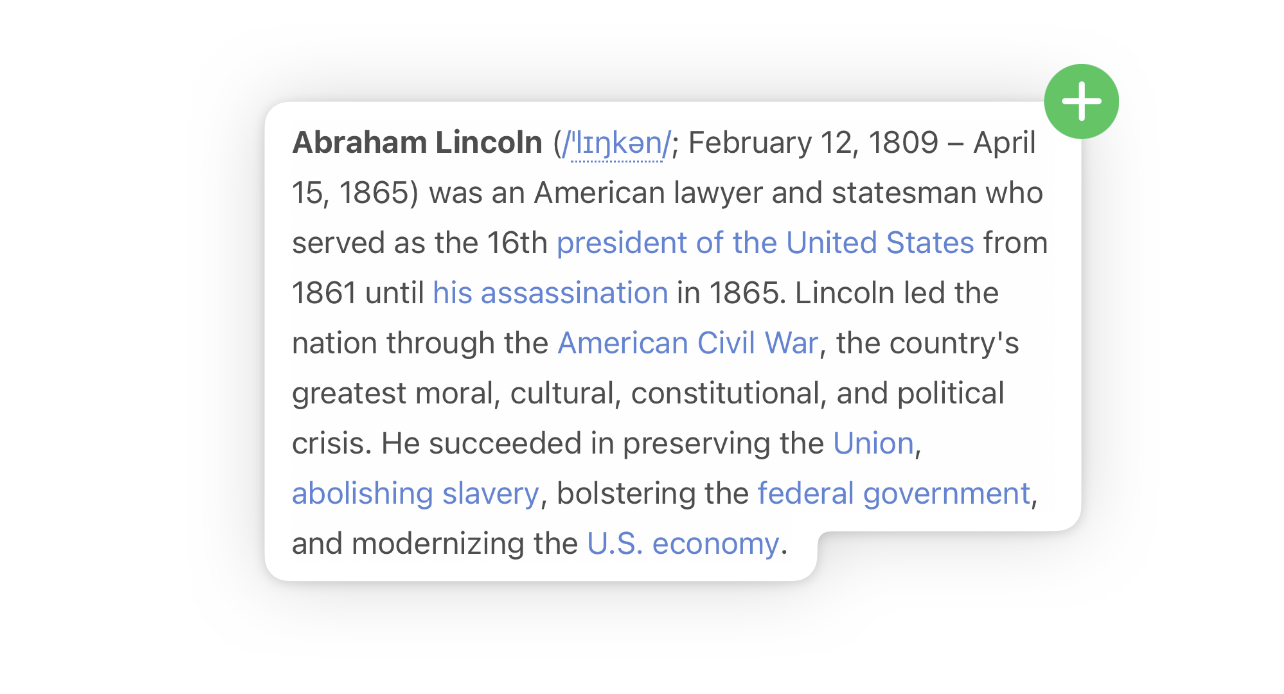
For photos, press and hold on an image thumbnail until you feel a subtle haptic tap. The image will detach from the interface and follow your finger.
Time to drop
While still holding the item with one finger, use another finger to switch apps.
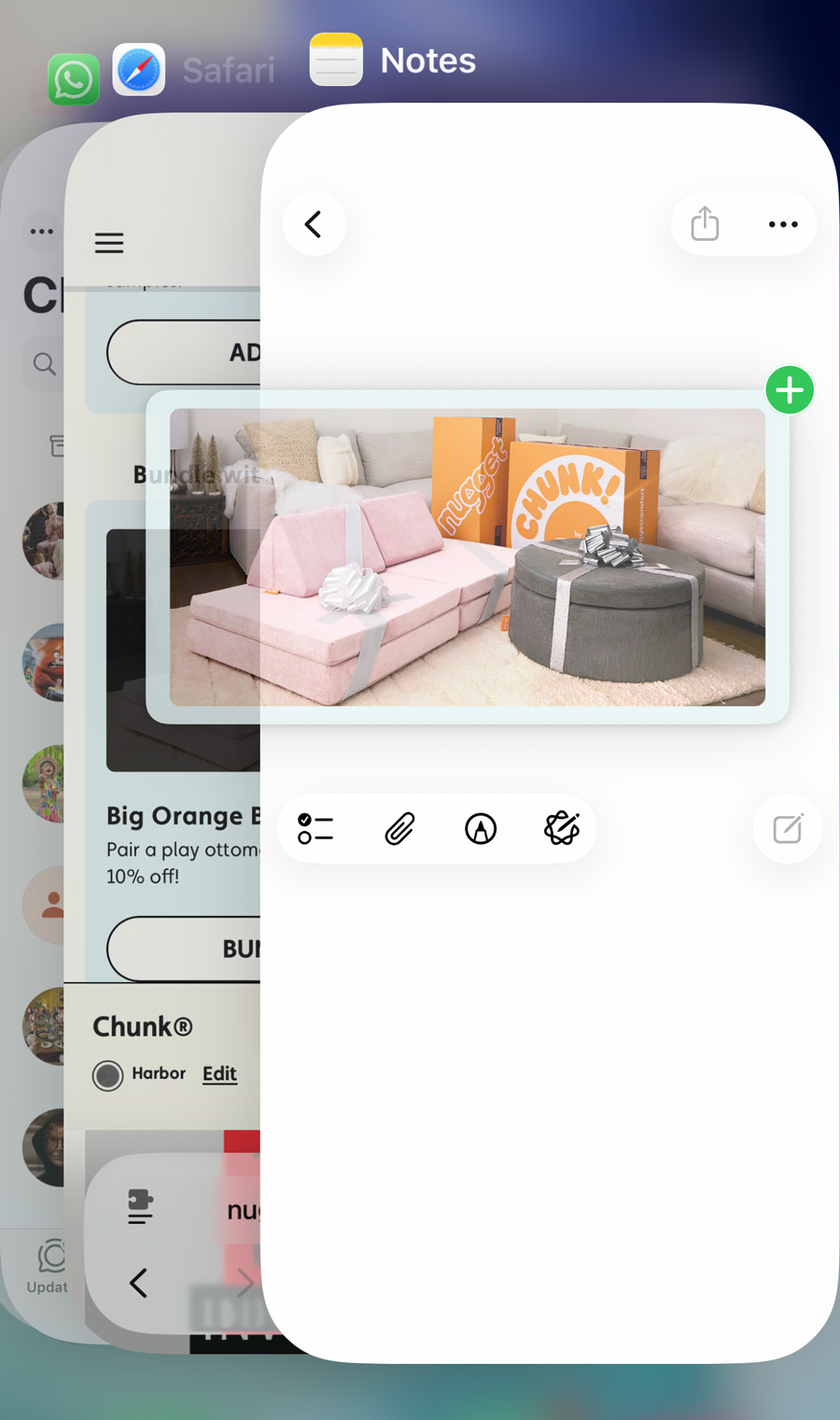
You can swipe up and pause to open the App Switcher, then choose the destination app. Alternatively, swipe up to go to the Home Screen and tap the app you want to drop the content into.
Once you’re in the destination app, drag the item into place and lift your finger to drop it.
Where it works
Drag and drop works especially well between Apple’s own apps. Try dragging photos from Photos into Notes, Pages, or Mail. You can also drag text from Safari directly into Messages, Mail, or a notes app.
Another handy trick is dragging Voice Memos recordings into a note for quick reference, or pulling images straight into documents without saving extra copies.
Many third-party apps also support drag and drop, including popular messaging, email, and productivity tools. It’s worth experimenting to see which combinations work for you.
Go further with lifted photo subjects
You can also combine drag and drop with iOS’s subject-lifting feature. Press and hold on the main subject of a photo until it separates from the background, then drag that cut-out directly into another app — such as Messages, Notes, or a photo editor.
It’s a powerful way to move visual elements around quickly, without needing dedicated editing tools.
Once you get used to the gesture, drag and drop becomes second nature — and a far more fluid way to move content around your iPhone.