
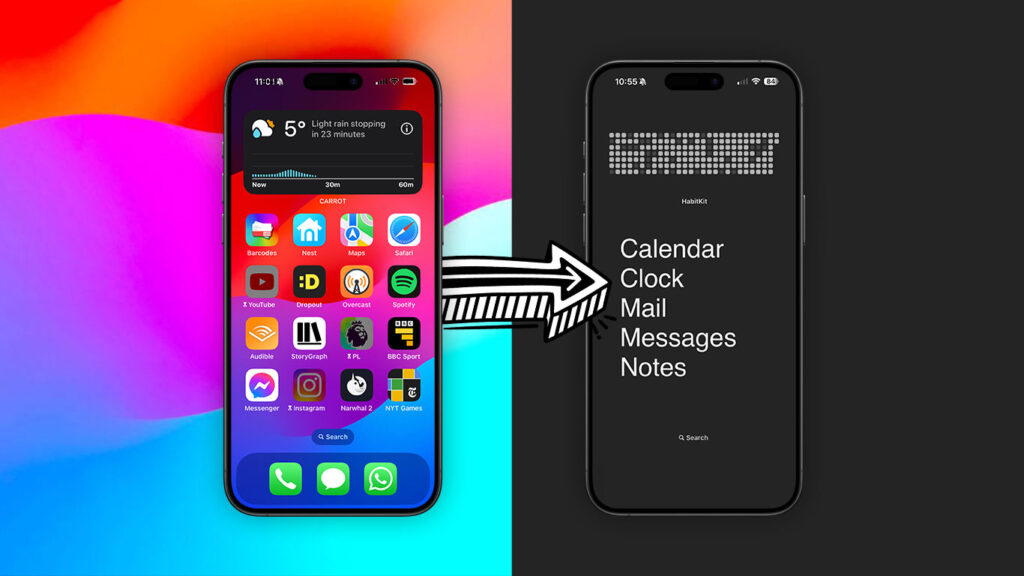


- Reduce distractions without abandoning your iPhone entirely
- Use apps and settings to limit scrolling and time-wasting
- Create a calmer, more intentional phone experience
Modern smartphones are incredibly powerful, but that power comes with a cost. Constant notifications, infinite scrolling, and attention-grabbing apps can make it hard to stay focused.
Some people solve this by switching to a so-called “dumbphone”: a basic device for calls and texts, with little else to distract them. While that approach works for some, it’s not realistic for everyone. Most of us still rely on our iPhone for navigation, payments, tickets, QR codes, photos, and so on.
Thankfully, there’s a middle ground. With a few carefully chosen apps and settings, you can strip back the most distracting parts of iOS while keeping the features you actually need. The result is an iPhone that behaves like a dumbphone when you want it to, and a smartphone when you don’t.
The dumbest apps
Sure, Apple’s built-in Screen Time tools are pretty handy, and with Limits and Downtime you can lock yourself out of unproductive apps. But bypassing those limits is so easy as to be almost pointless. If you lack self control, you’ll need something stricter.
Here are some excellent apps that fit the bill. You won’t need them all – pick the one that appeals most and move on to another option if it doesn’t work for you.
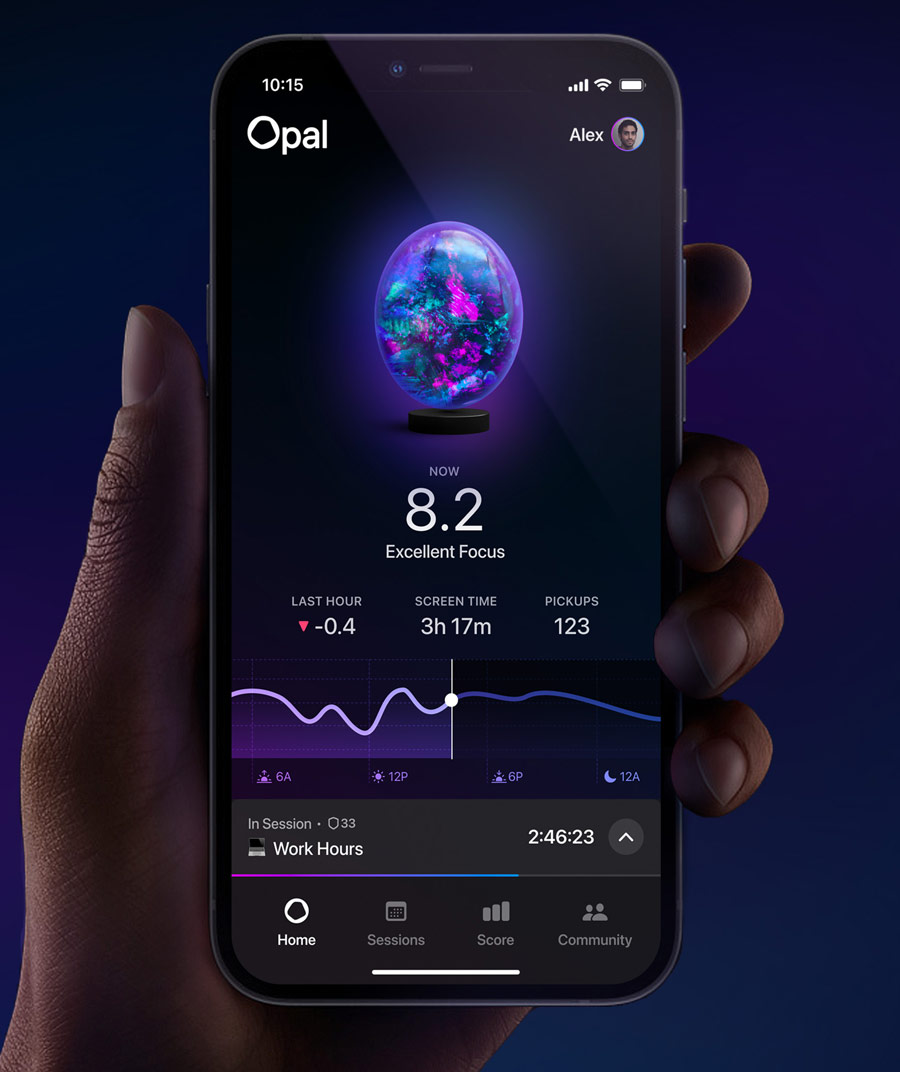
Opal ($99/£99 yearly) is like Apple’s Screen Time on steroids. It helps you block distracting apps across all your devices, with details analytics and “focus scores” to track your improvements. You can enable timed focus sessions and even a “deep focus” mode that can’t be bypassed until you’re done. It’s not very clear in the app, but you can use it to block up to three apps completely free, which might be enough. Pay if you need more apps or more customization.
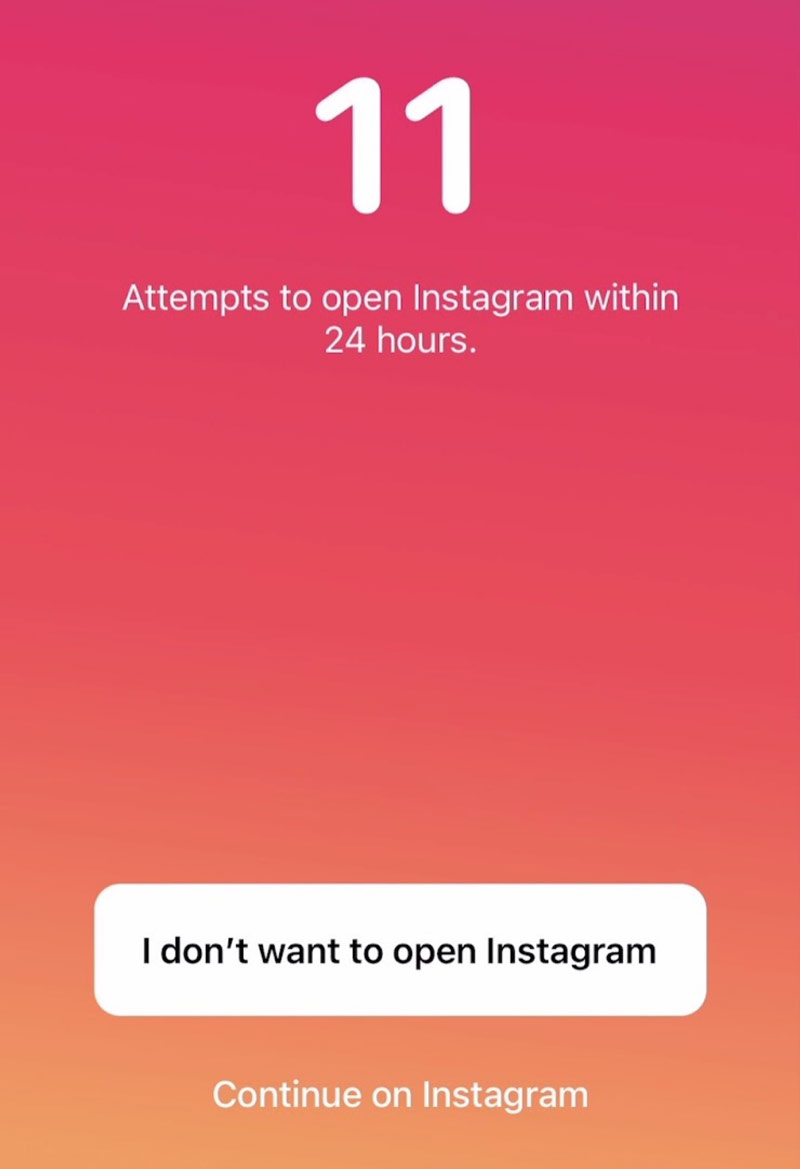
One Sec ($20/£20 yearly) will work if all you need is the gentlest of nudges to stop procrastinating. Enter the apps and websites you find distracting, and it will force you to take a deep breath before accessing them, asking the question “do you really need to check this right now?”
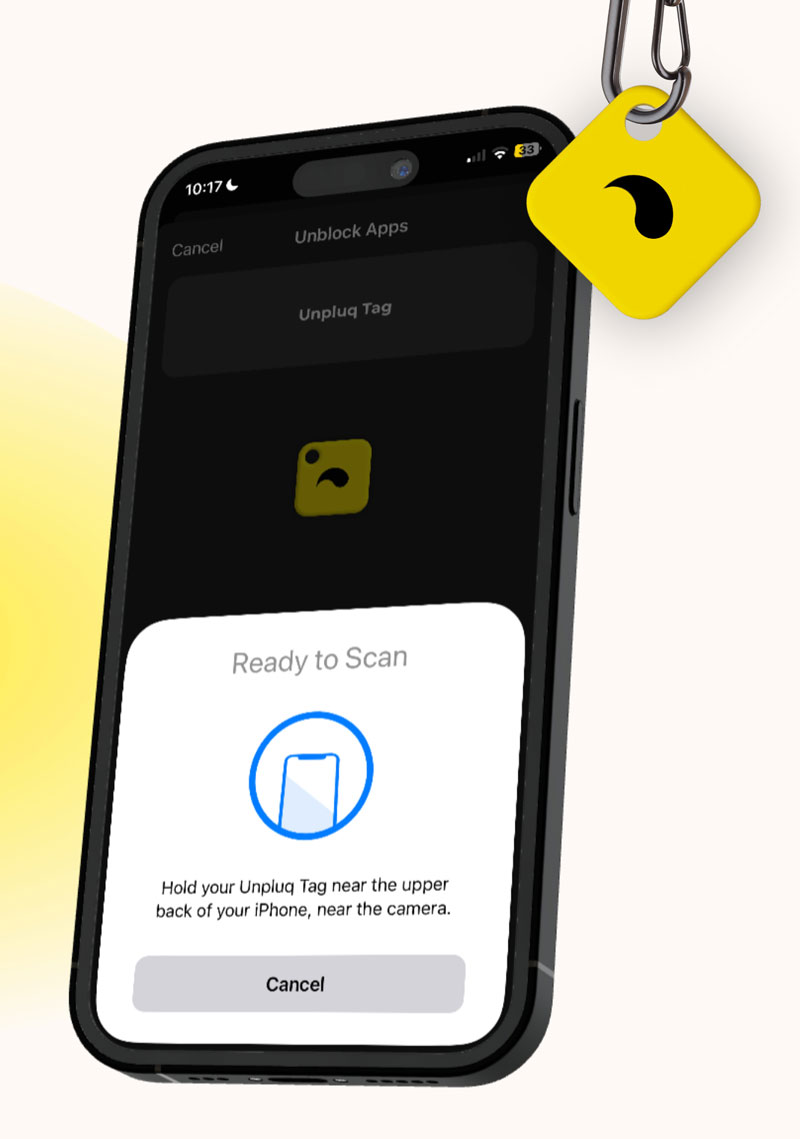
Unpluq ($65/£60 yearly) blocks distracting apps, giving users a physical key fob they can tap against the iPhone to temporarily unlock everything. Simply putting the key in another room could be enough of a barrier to curb temptation. It’s not cheap, but it’s a fantastic way to be more intentional about taking breaks.
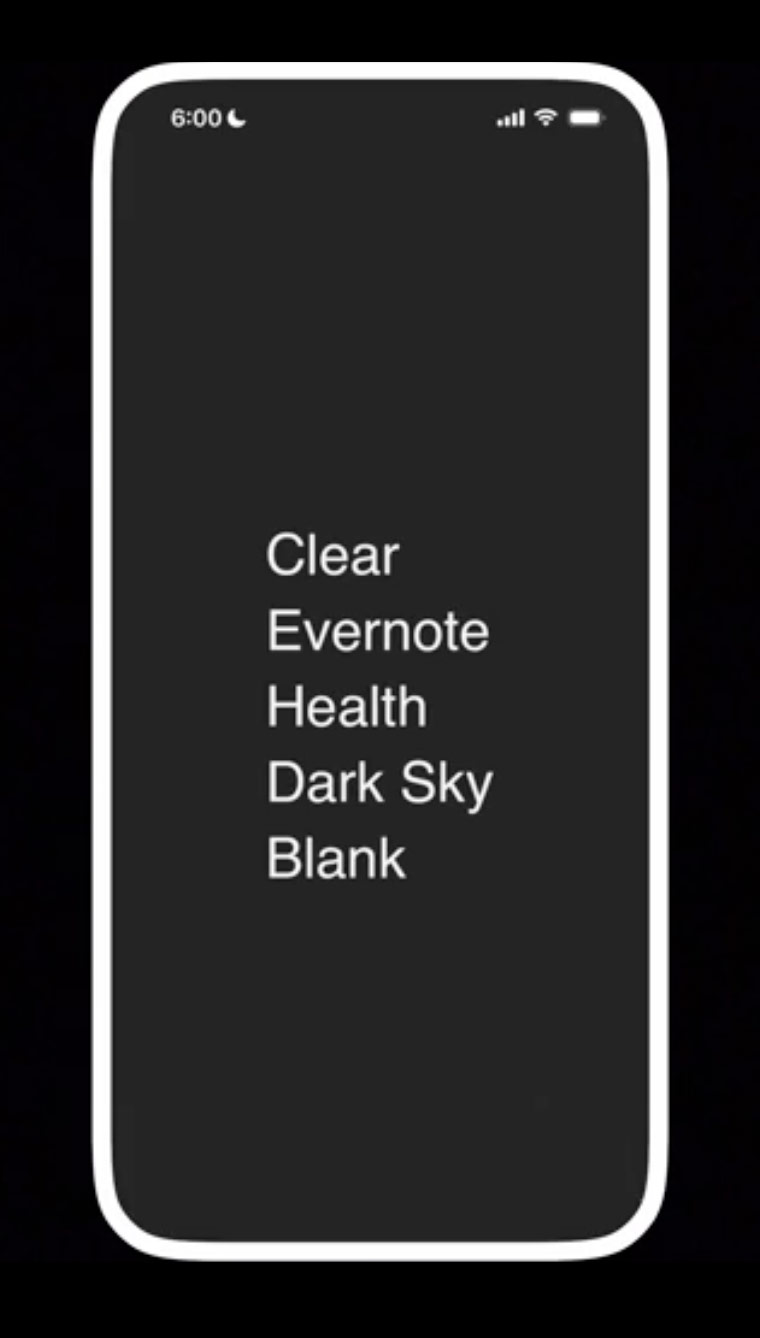
Blank Spaces ($18/£18 yearly) is perfect to make your iPhone look like an old-school Nokia. Use it to design an ultra-basic Home Screen, granting access to just a handful of necessary apps with a very minimal custom menu. It also allows you to hide the iOS dock, clearing the screen of every last modern app.
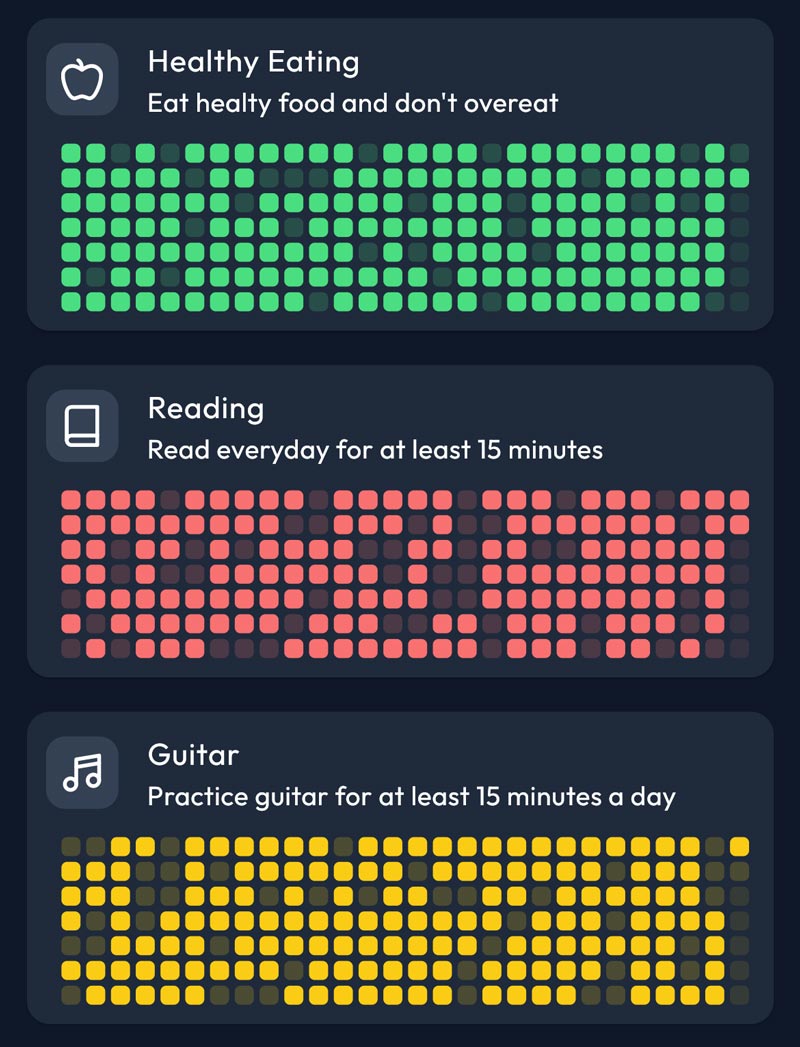
HabitKit ($12/£12 yearly) is great if you’re trying to build positive habits as well as breaking negative ones. There are plenty of habit trackers for iOS, but this one matches the minimal dumbphone aesthetic particularly well. Stick a habit tracking widget on your Home Screen and watch those colorful dots rack up.
The dumbest settings
iOS has some very useful tools built right in. These are the settings you might want to consider tweaking to get your dumbphone experience just right.
Use Focus modes to automatically enable your “dumbphone” at specific times of day, reverting to a normal smartphone the rest of the time. Head to Settings > Focus and use the + button to create a custom focus. Chose which times it will automatically activate, and hide all your normal Home Screens during that time, showing only your bespoke dumbphone layout.
Go grayscale by heading to Settings > Accessibility > Display & Text Size > Color Filters > Grayscale. This will make the entire screen monochrome, eliminating the vibrant imagery that can tempt you to engage when you don’t need to. It also makes your device more like something from the early 2000s.
Listen to ambience with the built-in background sounds in iOS. This way, you won’t have to shell out for another app subscription and its usage won’t count towards your screen time metrics. Configure the sounds from Settings > Accessibility > Audio/Visual > Background Sounds and then add a toggle in Control Center for quick access.