


- Whether you can reset your passcode without wiping
- When a full factory reset is your only option
- How to recover using iCloud or recovery mode
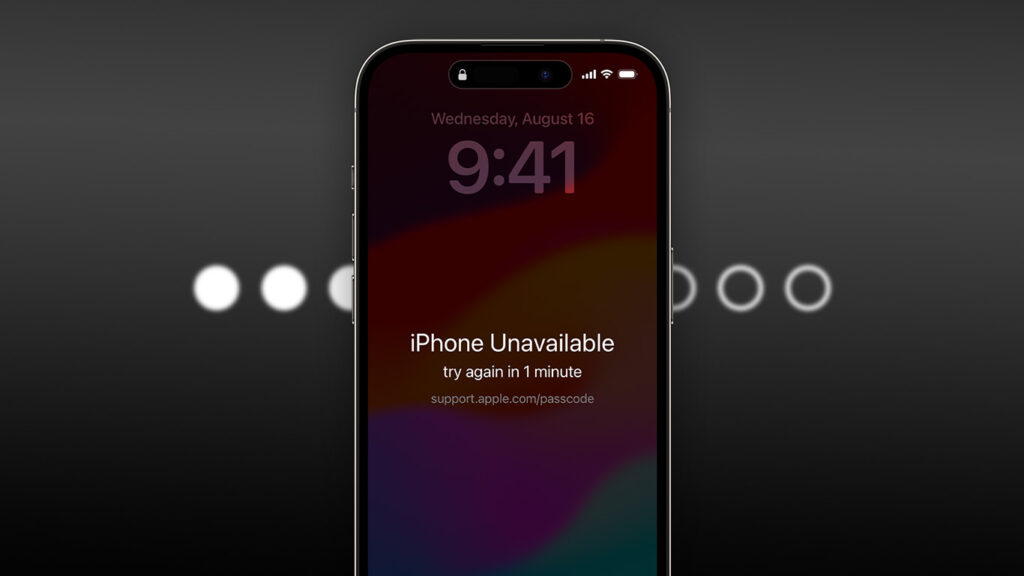
Forgetting your iPhone or iPad passcode is one of those stomach-dropping moments. Unfortunately, there’s no magic bypass – and that’s by design. If it were easy to skip the lock screen, the passcode wouldn’t offer much protection in the first place.
That said, you’re not necessarily stuck forever. Depending on your situation (and how recently you changed your code) there are a few legitimate ways to regain access. Some preserve your data, others require a full reset, but one way or another, you can get back in.
Let’s walk through the options.
Passcode reset
If you changed your passcode recently but subsequently forgot it, good news: you can use your old passcode to reset it once more. Tap the Forgot Passcode? button in the bottom corner of the lock screen. This button only appears after ten failed login attempts, and only if you’re running iOS 17 or above and have Wi-Fi access.
Here, press Try Passcode Reset and you’ll be able to set a new new passcode. Don’t forget this one!
Erase and rewind
In most cases, forgetting your passcode means you’ll need to factory reset the device. This means that all data and settings will be erased, but sometimes it’s the only way to regain access to your device. Of course, you can re-download all purchased apps after a reset and restore anything backed up to iCloud, like photos and files. Depending on your backup settings, you still may lose some data, but it’s a good solution.
If you have iOS 17 or above, you can reset your device right from the Lock Screen. Like before, you’ll need to bring up the reset option by typing in an incorrect passcode ten times. Depending on whether you have the security feature Auto-Erase enabled, this will either force your device to erase everything, or show the security lockout screen and the Forgot Passcode? button.
With Auto-Erase on, you don’t need to do anything else. The device will wipe itself and restart. Otherwise, press Forgot Passcode? and then Start iPhone Reset. You’ll need to enter your Apple ID password (which is distinct from your device passcode) to sign out of your Apple ID before resetting.
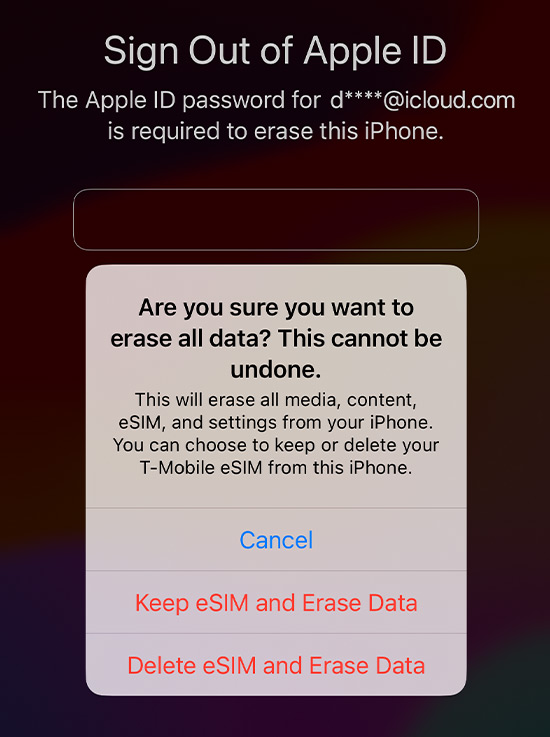
If your device uses an eSIM instead of a physical SIM card, you can choose Keep eSIM and Erase Data to avoid wiping all your cell carrier information from the virtual SIM.
Recovery mode
One of the most reliable methods for resetting an iPhone or iPad is to put it in recovery mode, but you’ll need access to a Mac to do it. If you don’t have a Mac, a Windows PC will do the trick if it has Apple Devices or iTunes installed.
Grab the appropriate USB cable for your device and plug one end into the computer.
Next, power off your device by holding the Side and Volume Down buttons simultaneously, drag the power off slider to the right, and wait a moment while everything shuts down.
Once your iPhone is off, press and hold the Side button while immediately connecting your iPhone to the computer. Keep holding the button as the Apple logo appears, and don’t let go until you see the recovery mode screen. If the device starts up as normal, power it off and try again.
Once in recovery mode, you can restore your iPhone using a computer. Find your device in Finder on a Mac or Apple Devices/iTunes on a PC. Choose the Restore option and then hit Restore and Update.
Remote reset
If you don’t have physical access to the device, you can reset it remotely. Log into iCloud.com and head to Find Devices. Choose your specific device from the list, press Erase This Device, and follow the instructions.
Restoring from backup
Regardless of how you reset the device, after erasing itself it will restart and launch the startup screen. Here, simply follow the instructions as if you’d just bought a new iPhone or iPad. Once you’ve signed into your Apple ID account, you can choose to restore from a recent backup.