

Whether you’re shooting with a tripod, setting up a group shot, or simply trying to avoid camera shake, pressing the on-screen shutter button can sometimes be a hassle. Even with the Camera Control button on newer iPhones, it’s still easy to nudge your framing by accident.
Thankfully, there are plenty of ways to trigger the shutter remotely. Over the years Apple has quietly expanded your options, and with iOS 26 there’s even a new one that takes advantage of your AirPods. Here are some of the best ways to take hands-free photos on iPhone.
Press the button on your headphones
If you’ve got a pair of wired EarPods lying around, they can act as a simple remote shutter. Plug them in – using an adapter if necessary – and press either volume button on the inline remote to take a picture. It’s particularly useful for steady shots or selfies, and it works even when you’re not listening to audio.
For a wireless alternative, newer AirPods models (AirPods 4, AirPods Pro 2, and AirPods Pro 3) can now do the same thing. Once connected, open Settings, tap your AirPods near the top, and choose Camera Remote. You can then decide whether a single press or a press-and-hold of the stem should trigger the shutter. After setup, open the Camera app and press the stem to take a photo or start recording a video. It works in most third-party camera apps too.
Teach Siri the “say cheese” shortcut
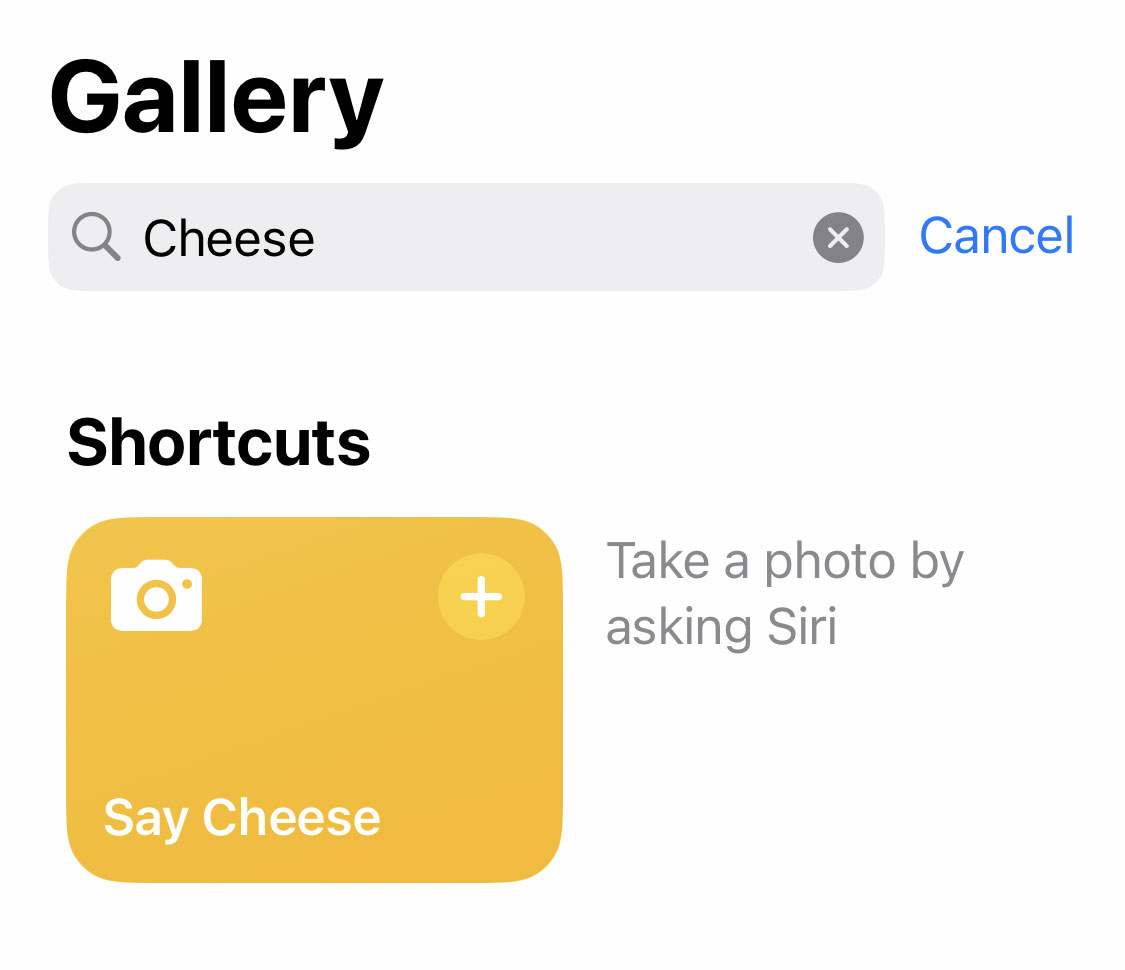
Open the Shortcuts app, head to the Gallery tab, and search for “Say Cheese.” Add this shortcut to your device and you’ll be able to say “Siri, say cheese” to instantly capture a photo. By default, it takes a shot with the rear camera and saves it straight to your Photos library, but you can tweak it to use the front camera instead. The shortcut works even if the Camera app isn’t open, making it a quick and easy option when your hands are full.
Using Voice Control to trigger the camera
If you’d prefer a spoken command that works within the Camera app itself, try Apple’s Voice Control feature. Go to Settings > Accessibility > Voice Control and enable it, then choose Create New Command. Pick a trigger phrase like “take photo,” and under Action select Run Custom Gesture to tap the area of the screen where the shutter button sits. Once that’s done, you can open the Camera app, frame your shot, and say your chosen phrase to take a picture.
Use the Camera Remote app on Apple Watch
Apple Watch owners can use the built-in Camera Remote app to control their iPhone camera from their wrist. You’ll see a live preview on your watch screen, which makes it great for group photos or awkward angles. Tap the shutter button on the watch when you’re ready to shoot, or use the timer for a short delay.

Connect a Bluetooth clicker button
Finally, there’s the dedicated approach. Bluetooth camera remotes are inexpensive and pair with your iPhone just like headphones or speakers. Once connected, pressing the button on the remote acts as a wireless shutter release in the Camera app. It’s an ideal choice for anyone who takes a lot of tripod shots – and many of these remotes double as presentation clickers too.