
- Tuck a draft away while you browse your inbox
- Set up VIP contacts for smarter notifications
- Customize what your swipe gestures do
- …and 6 more!
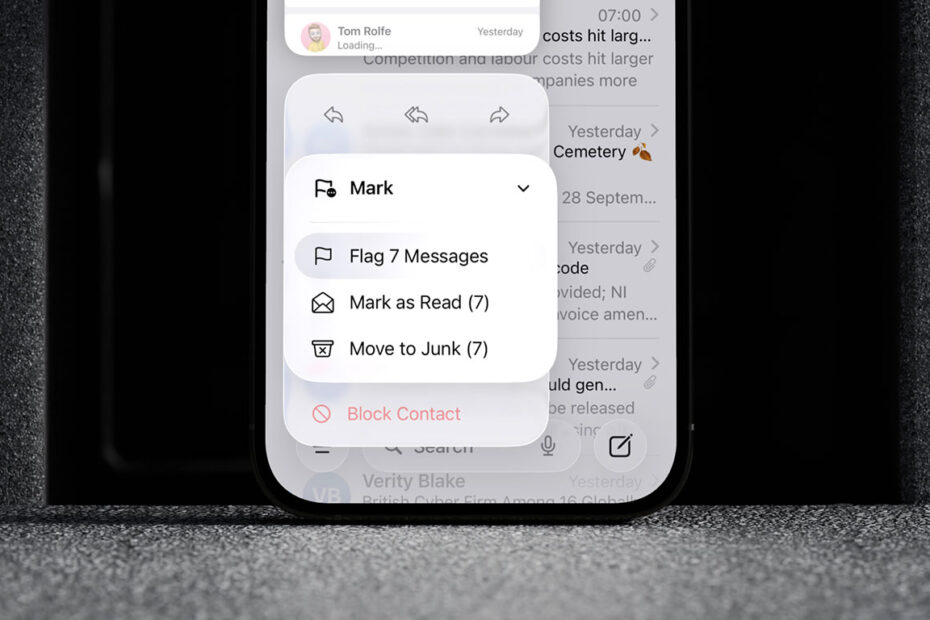
Mail has a reputation for being a bit plain, with Apple rarely making meaningful changes to its email client. But that isn’t entirely fair – there’s a decent collection of very handy tricks buried in there that most people never stumble across. Here are some of our favorites – see how many you already know!
Hide your drafts
Start composing an email and realise you need to check something first? Swipe down on the compose window and it collapses into a tab at the bottom of the screen. Tap it to pick up where you left off. Multiple drafts stack up down there like browser tabs – tap to expand, swipe to discard.
Very Important People
If your inbox is a mix of emails that matter and emails that really don’t, VIP is worth setting up. Add someone as a VIP and their messages land in a dedicated mailbox, separate from everything else. You can also give VIP mail its own notification sound – useful if you want to know immediately when your boss emails without your phone buzzing at every newsletter. To add someone, open an email from them, tap their name at the top, then tap Add to VIP. Manage notification settings under Settings > Mail > Notifications > VIP.
Mute a conversation
Stuck in a long email chain with a group of people? Open the conversation, tap the More button (the three dots), and select Mute. You’ll stop getting notifications for that thread without leaving it or deleting anything.
Customize your swipes
Swiping left or right on an inbox email give access to quick actions, and while the defaults options are fine, you can actually re-map them to whatever you’d personally find most useful. Head to Settings > Mail > Swipe Options. Left and right swipes can each be set to flag, mark as read, move, archive, or trash.
Block or unsubscribe
Two different things worth keeping straight. For mailing lists, Mail will often show a one-tap Unsubscribe banner at the top of the message – look for that first. To block someone outright, open an email from them, tap their name, then tap Block this Contact. Future messages go straight to trash.
Undo send
When you hit Send, a brief Undo Send option appears at the bottom of the screen. Tap it fast and the email is pulled back. You’re right in thinking it’s not technically possible to ‘unsend’ an email – Mail actually just delays delivery by several seconds to give you chance for a second thought. Either way, it’s saved more than a few awkward moments.
Schedule send
Rather than tapping Send, long-press the blue button. You’ll get options to send later that morning, that evening, or at a custom date and time – handy for composing emails at midnight that you’d rather not timestamp as such.
Mail Drop
Most email providers cap attachments at around 25MB. Mail Drop sidesteps that by uploading large files to iCloud and sending the recipient a download link instead – no Apple account required on their end.
It kicks in automatically when you try to send something large. When prompted, choose Use Mail Drop rather than compressing the file. Links stay active for 30 days, and you can send up to 5GB per attachment.