
- Why shared iCloud folders are great for group projects and family admin
- How to send a folder link with the right permissions
- How to manage or remove collaborators later
If you’ve ever tried to coordinate holiday photos with family, swap documents with colleagues, or keep a shared library of PDFs or receipts, you’ll know that sending individual files back and forth gets old fast. What you really want is a single shared folder everyone can access and update – and your iPhone can already do this without relying on Dropbox or Google Drive.
Apple’s shared iCloud folders feature often flies under the radar, but it turns the humble Files app into a genuinely useful collaboration tool. Anyone you invite gets live access to the same folder, and any changes you or they make sync automatically. It’s ideal for group trips, small teams, household admin, or any situation where keeping everything in one place saves hassle.
Sharing an iCloud folder
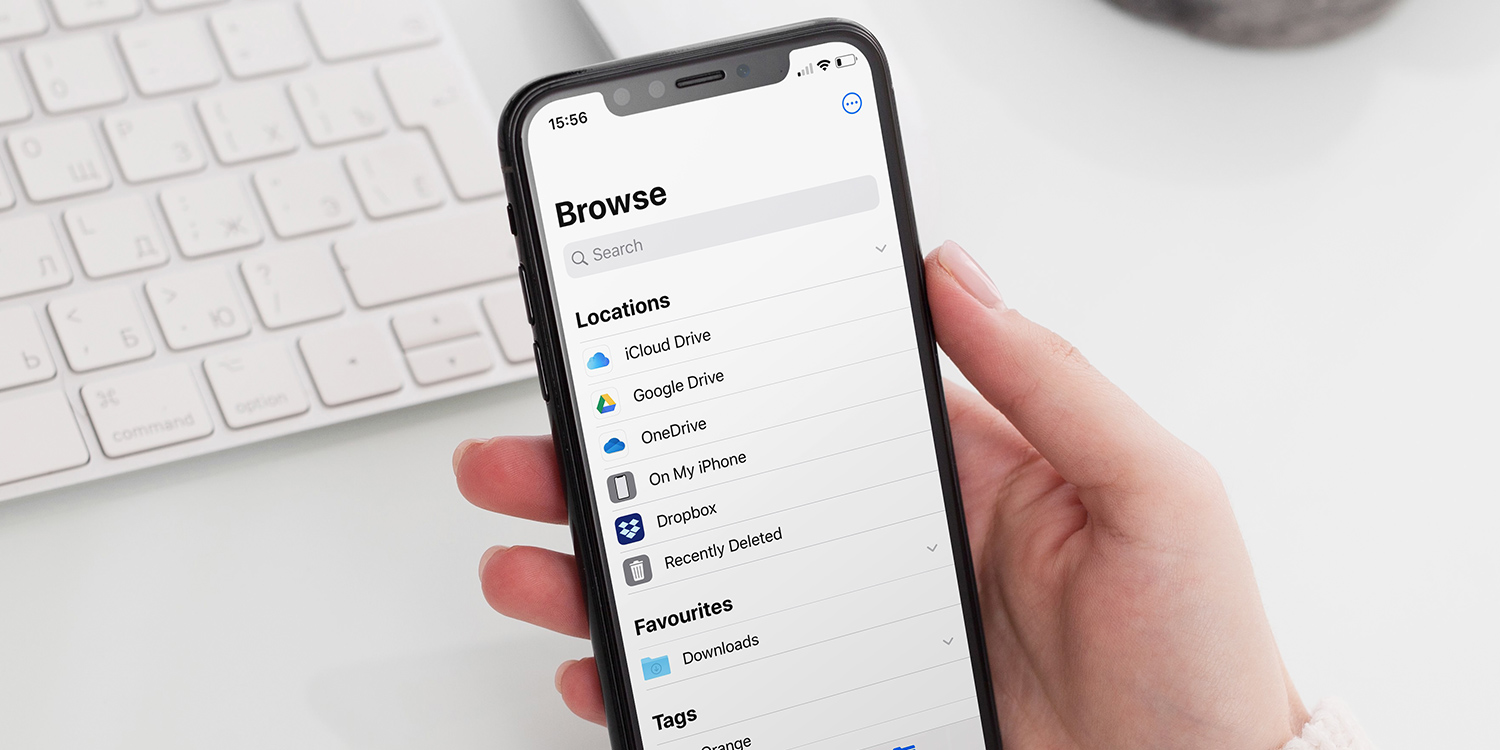
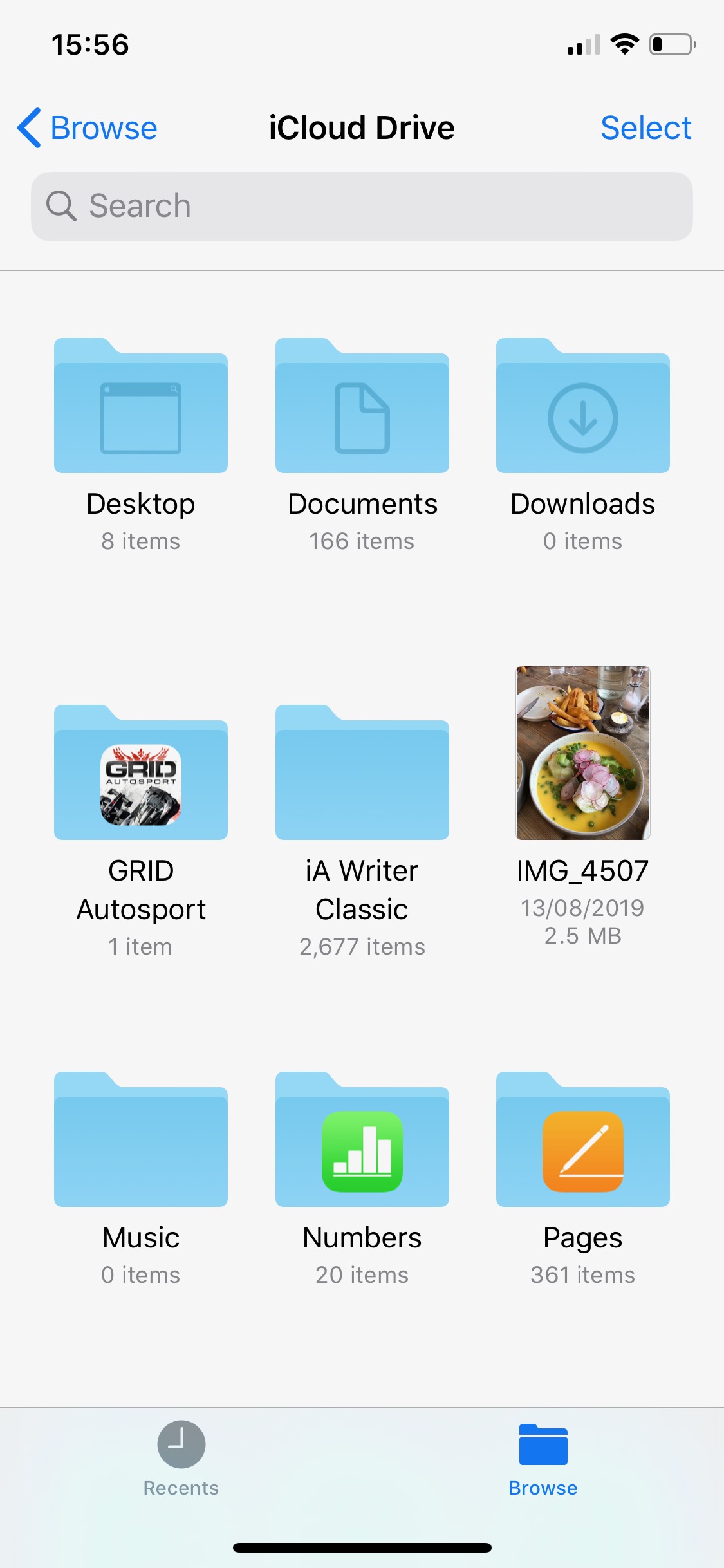
Open the Files app, tap iCloud Drive, and navigate to the folder you want to share – but don’t open it. Instead, long-press the folder and choose Share, then tap Add People. From here, pick how you want to send the invitation, whether that’s via Messages, Mail, AirDrop, or even a third-party app. The folder will appear attached to your message as a link.
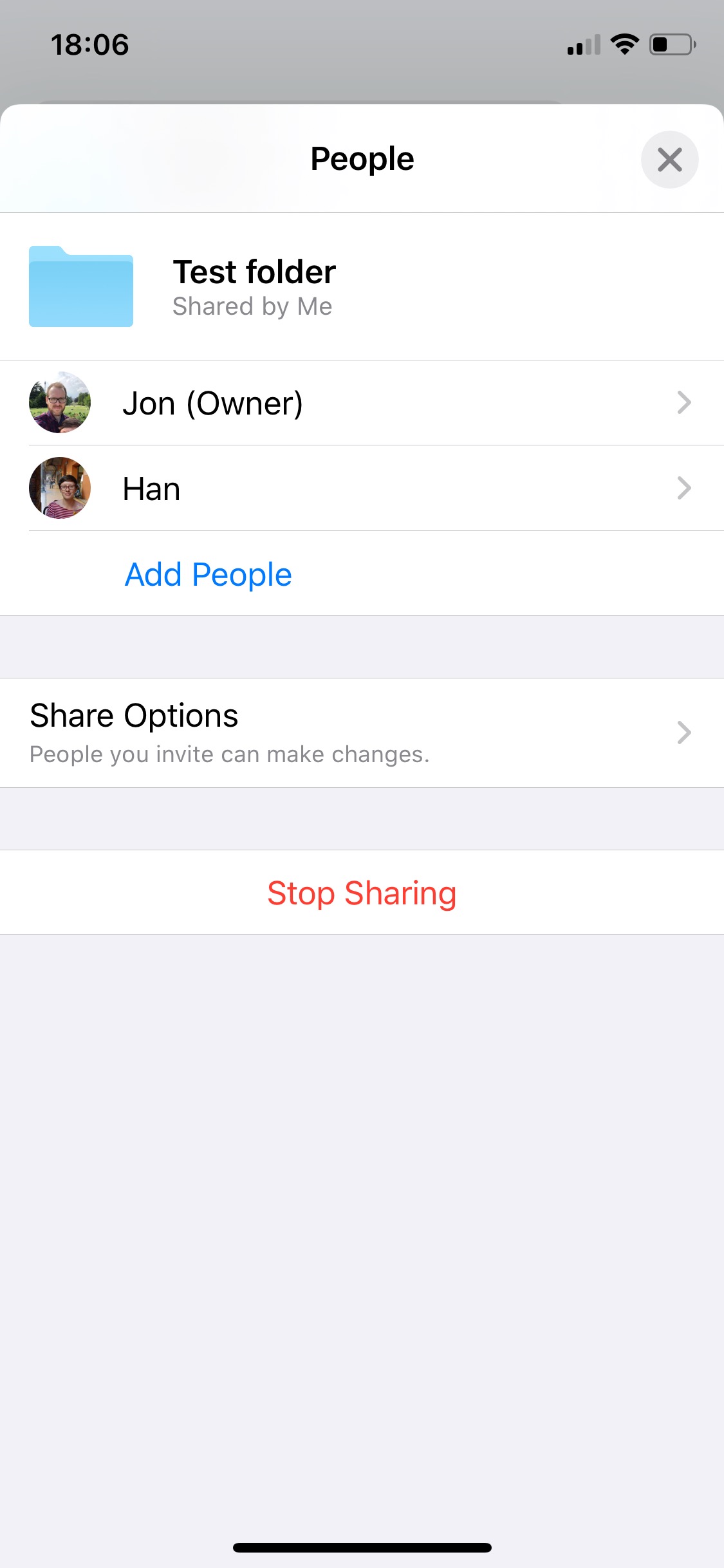
Before sending, you can tap Share Options to set the rules. You can restrict access to just the people you directly invite or open it to anyone with the link. You can also control whether collaborators are allowed to make changes or are limited to viewing only.
What collaborators see
Your chosen contacts receive a link that opens the shared folder instantly in their Files app. It doesn’t use any of their iCloud storage – everything still counts against your allotment as the folder owner. If the folder contains Pages, Numbers, or Keynote files, these become fully collaborative documents, allowing everyone with edit access to contribute.
Managing and removing access
You stay in control at all times. To manage permissions later, long-press the folder again, choose Share, and tap Show People. This screen lists everyone with access and lets you tweak individual editing rights or remove someone entirely. If you ever want to shut things down, the Stop Sharing option revokes access for everyone in one go.
It’s a simple feature, but once you use shared iCloud folders for a project or family task, it’s hard to go back to juggling individual files. It’s one of those quietly powerful tools that makes day-to-day life on iPhone a little easier.