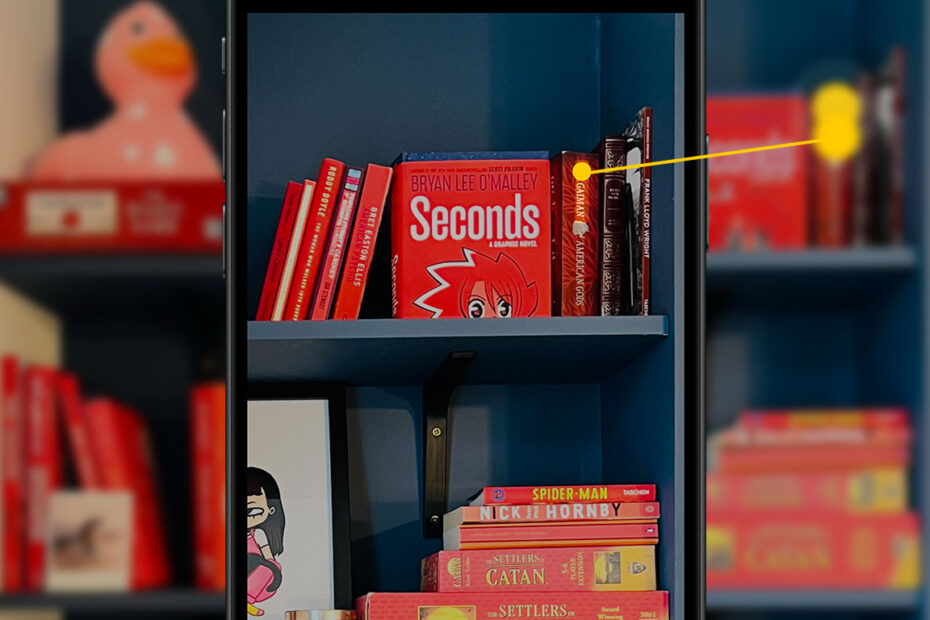

- Photograph your shelves to create a searchable index
- How to search for any book or author in Photos
- How to check which books were successfully scanned
What’s the best way to organise a large book collection? Alphabetical? The Dewey Decimal system? Pure aesthetics?
The answer, if you have an iPhone, is any way you like.
Thanks to the built-in optical character recognition (OCR) in iOS, you can use the Photos app to create a searchable index of your bookshelves – helping you find any book in an instant. It works for other collections too, like board games or vinyl records. And you don’t need to download a thing.
Index your bookshelves
Start by taking clear photos of all your shelves and give the Photos app a minute or two to work through them in the background.

Apple’s OCR is pretty impressive, but books with very small spine text can get missed if you shoot from too far away. To check what’s been picked up, open one of your bookshelf photos and tap the Live Text button in the bottom right – you’ll see a faint highlight over every piece of text that was recognised. It’s a handy way to spot any gaps, and figure out where a closer shot might be worth taking.
Find any book instantly
Open Photos, tap Search, and type a book title or author name. Nine times out of ten the right photo will surface straight away, with the matching text highlighted by a yellow dot. Particularly useful if your shelves prioritise aesthetics over order and one author is scattered all over the place.

For more generic search terms – “Dune,” say – you may need to scroll past the automatic suggestions to find the Text found in Photos section. That’s where the bookish results live, rather than rolling sandy hills.