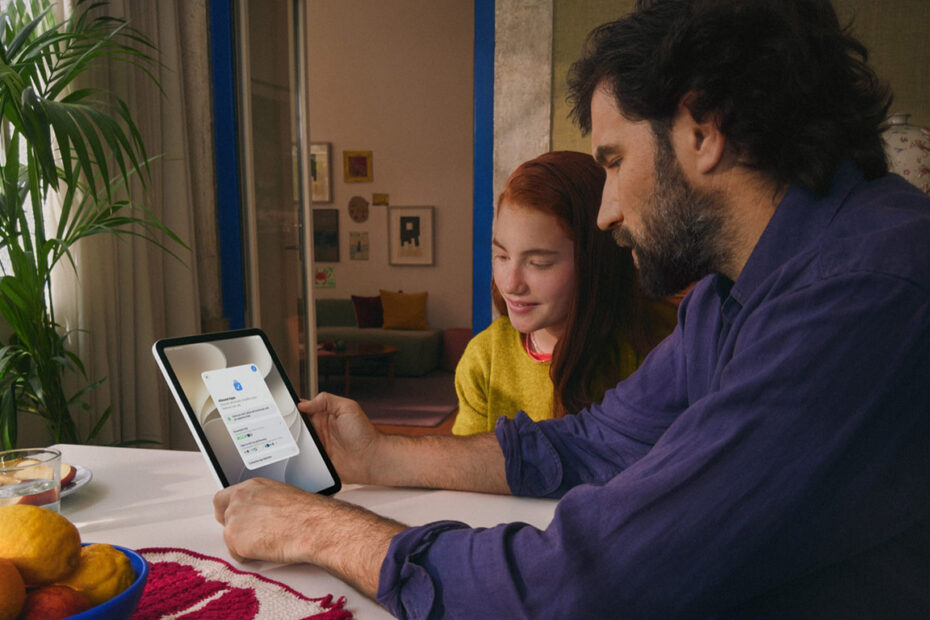

- Set up a Child Account with age-based safeguards from day one
- Approve new contacts, websites, and app downloads before your kid can access them
- Use Time Allowances and Schedules to manage screen time by category and time of day
Apple’s never been shy about child safety. Family Sharing has let parents link accounts and share purchases for years, and Screen Time has handled app limits and downtime since 2018. iOS 27 doesn’t reinvent either – it beefs both up considerably, folding a lot of separate settings into one coherent system built around a Child Account.
Note: these features are currently in developer beta. They’ll arrive for everyone with iOS 27, iPadOS 27, and macOS 27 this September.
Setting up a Child Account
If you’re setting up a new device for your kid, you’ll be walked through creating a Child Account as part of Setup Assistant. It’s required for children under 13 and available up to 18.
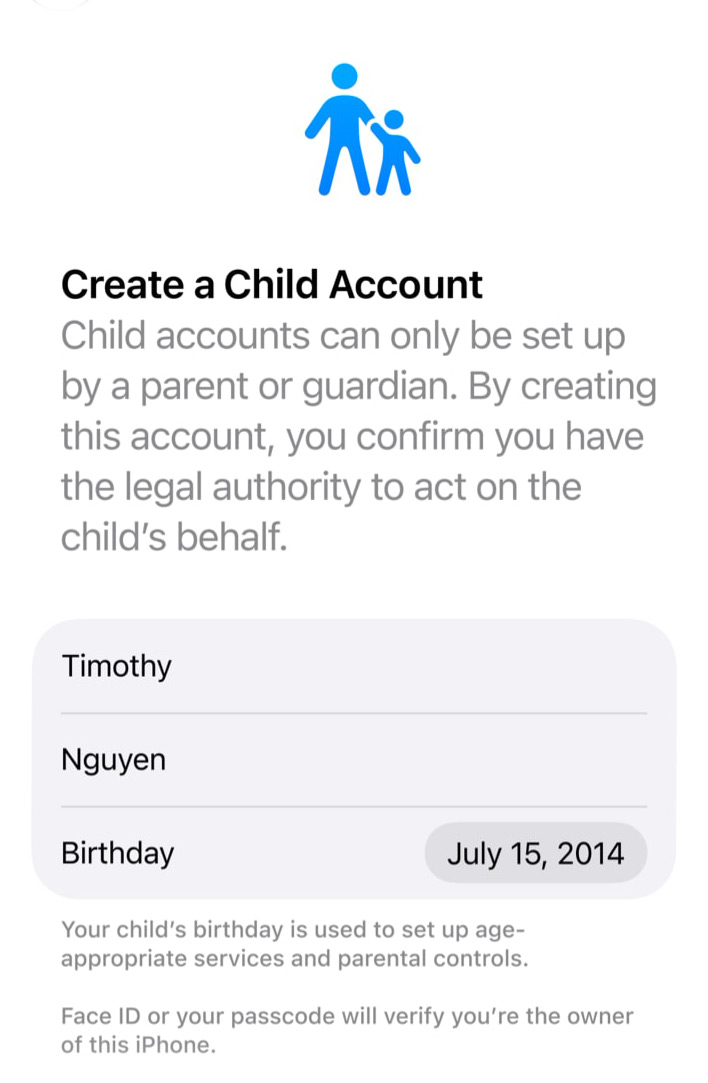
For a device that’s already in use, go to Settings > Family on your own device, tap Add Member, then Create Account for Child and follow the prompts to add their age. This one step switches on everything else below – App Store age restrictions, limits on adult websites, and age-appropriate media across the system.
During setup you’ll also choose their starting apps: a small essential set, a broader curated set, or a custom pick of your own. Add more later from the App & Website Activity section of your child’s Screen Time menu.
Approving downloads and web access
Ask to Buy is still here, and covers any App Store download, free or paid, plus in-app purchases.
But the similar feature Ask to Browse is new in iOS 27. Turn it on under Settings > Screen Time > [child’s name] > Content & Privacy Restrictions > Ask to Browse, and your kid needs your sign-off before visiting any website they haven’t been to before, in Safari on iPhone, iPad, or Mac. You’ll get an approval request as a notification; tap it to allow or deny.
Managing contacts and communication
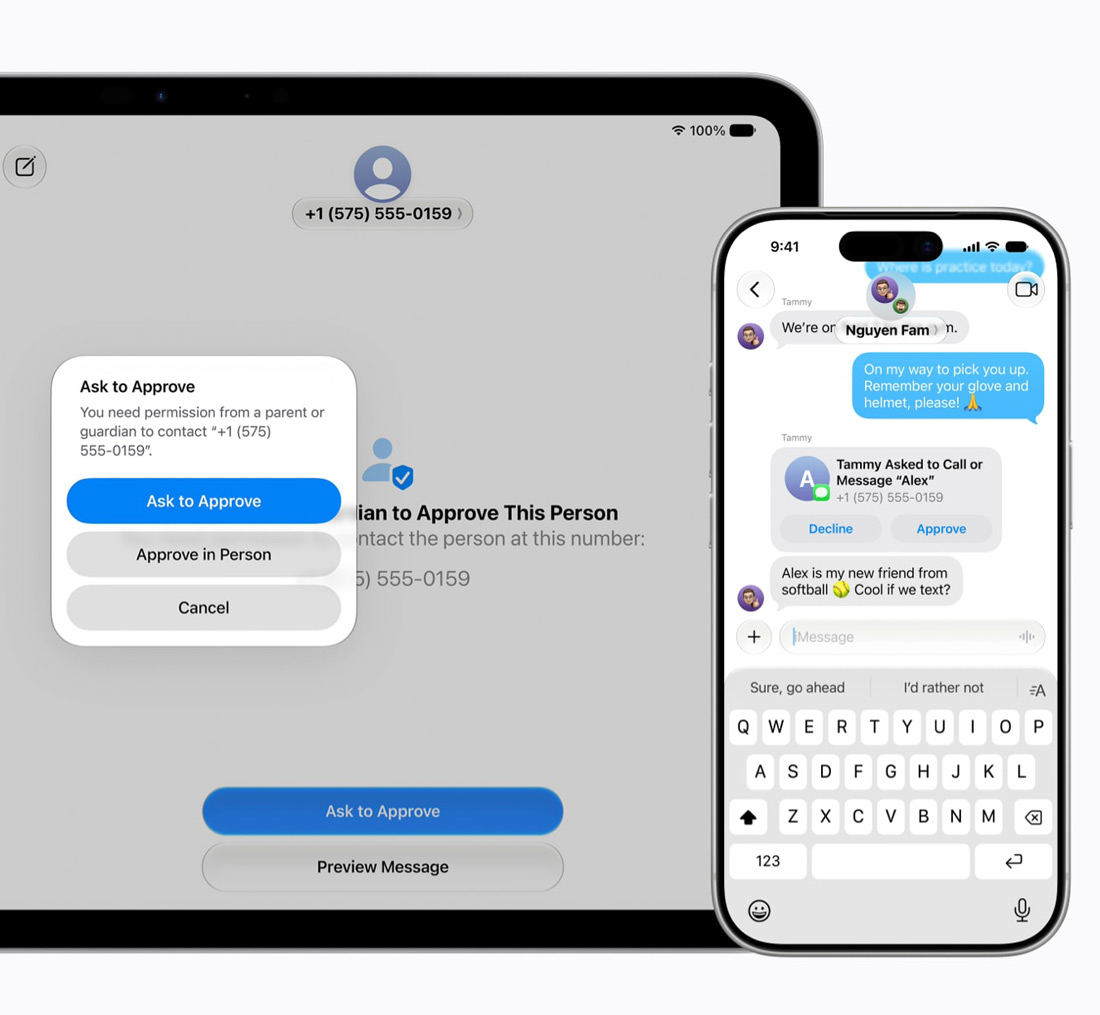
To require approval for new contacts, head to their Communication Safety page and switch on Ask to Approve New Contacts. Any unfamiliar number they try to message, call, or FaceTime triggers a request to you first.
Communication Safety’s content filtering – blurring nudity in Messages and FaceTime, on by default under 18 – now also blurs gore and violent content the same way. No extra setup needed – it’s part of the same toggle.
Setting Time Allowances and Schedules
Skip App Limits – iOS 27 replaces it with Time Allowances. Go to Settings > Screen Time > [child’s name] > Time Allowances and set daily limits by category: Entertainment, Games, Social Media. Apple suggests age-based starting points, but you can drag them up or down freely.
For time-of-day control, use Schedules to restrict which apps are available when – handy for making sure homework time doesn’t quietly turn into gaming time.
Using the redesigned Screen Time dashboard
Open Settings > Screen Time > [child’s name] and you’ll land on the new dashboard: average usage, most-used apps, all at a glance. Tap any app or category to adjust access on the spot – useful for cutting things off during dinner or a bike ride. If they need five more minutes to finish a level, the same screen lets you extend access just as quickly.