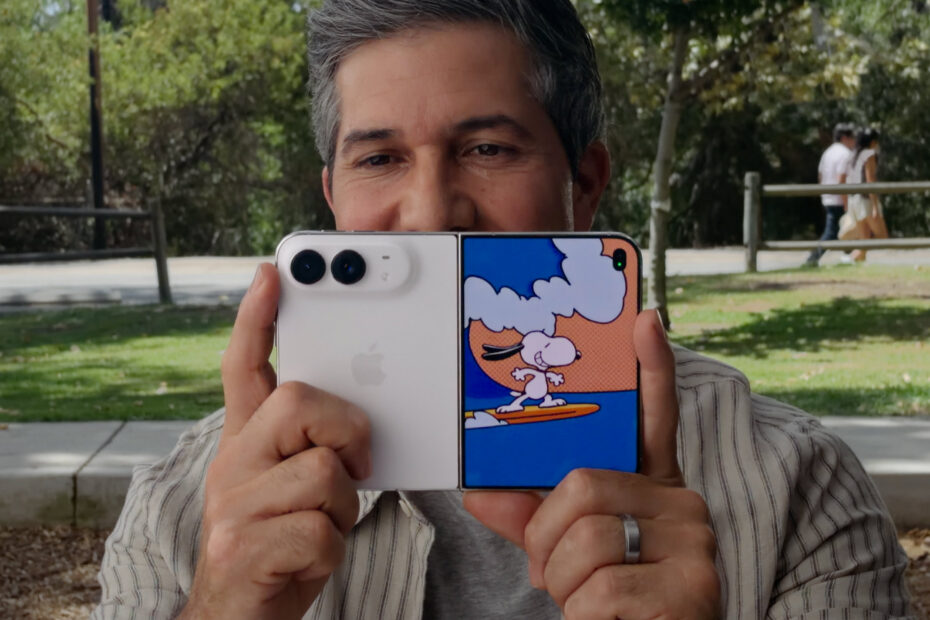

- Snoopy animations play on the outer display
- They draw your child’s eyes toward the camera
- No more waving a toy behind your phone
If you’ve ever tried to photograph a toddler, you’ll know the problem: the moment you raise your phone, they look anywhere but at the lens. Kid Cue gives them something to look at. While you take the photo, the outer display, which faces your child, plays colorful Snoopy animations to catch their attention.
This feature is exclusive to iPhone Duo.
How to turn on Kid Cue
- Unfold iPhone Duo and open the Camera app on the inner display.
- Tap the icon in the top-right corner.
- Choose Kid Cue.
Point the camera at your child. The animations start on the outer display, and you can take the photo when they’re watching.
Tips for better photos
- Mind the eyes. Kid Cue uses the main camera on the back, which sits just to the side of the outer display. Your child will be looking at Snoopy, not straight down the lens. Standing a little further back makes the difference less obvious.
- Take plenty. Kids rarely stay still. Take several shots and pick the best one afterward.
- Keep it short. Kid Cue runs the camera and both displays at once, so iPhone Duo can get warm. Turn it off when you’ve got your shot.
Want to be in the picture too?
Kid Cue needs you behind the phone. If you want to be in the photo with your child, try Smart Take instead. Prop the phone up, sit down together, and it waits until you’re both looking at the camera before taking the picture.
Pro tip: Duo Preview is in the same menu. It’s better for older kids and adults, who’d rather see themselves than a cartoon.