
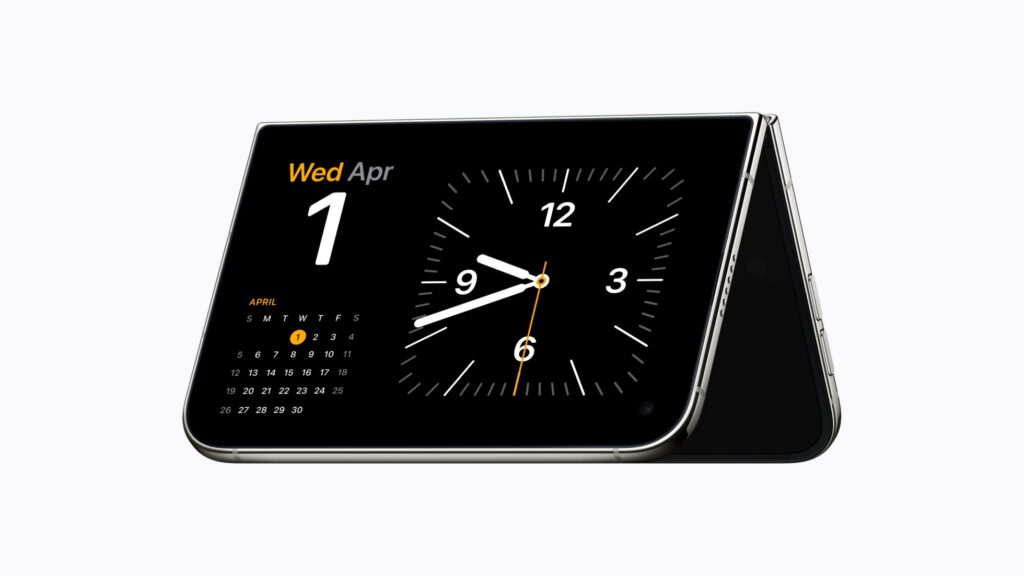


- Stand iPhone Duo up and StandBy starts by itself
- No charger needed
- A gentle glow wakes you when your alarm goes off
On other iPhones, StandBy only kicks in when the phone is charging on its side. iPhone Duo doesn’t need a charger or a stand. Fold it partway, set it down, and it becomes a clock, a calendar, a weather display or a digital photo frame.
This applies to iPhone Duo.
How to start StandBy
Fold iPhone Duo into a tent, like an upside-down V, and rest it on a table with the outer display facing you. StandBy appears on its own. It works in other positions too: open like a laptop, or stood upright like a greeting card. When the inner display is facing you, it can show StandBy as well.
Try it on your bedside table, your desk or the kitchen counter.
Choose what it shows
Swipe across the display to move between faces. There are plenty to choose from:
- Clock faces in several styles, with a choice of fonts and colors.
- Calendar, which can show just the date or the whole month.
- Weather.
- Photos, which can show featured photos, a theme like nature, or one of your albums. Some photos put the time behind the subject, like a magazine cover.
- Widgets, including large widgets from your apps, such as a countdown or the sports scores.
To change a face, touch and hold it. You can change its colors, font and widgets, or tap Add New to pick from Apple’s ready-made designs.
Wake up gently
iPhone Duo makes a good bedside alarm clock. When your alarm goes off, the inner display glows to help wake you gently, rather than relying on the alarm sound alone.
Watching from a tent
Tent mode isn’t just for StandBy. Stand iPhone Duo up and you can watch a video on the outer display while you get on with something else. The outer display is also easier on the battery: Apple quotes up to 44 hours of video playback on the outer display, against up to 31 hours on the inner display.
Pro tip: if you find iPhone Duo slipping on a smooth surface, open it a little wider. A wider tent is more stable.