Safari’s layout has evolved a lot in recent years – and with iOS 26’s new Liquid Glass design, some of its best shortcuts are easier to miss than ever. Here are a few hidden gestures and features to help you browse faster, read more comfortably, and keep things private.
Swipe to go back
You can swipe left or right across the page to move backward or forward through your browsing history – a quick alternative to tapping the navigation arrows.
Swipe between tabs
Just like swiping along the Home bar to switch apps, you can swipe left or right on Safari’s address bar to flip between open tabs. Keep swiping when you reach the last tab and Safari will automatically open a new one, ready for your next search.
Jump straight to all tabs
Another gesture borrowed from the App Switcher: swipe up from the address bar to open Safari’s All Tabs view. This is especially useful in the new Compact layout introduced with iOS 26, which hides the All Tabs button behind the … menu.
Reopen a recently closed tab
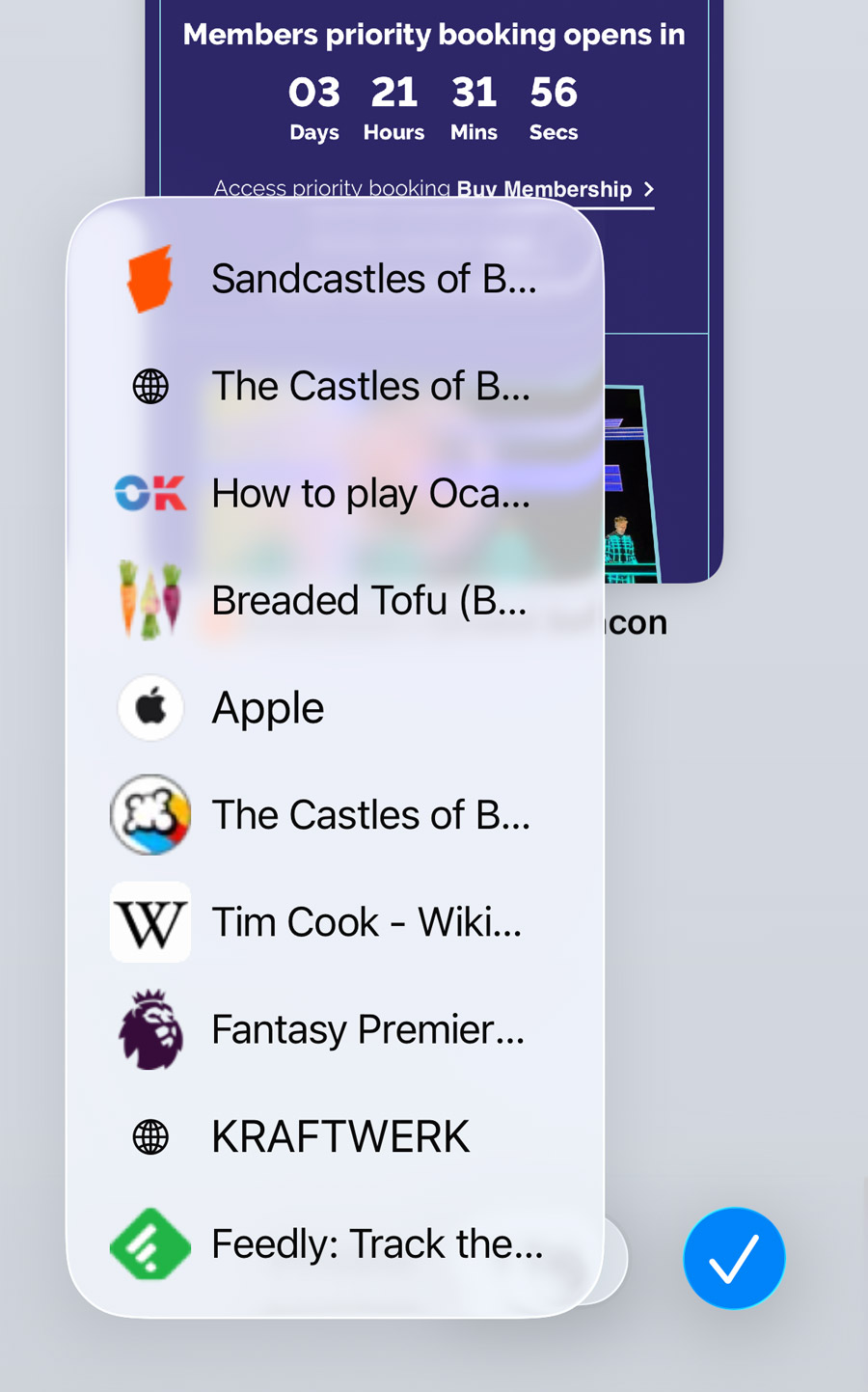
From the All Tabs screen, you probably know the + button opens a new tab. But here’s a hidden bonus – long-press the + button to see a list of your ten most recently closed tabs. Perfect for when you’ve accidentally closed a page or want to revisit something from earlier.
Change your preferred tab layout
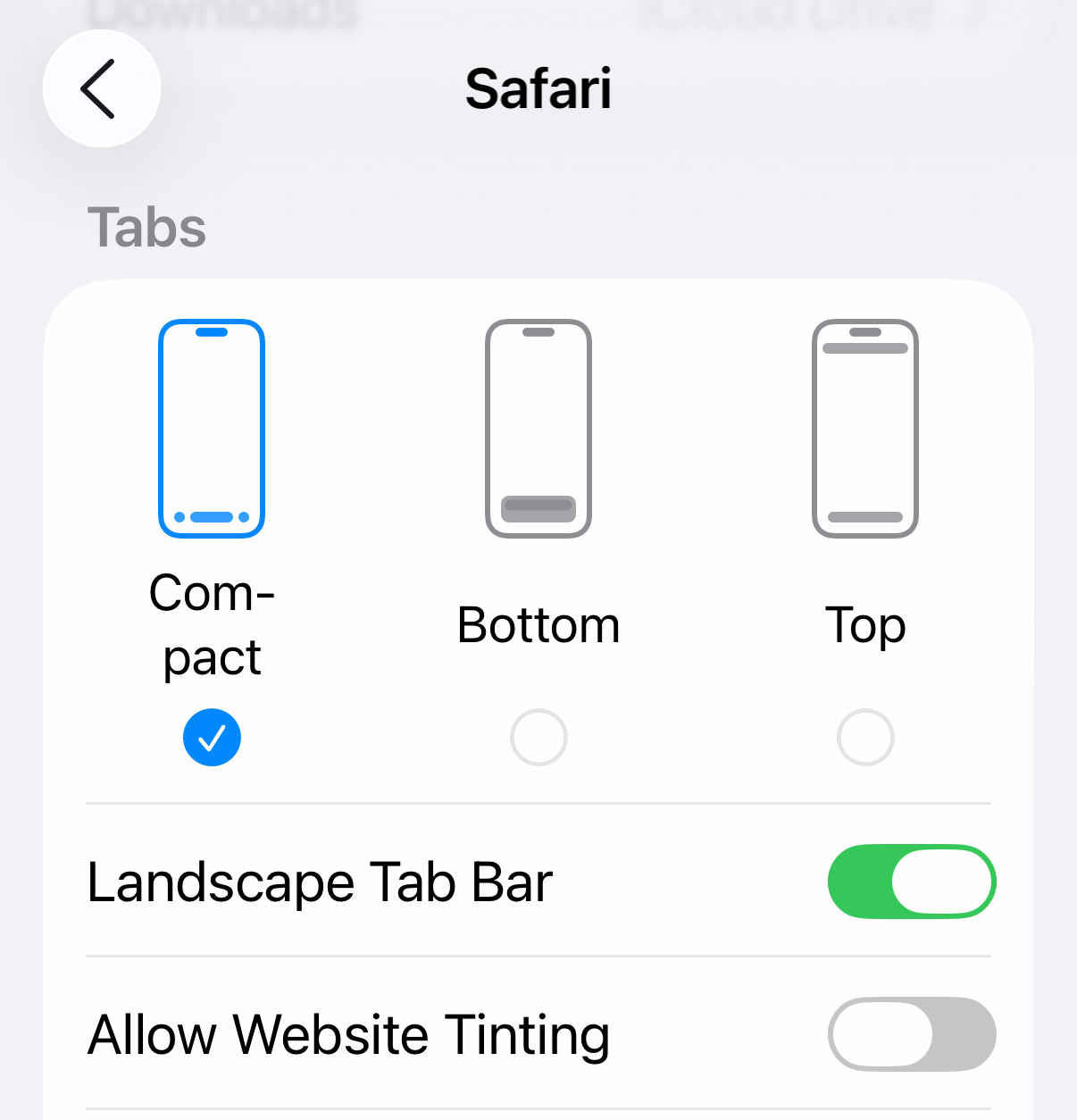
Speaking of that new Compact view, if you’re not a fan you can easily switch back to Safari’s old style. Open the Settings app, scroll to Safari, and under the Tabs section, choose between Compact, Bottom, or Top layout styles.