


The Messages app sees some long-overdue upgrades in iOS 26, with changes that bring it up to speed with third-party alternatives like WhatsApp. From new filtering tools to proper group chat features, it’s a solid step forward – here’s everything you need to know.
Unknown senders
First up, messages from unknown senders now land in a separate folder by default. You can find it from the menu button in the top right of Messages. These messages are silenced until you confirm the sender, keeping your main inbox free from clutter. This kind of filtering has existed in some form before, but it was buried in settings and a little confusing to enable. Now, it’s built in and works more like an email spam filter – clear, automatic, and easy to manage.
Upgrade for group chats
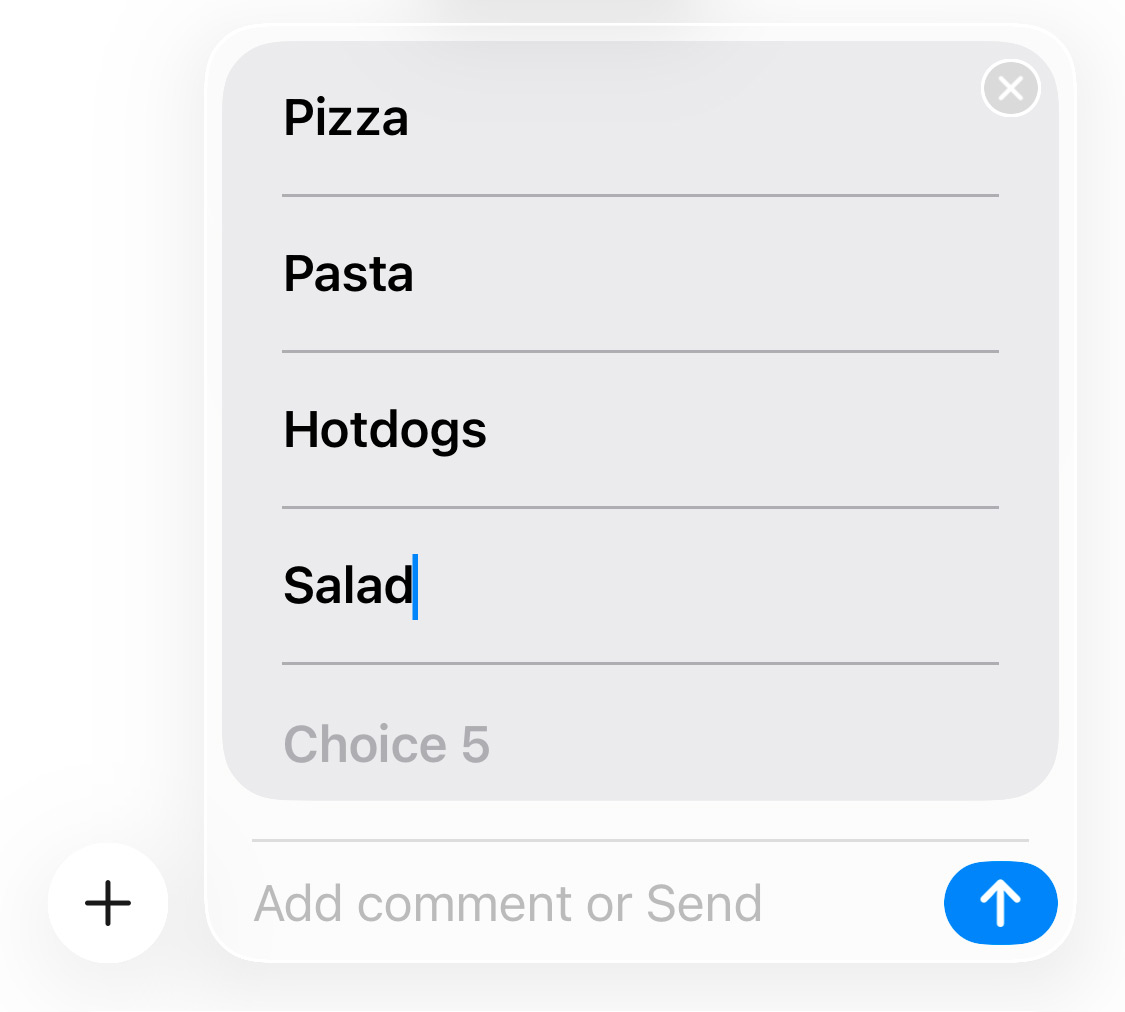
Group chats finally gain features that most other messaging apps have had for years, including typing indicators and built-in custom polls. You can create polls with your own options and let the group vote directly in the thread – a much easier way to plan things like dinner or trips without endless back-and-forth. To create a poll, open a chat and choose Polls from the + menu.
Custom decorations
There’s also a new visual touch: personalized chat backgrounds. You can now choose a background for each individual message thread, picking from Apple’s presets or using your own photos. To do so, open a messages thread and tap the contact’s name (or group name) at the top. Tap the Backgrounds tab and choose from the many options or create your own using Image Playground. These only show up on your device, so everyone in the conversation can set their own look independently. It’s purely cosmetic, but adds a nice bit of personality to your chats.

Multi-language discussion
Messages also integrates the new Live Translation features introduced in iOS 26, allowing you to hold entire conversations across languages. Incoming messages are automatically translated into your preferred language, and the feature supports a wide range of common languages including Japanese, Korean, and Chinese alongside the usual suspects.
Save data
There’s also a smart new data-saving feature. If you’re in low data mode, Messages will now send a low-resolution preview of any photo you attach, followed by the full-quality version when you’re back on Wi-Fi. It’s a tiny tweak, but one that solves a common frustration for people trying to share images on the go.
Copy that
Finally, a small but much-appreciated update: you can now select part of a message to copy and paste. No more being forced to copy an entire paragraph just to grab a phone number or address. Just long-press a message and tap Select instead of Copy. Use the familiar text grab bars to highlight exactly what you need, and then hit Copy to remember just the highlighted text. As usual, you can then long-press into another app and hit Paste.
