

- What RSS is and why it’s worth using
- How to set up NetNewsWire on iPhone
- The easiest ways to add feeds from your fave sites
Social media algorithms decide what you read. RSS doesn’t. You subscribe directly to the sources you care about and that’s all you see, with no added noise. RSS been around for over 20 years, and it’s remarkable how few people use it.
Nearly every news site, blog, or podcast has an RSS feed. Once you’re set up, keeping up with your favourite publications is effortless – and completely on your own terms. Here’s how to get started on iPhone using NetNewsWire, which is simple, fast, and free.
Install and open NetNewsWire and you’ll be greeted with a straightforward home page. The Today smart feed shows you a list of all unread articles from your chosen sources published in the past 24 hours. Unread lets you catch up on news more than a day old, while Starred houses your favorites. Tapping an article loads it in the app’s reader view, which is a nice, clean way to read articles distraction-free.
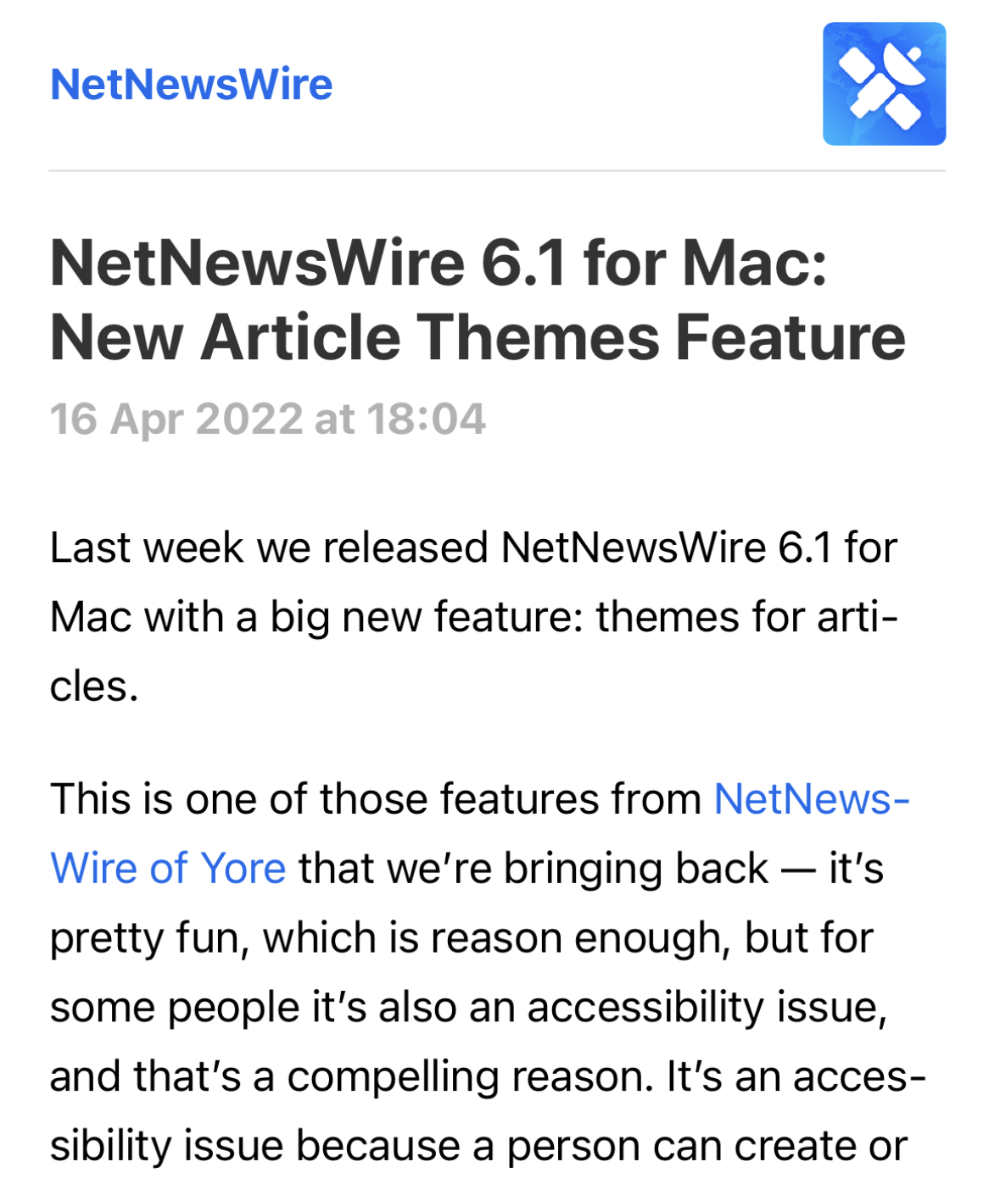
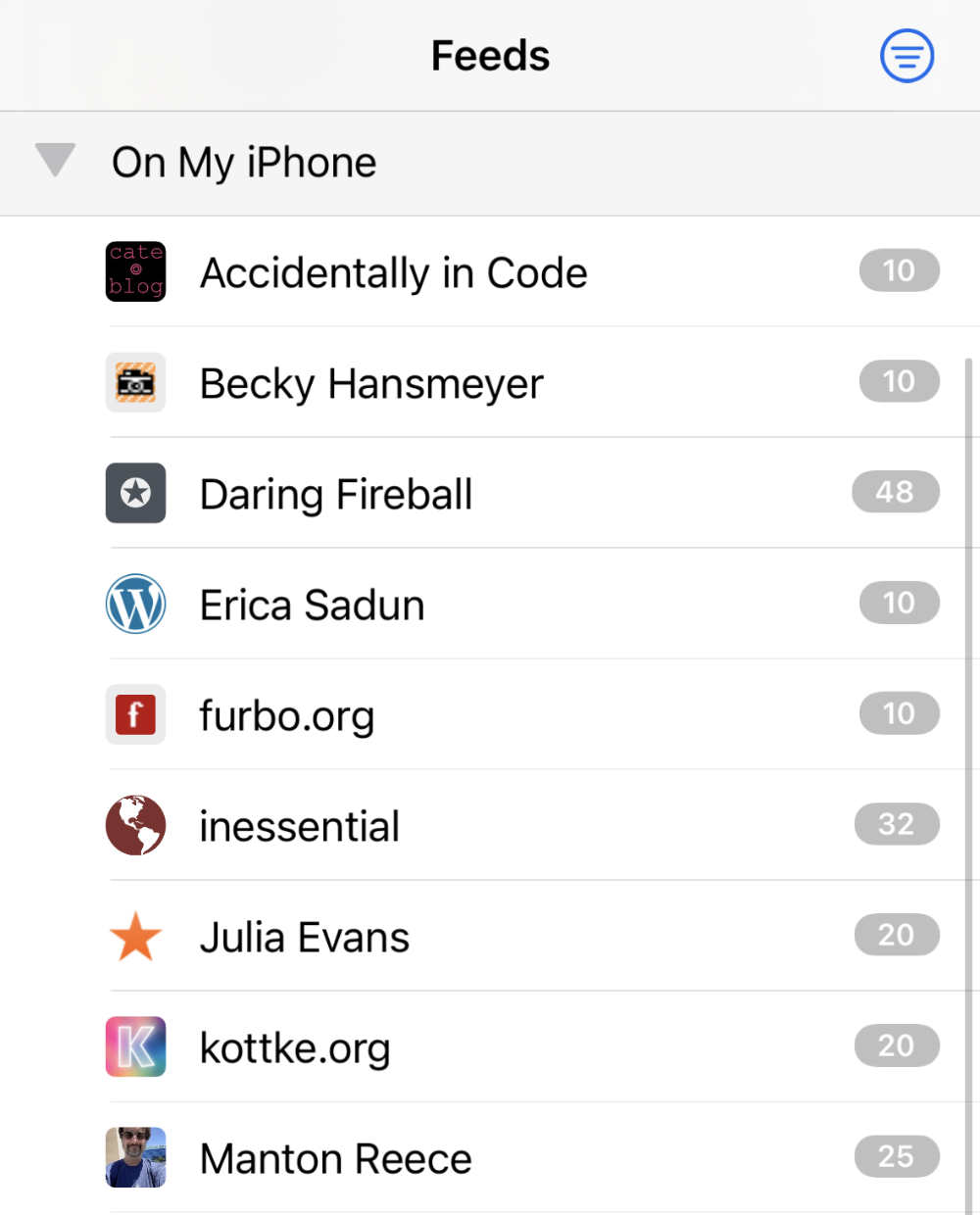
The app subscribes you to a handful of feeds to get started, which you’ll see under the On My iPhone heading. You can manually Delete these with a swipe, but we’d recommend starting fresh with an account that can sync to your other devices. Hit the settings icon in the lower left and Add Account.
Users of other RSS services like Feedly or Feedbin can log into their existing accounts from NetNewsWire, handy if you’ve already cultivated a personal list of feeds elsewhere. But for those starting from scratch, we’d recommend choosing iCloud as your main account and then deactivating On My iPhone to avoid managing multiple accounts.
Now we can finally start adding news sources to our feed! This is the most technical part of the process, and the app doesn’t hand-hold like Apple News does with its onboarding. But the reward for this manual setup is much more control over exactly what you read.
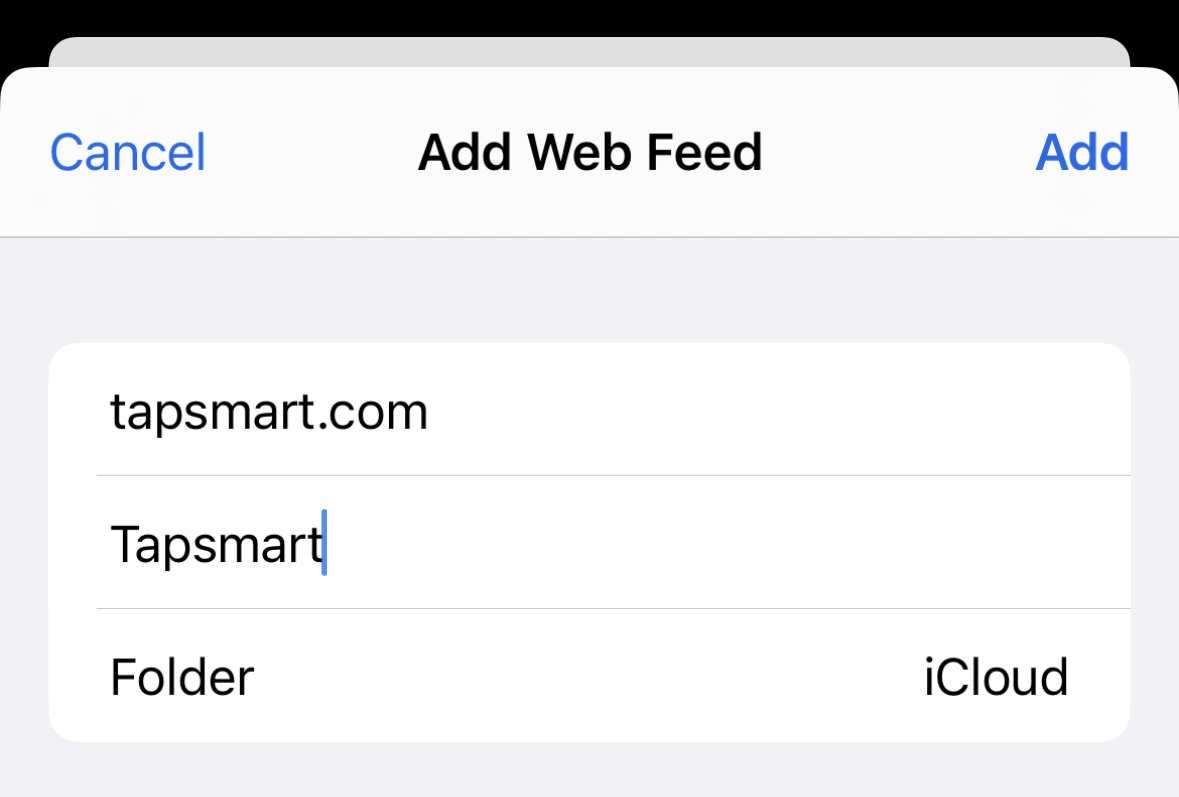
The old-school way to add an RSS feed for a website is to locate its Feed URL. This is often something simple like https://www.tapsmart.com/feed/, but the exact location can vary between sites, and finding those manually can be a headache. Luckily NetNewsWire can do the hard work for you. Hit the + button in the lower right, then Add Web Feed. Forget all that Feed URL stuff we just explained and simply type a website you want to follow, for example, tapsmart.com. The app will attempt to find the site’s RSS feed automatically, and usually does a pretty good job of it. (If it fails, try a web search for “site name RSS” and you’ll probably find what you need).
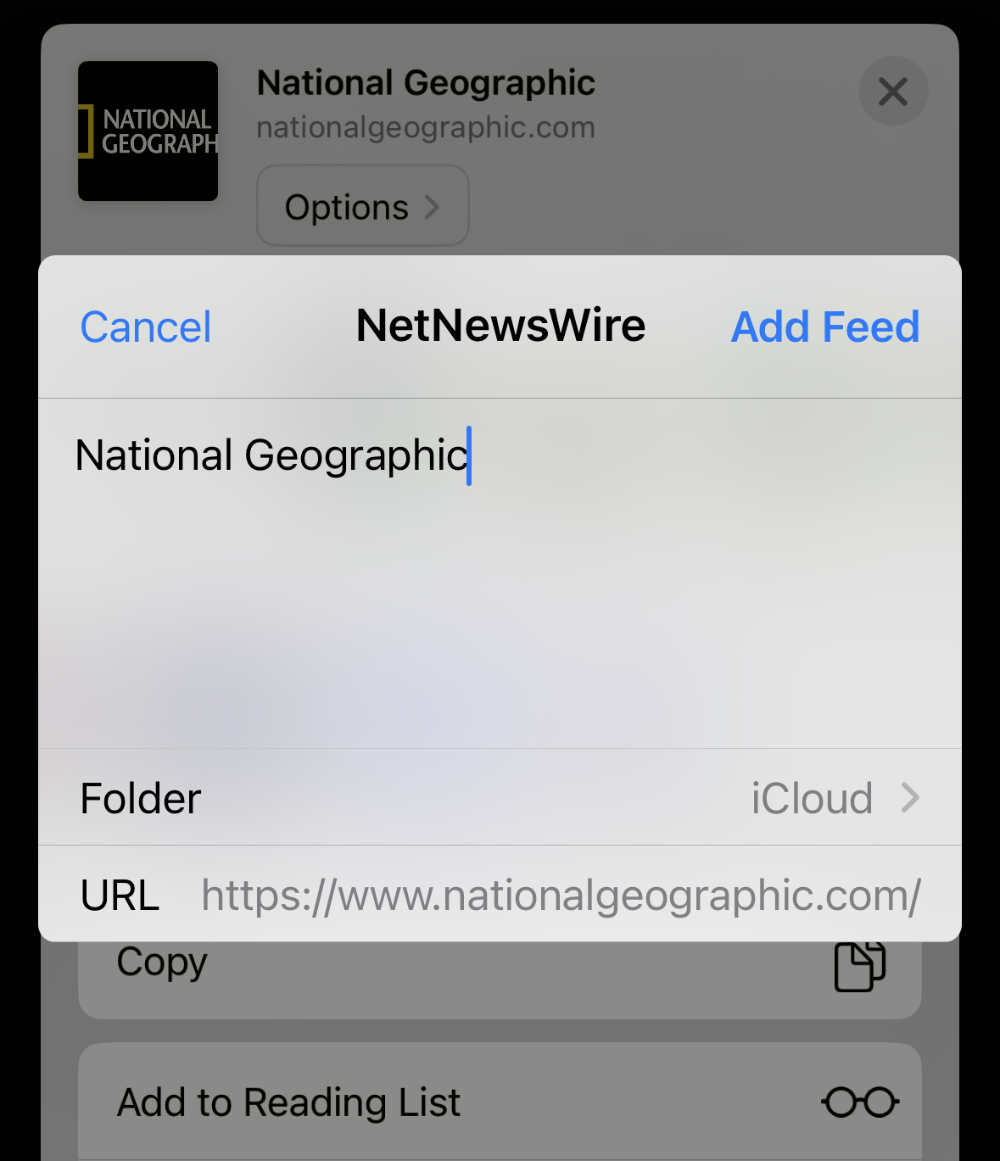
Alternatively, if you’re browsing a website in Safari you’d like to follow, tap the Share button followed by the NetNewsWire icon. (If it’s not there, scroll all the way across and press More to find it.) This will automatically get the Feed URL for the current website and subscribe to it in the app when you tap Add Feed. Even easier!
That’s it as far as setup goes! Congratulations, you’re back in control of your online consumption. The app has some really great features you’ll discover once you start reading, and if you want to know more you can read our review or check out the official NewNewsWire help docs.