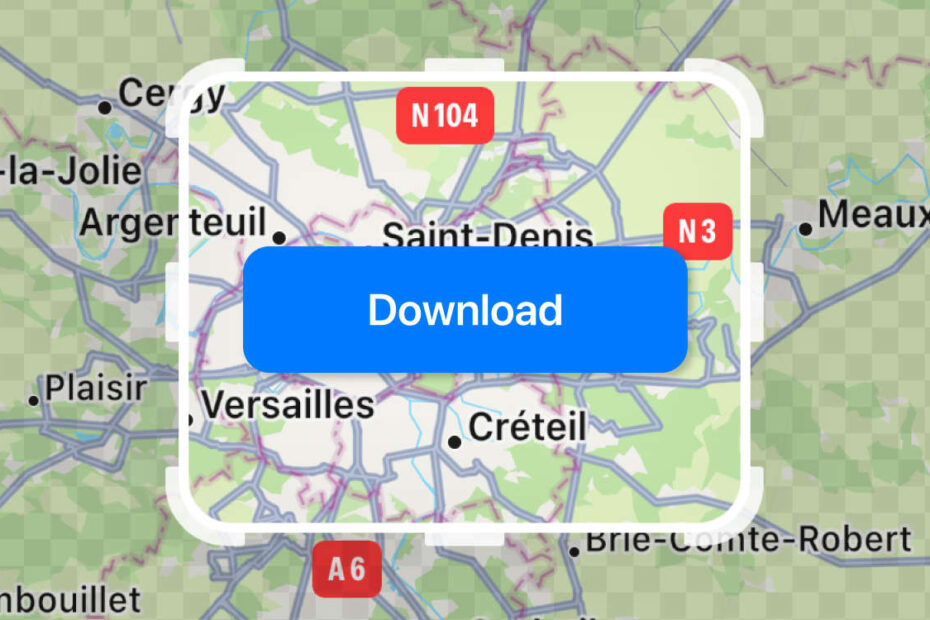
- Apple Maps offers a way to download specific areas
- This allows turn-by-turn directions without internet access
- An LA-sized city uses around 1GB of device storage
Apple Maps spent years playing catch-up with Google’s feature set, but the gap has narrowed considerably. One of the biggest turning points was the arrival of offline maps – something Google had offered for ages, but which Apple has since built into a surprisingly full-featured experience.
Once you’ve saved an area, Maps can handle turn-by-turn directions, transit details, arrival estimates and even opening hours without a data connection. It’s ideal for travelling abroad, exploring the countryside, or simply navigating a signal dead zone, as long as you remember to save the map ahead of time.
Downloading offline maps
To save an area for offline use, open Maps and tap your profile icon to the right of the search bar. Choose Offline Maps, then Download New Map (or pick from one of Apple’s suggestions). You’ll see a white frame highlighting the area that will be stored on your device – drag or pinch to reposition and resize it until it covers what you need. Anything inside that frame will work offline once you tap Download.
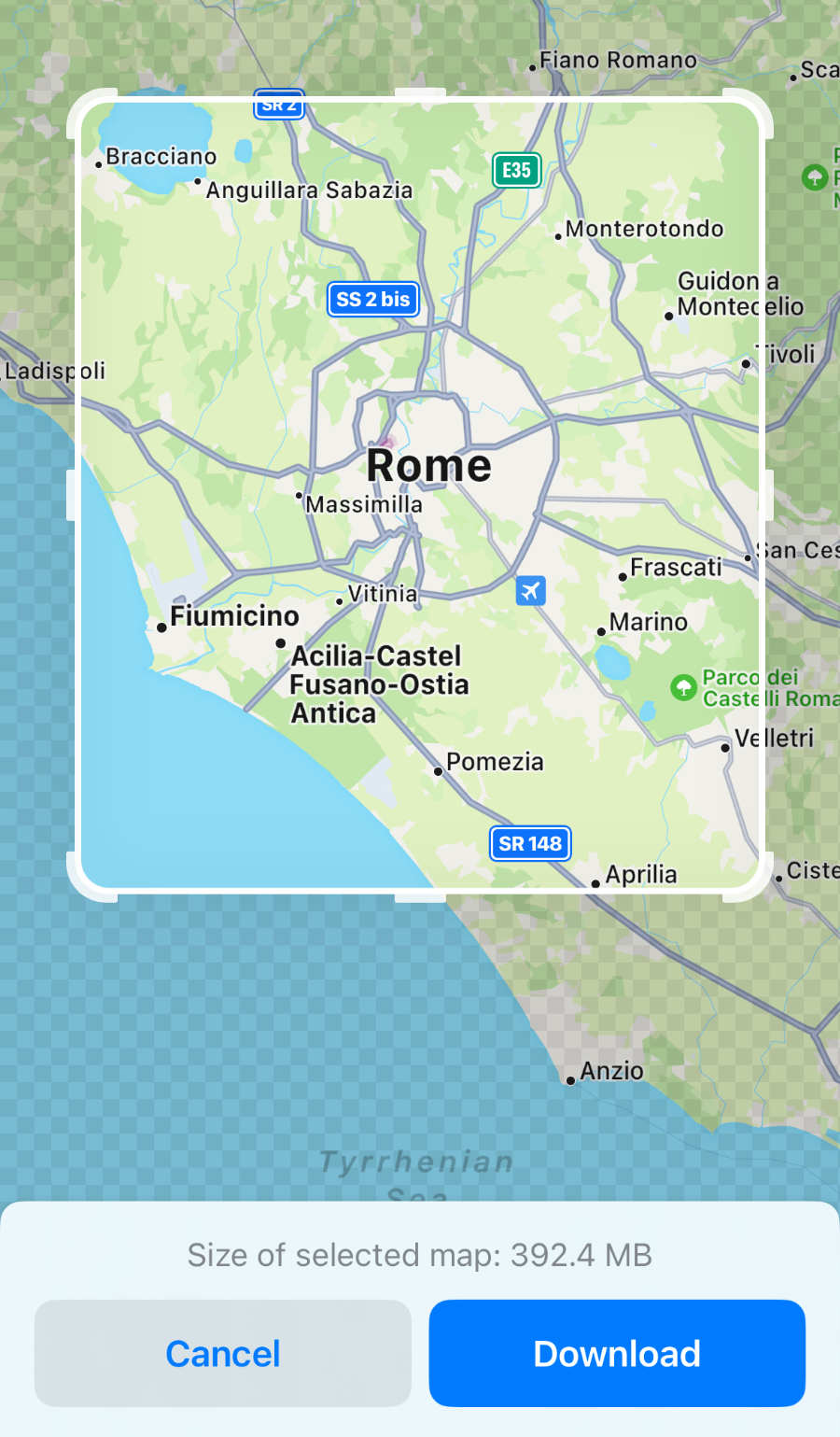
Choose wisely
Offline maps can take up a fair amount of storage. Apple caps each download at around 5GB, but most cities come in far smaller – roughly 1GB for somewhere as dense as Los Angeles or New York, and much less for smaller towns. Still, if your device is tight on space, keep an eye on how many regions you save.
Within the Offline Maps settings, you can enable Automatic Updates to keep your saved areas fresh, and set downloads to Wi-Fi Only if you want to protect your data allowance. Optimize Storage can trim file sizes when space gets low, but turning it on may remove details you’d prefer to keep during a trip.
Once everything’s set up, Apple Maps handles the rest automatically. If you lose signal in a saved area, the app switches to its offline data without you doing a thing. And if you really want to preserve mobile data, you can tell Maps to Only Use Offline Maps, relying on downloads at all times rather than waiting for your connection to drop.