Part of Surf the WebTip 15 of 16
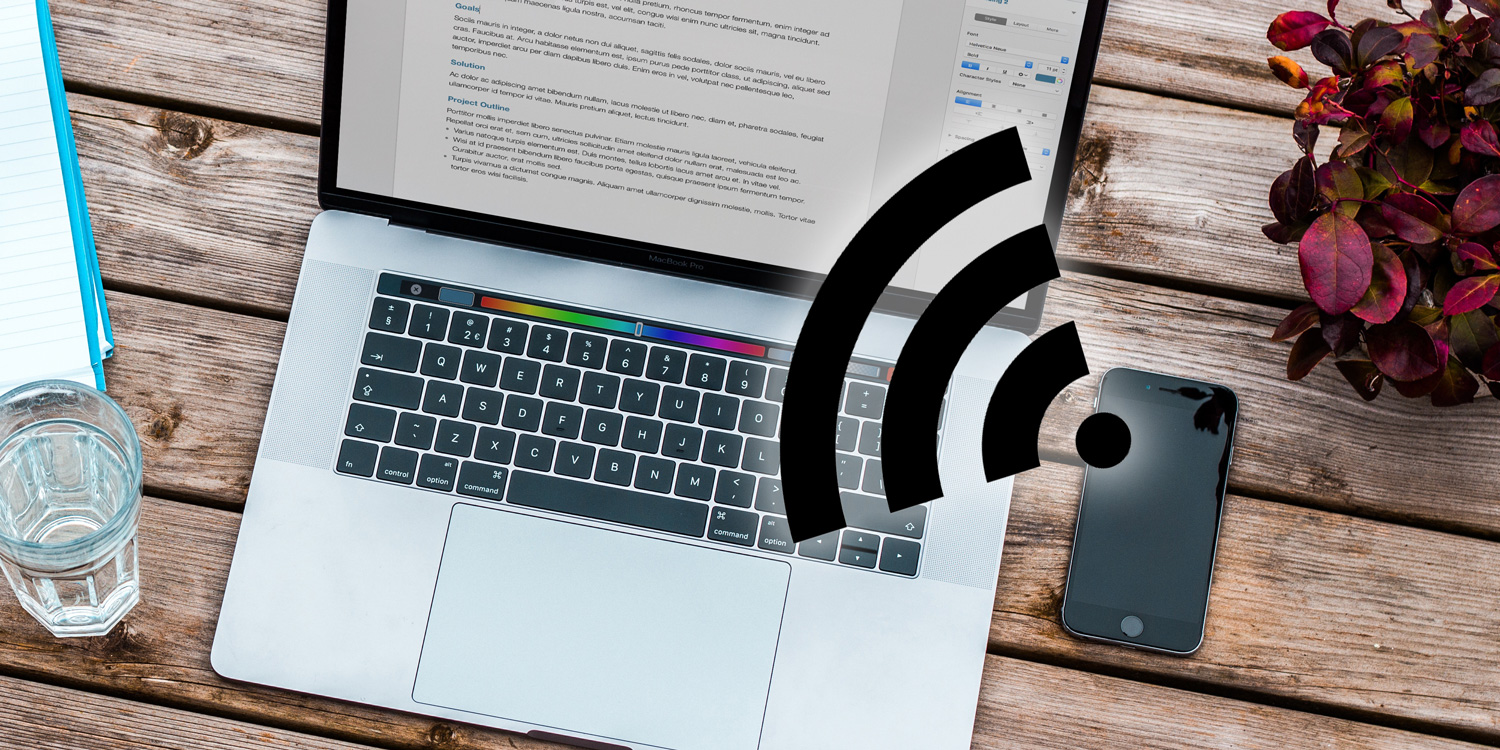
Using Personal Hotspot on your iPad is a great way to get other devices online when Wi-Fi isn’t available. You’ll need a Wi-Fi + Cellular iPad and a data plan that allows hotspot use. Whether you’re connecting your laptop on the go or helping a friend get connected, your iPad can act as a kind of virtual Wi-Fi router, sharing its cellular data connection with nearby devices.
Getting set up
To enable Personal Hotspot, go to Settings > Personal Hotspot. Toggle Allow Others to Join to enable the feature. Here, you can set the password that other devices will need to connect to your hotspot.
If you can’t find the Personal Hotspot option, it’s possible your carrier doesn’t support it on your plan – although most of them do these days.

How to connect
You can connect to your iPad’s hotspot using Wi-Fi, Bluetooth, or USB:
Wi-Fi: On the device you want to connect from, go to its Wi-Fi settings and look for your iPad in the list of networks. Tap it and enter the Wi-Fi password shown on your iPad’s Personal Hotspot settings.
Bluetooth: To use Bluetooth, ensure Bluetooth is enabled on both devices. Pair the iPad and the other device, then use the new connection to access the internet via your iPad.
USB: Connect your iPad to your Mac or PC with a USB cable, and trust the device if prompted.
Family matters
If you’ve set up Family Sharing, you can allow family members to join your Personal Hotspot automatically without needing to enter the password. Go to Settings > Personal Hotspot > Family Sharing, and manage who can connect and whether they need approval.
Common issues
If your Personal Hotspot isn’t showing up, check that both Bluetooth and Wi-Fi are enabled on your iPad, and that you’ve turned on Allow Others to Join. If it still doesn’t work, try restarting your devices or toggling airplane mode on and off. Additionally, make sure your mobile data connection is strong, as hotspot performance depends on it.