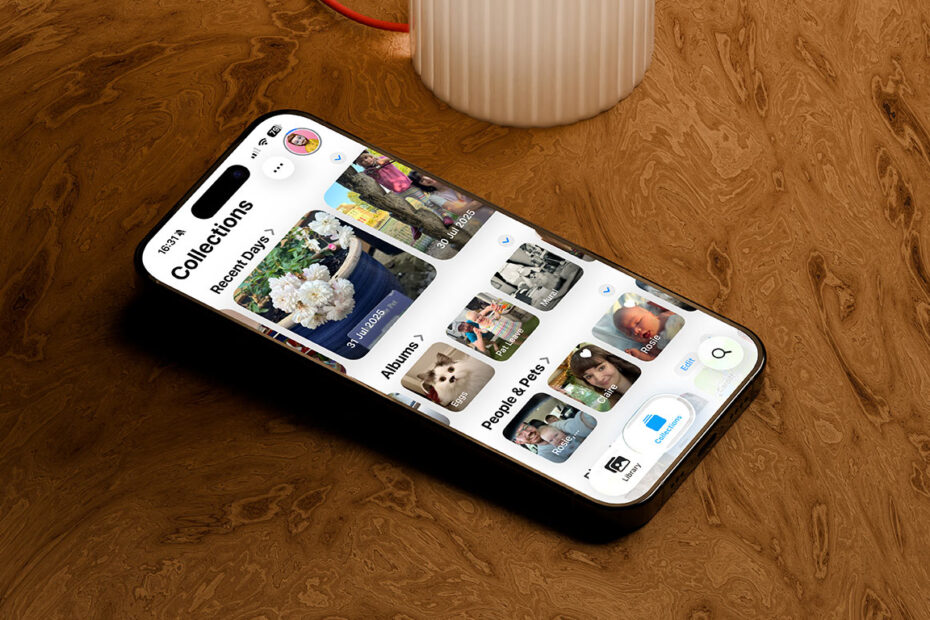

In iOS 26, Apple backtracked a little on iOS 18’s controversial Photos app redesign. The all-in-one view proved unpopular with many users who found it harder to find what they were looking for, so Apple addressed those complaints by reintroducing tabs and separating the app into two distinct sections. (Three, if you count Search).
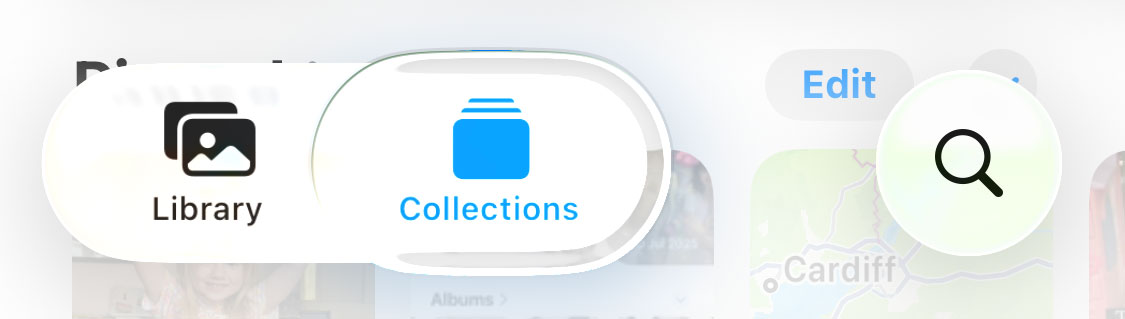
If you like a simple, straightforward layout, you’ll feel right at home in the Library tab. Meanwhile, the more curated experience lives on in the Collections tab. Splitting them up this way makes each section feel more purposeful and less crowded. Let’s take a closer look.
Library
This is exactly what it sounds like – a complete view of your camera roll in reverse chronological order. You can swipe through everything without interruption, pinch to zoom in or out, and apply filters from the top menu.
If you hop away and come back, Photos remembers your scroll position, while tapping the Library tab again jumps you back to the latest shot. It’s fast, familiar, and easy to navigate.
Collections
This section has a more structured layout, showing a mix of your personal albums and auto-sorted categories like Memories, Trips, People & Pets, and more. Those categories feel more useful when they’re not competing for space with your entire camera roll.
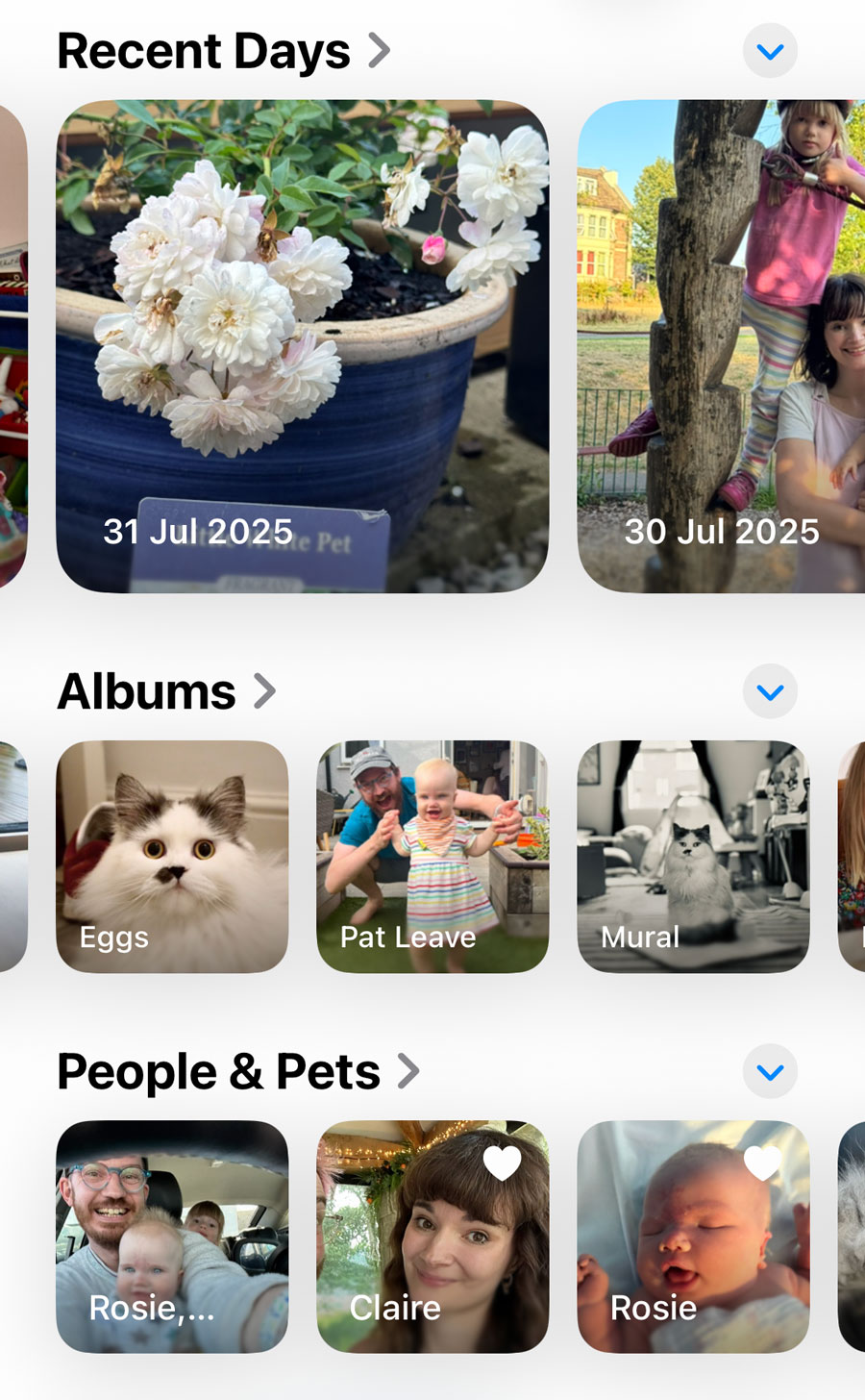
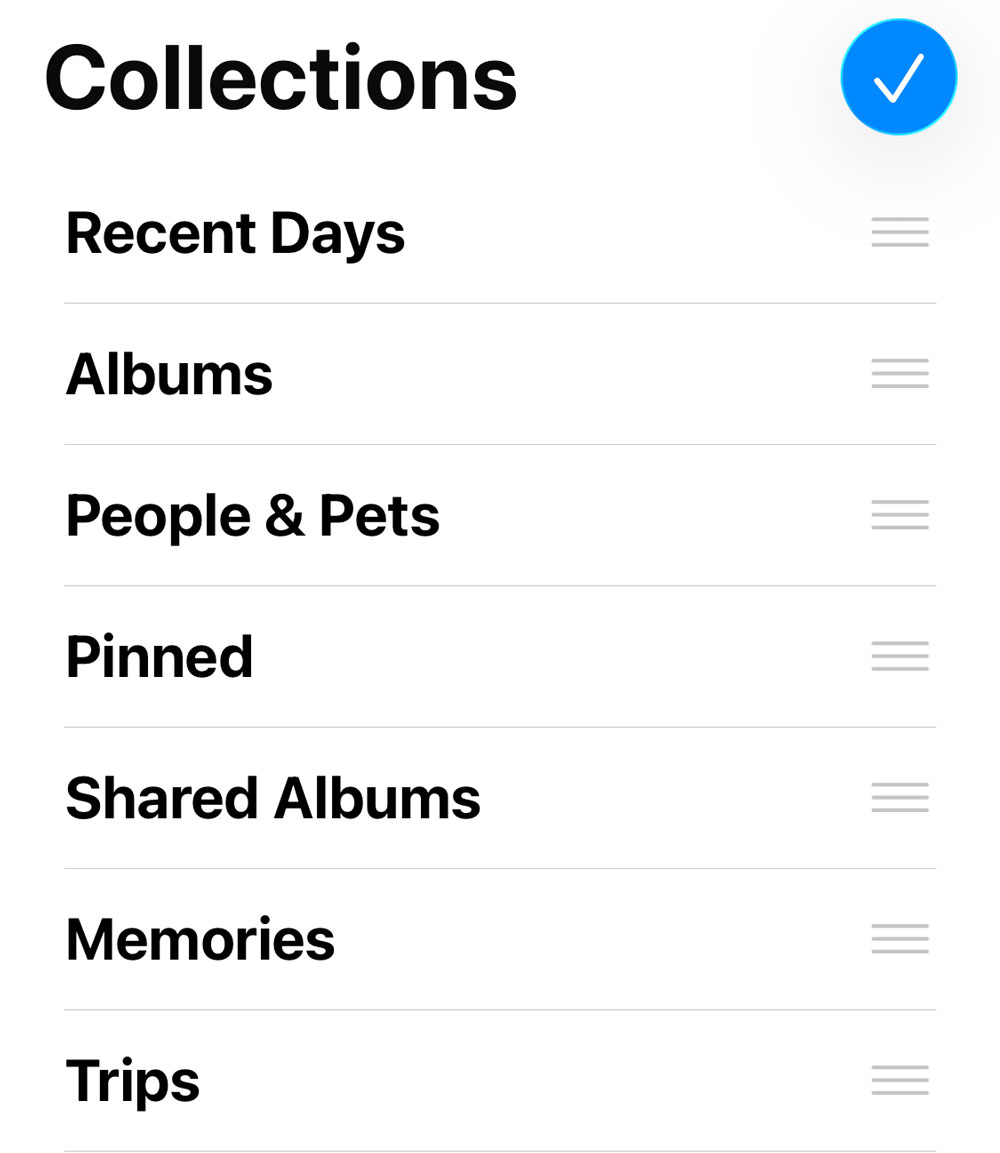
You can tap Reorder at the bottom of the screen to customize the layout, dragging your favorite sections to the top. Long-press an album or category and choose Pin to keep it front and center in the Pinned section, which can also be rearranged as you see fit.
Search
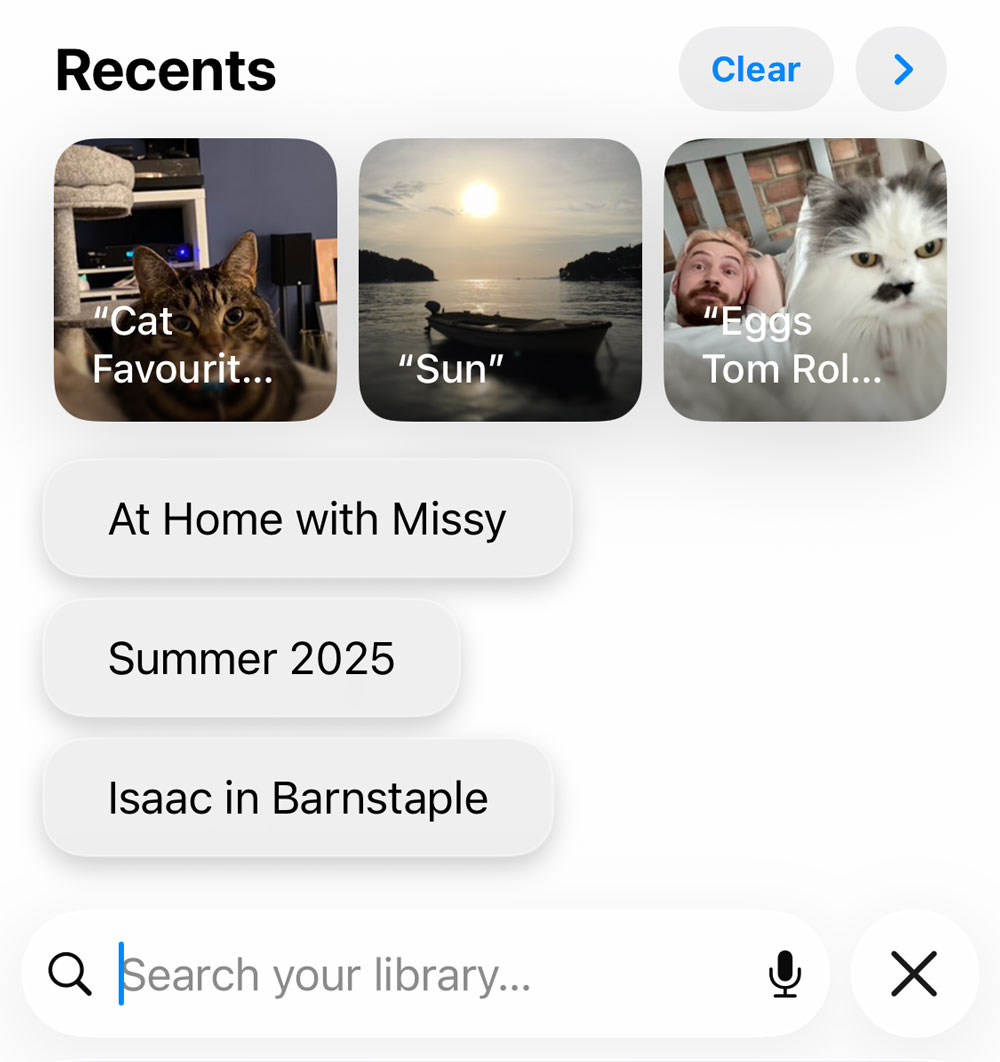
Tap the magnifying glass from either tab to open a full-screen search panel with recent queries and smart suggestions based on your photo history. You can quickly clear old searches with the Clear button if you want a fresh start.
Spatial Photos
Aside from the layout, there’s also a feature that leans into Apple’s spatial ambitions. When viewing a photo full-screen, a Spatial button appears in the top right.

Tap it, and the image is given a subtle 3D parallax effect that moves as you tilt your device. It works on any photo, too, not just one taken on a recent device. These spatial photos can’t be shared – they’re strictly for on-device viewing – but they really shine when set as a lock screen wallpaper. Just tap Share > Use as Wallpaper to set it up.