


- Close all open Safari tabs with a single gesture
- Clear tabs across multiple tab groups, including Private Browsing
- Set Safari to auto-close tabs to prevent future clutter
Safari makes it easy to keep lots of web pages open at once – sometimes a little too easy. Over time, dozens of tabs can quietly pile up, making it harder to find what you need and leaving your browser feeling unnecessarily cluttered.
While this doesn’t usually affect performance, it can be frustrating to manage, and potentially awkward if you share your phone with others. Fortunately, iOS includes a quick way to close every open tab in Safari, along with options to stop the problem from building up again.
The problem with Safari tabs
Safari is an excellent, speedy web browser that lets you open seemingly endless reams of tabs without slowing things down. The only trouble is, this can swiftly lead to a massive build up of dozens of open tabs.
This isn’t enough to cause any performance issues, but it is enough to irritate anyone with even a hint of OCD. It can also be difficult to retrace your steps to a previously opened tab when it’s one of 70. Besides this, having lots of open tabs can be a bit of a privacy concern, particularly if you’re someone who freely shares their phone with family members, colleagues or friends.

How to close all Safari tabs
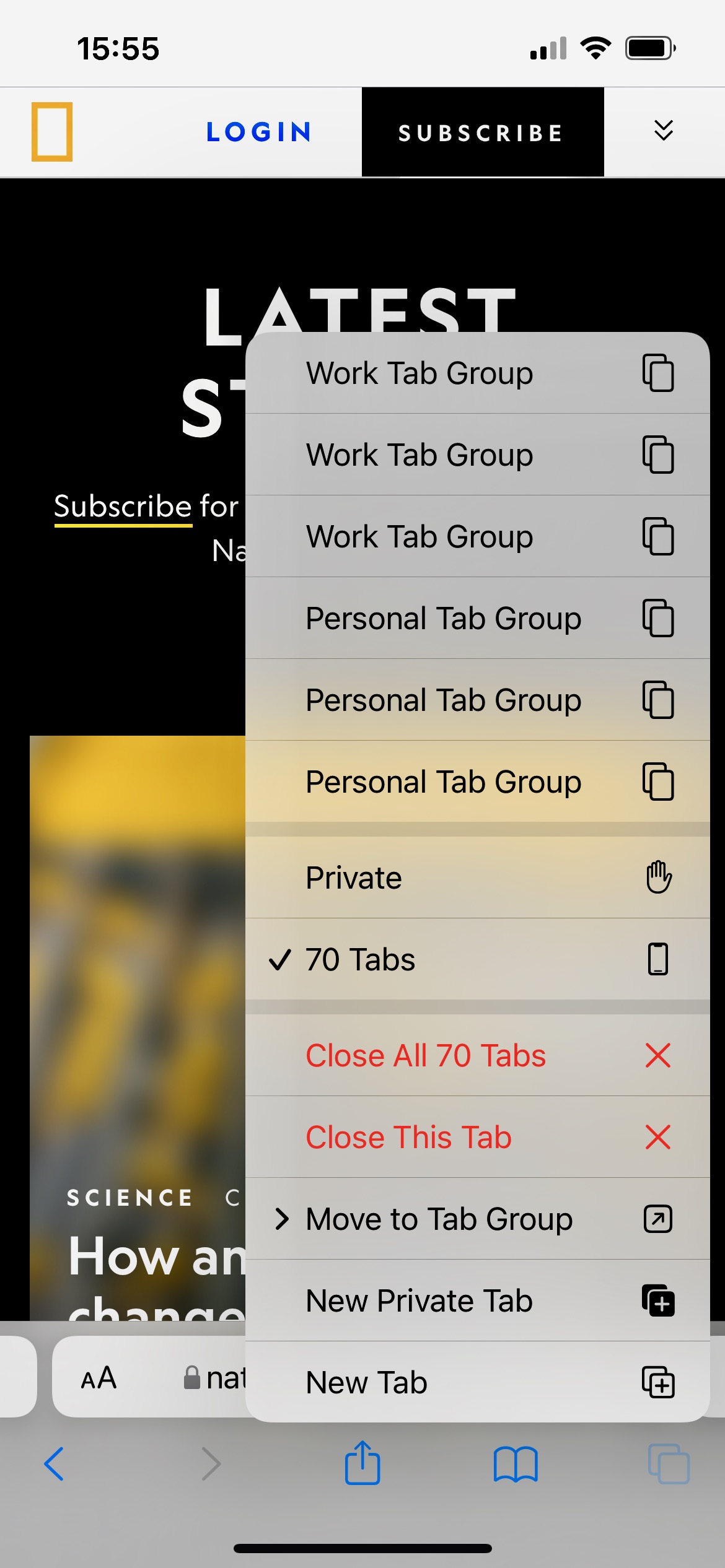
Open Safari and press and hold the tabs button (the two overlapping squares) in the bottom right corner. From the menu that appears, hit the red Close All X Tabs option to shut all those bothersome tabs down in one shot.
That’s almost all you need to know. This button doesn’t necessarily close everything.
Specifically, it will remove all open tabs from your current tab group. To check your tab groups, press the tabs button and swipe through the groups displayed along the bottom. The standard, default group doesn’t have a name; it simply shows how many are currently open. To the left is a tab group for Private Browsing, and to the right are any custom tab groups you’ve made.
Tap into any one of these groups and you can close all open tabs using the same technique described above. Rinse and repeat for every tab group you need to purge.
How to prevent the build-up
It’s possible to set Safari up so that it no longer continues to open endless tabs, meaning you don’t need to worry about initiating such a mass-closure method again.
Once you’ve performed the aforementioned ‘close all’ maneuver, Safari will pop up the option to Automatically Close Tabs after a day, a week, or a month. Alternatively, you can opt not to close automatically at all and continue as things were.
You can also find this option at any time by heading to Settings > Safari, scrolling down to the Tabs section, and selecting Close Tabs.