

- Scan a QR code using nothing but your iPhone
- Generate and customize codes for free
- What the free tools can and can’t do
Quick Response codes, or QR codes, have been around since the mid-90s, originally created to track vehicles in Japan’s automotive industry. Today they’re everywhere, offering quick access to websites, contact details, or location info with a single scan of your phone’s camera.
If you want to make your own, QRCode Monkey is our top pick. It’s easy to use, the essential features are free with no scan limits, and there’s plenty of optional customization. Adobe Express offers a solid, simpler free alternative too – though its generator doesn’t always behave on mobile. Here’s how QRCode Monkey works.
Scanning QR codes
A quick reminder for the uninitiated: to scan a QR code with your iPhone, open the Camera app and point it at the code. A yellow banner will appear showing the linked content – tap it to open the website, contact info, or whatever else is embedded. Simple!
Making your own
Head to the QRCode Monkey website and pick the type of information you want to embed along the top. Usually that’s a URL pointing to a web page, but you can also create codes that connect to Wi-Fi, send an email, share a location, and more. Fill in the fields carefully – you can’t edit them later.
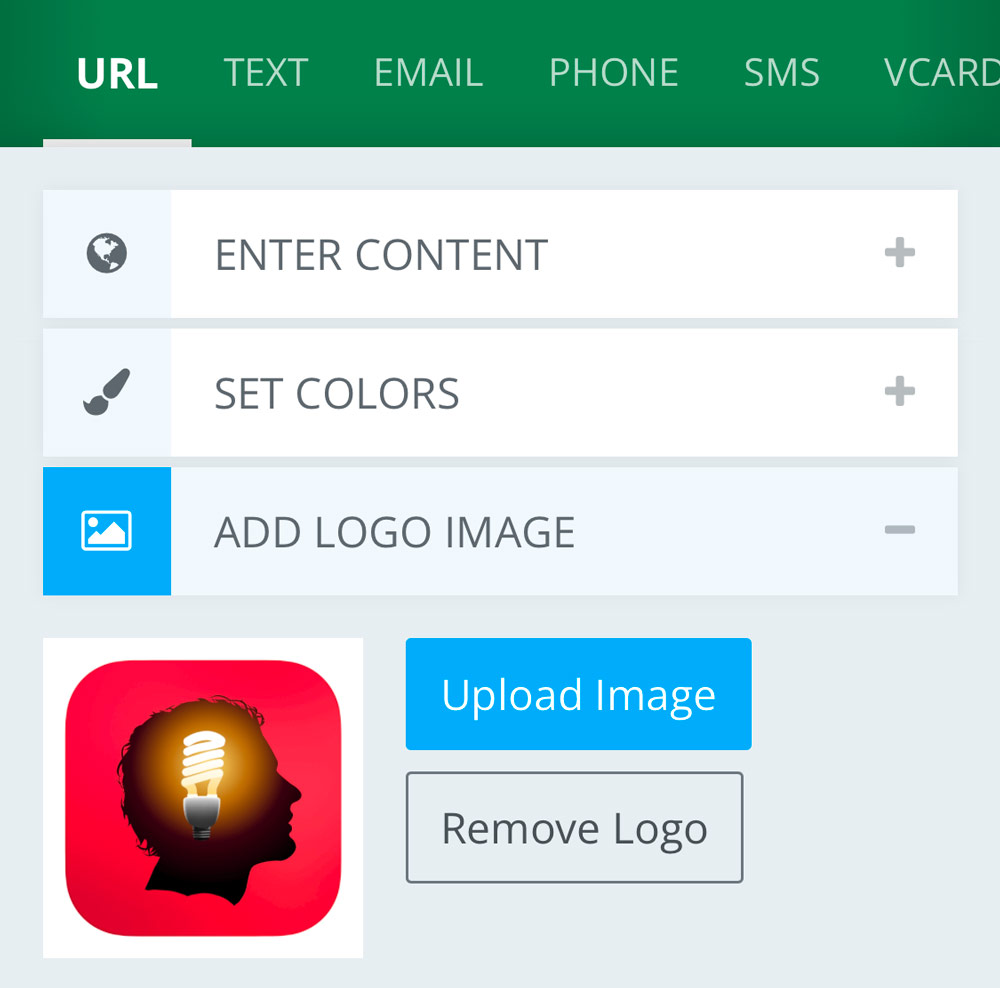
The default design works fine, but you can go further. Personalize the graphic with colors, gradients, and shapes for the body and corner elements. You can even drop in a brand logo, which sits centered in the code without compromising its scannability.
Saving and sharing
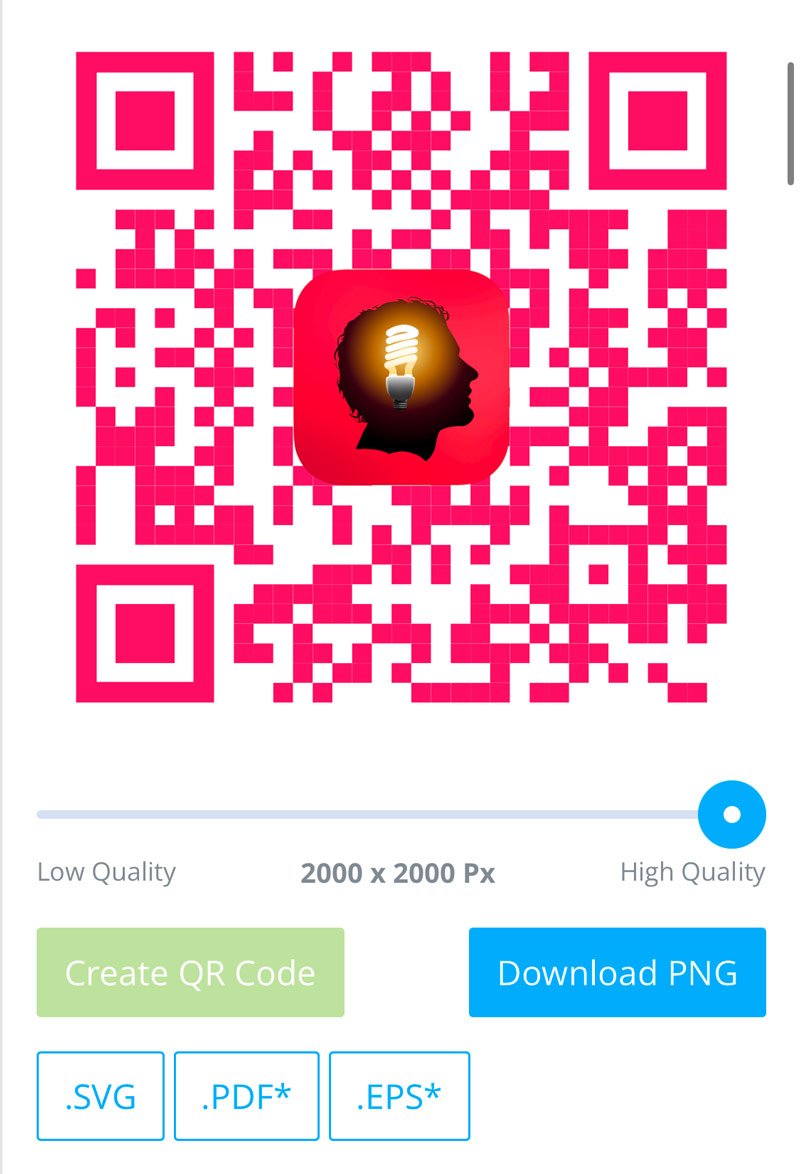
When you’re ready, set the quality slider – leave it at the default for sharing online, or push it to maximum if you’re printing. Tap Create QR Code, then test the result by scanning it with your iPhone’s camera.
If it works, press Download PNG to save it. By default it lands in the Downloads folder, which you’ll find in the Files app. To put it in Photos instead, long-press the file in Files and choose Share > Save Image. From there it’s yours – share it online, drop it into a poster or flyer, or print it directly. Your QR code is ready to head out into the wild to be scanned.
Further considerations
QRCode Monkey makes static codes, which means the destination is locked in once you create it. If you need to change that URL later or track how many times your code gets scanned, you’ll need a paid dynamic QR service instead. For the average user, though, the free version has everything you need.