


- How to record and transcribe calls directly in the Phone app
- Why some countries don’t get the feature
- The built-in warning everyone hears when recording starts
Recording phone calls on iPhone used to require awkward workarounds or third-party apps – because Apple simply didn’t allow it. That’s no longer the case. Modern versions of iOS now include built-in call recording in the Phone app, complete with automatic saving and transcription.
It’s a genuinely useful addition, whether you’re logging interviews, saving important details, or keeping records of conversations. But it comes with regional limitations and built-in privacy safeguards that are important to understand before you hit record.
Availability
Call recording is not available worldwide due to regional privacy laws, with areas including the European Union, UAE, Saudi Arabia, and South Africa missing out. Luckily, most of our readers are based in the US or the UK, and call recording works just fine in both countries. You can check Apple’s Feature Availability page to confirm support in your region if you’re not sure.
Even where call recording is allowed, laws usually require all participants to be notified. To comply with this, Apple automatically plays an audio message at the start of each recording, informing everyone on the call that it’s being recorded.
How to record a call
You can record both outgoing and incoming calls from the Phone app, so place a call or wait to receive one.
Once connected, a recording button will appear in the top left of the display – it looks like an audio waveform with two small circles over it. Tap this button and press Continue if this is your first time using the feature. You can then begin the recording, and Apple will play its automated audio prompt to inform both parties.

Screenshot
The recording will continue until the call ends or until you tap the Stop button. Once finished, the file is automatically saved to the Notes app, making it easy to review later.
Listening back
To listen to a recorded call, open the Notes app and look for the Call Recordings folder. Select the desired note and you’ll see an entry with a few call details. If your device supports Apple Intelligence, you’ll also get an auto-generated summary of the recording. You can tap the Play button to listen back in full or press anywhere else on the text block to see a written transcript of the call. Note that this transcript may not be available immediately, as it takes a little while to process in the background.
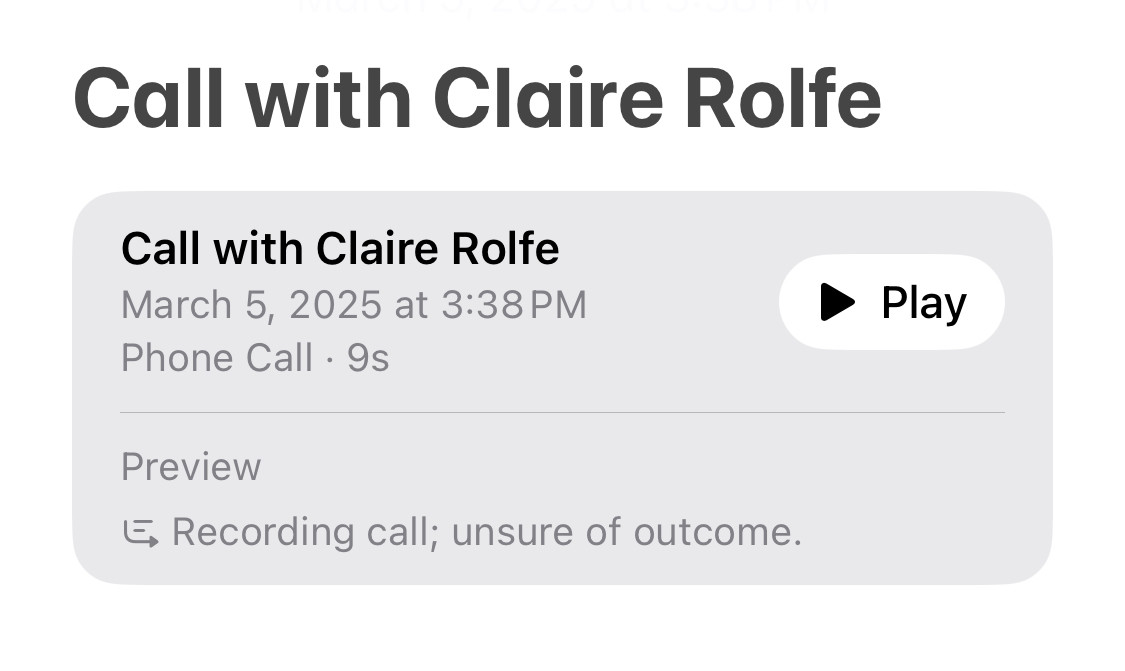
If you want to share or save the recording, tap the … button and then Share Audio. You can also Save Audio to Files if storage in the Notes app isn’t convenient for you. This menu is also where you can Delete the recording if necessary.
Can you turn it off?
Call recording is enabled by default on supported devices running iOS 18.1 or higher. If you prefer not to use this feature, go to Settings > Apps > Phone > Call Recording and toggle the setting off.
However, all this really does is hide the small recording button in the corner of the call interface, making it feel like a slightly pointless setting. Other users will still be able to record you from their end, although of course if they’re using an iPhone to do so you’ll hear Apple’s prerecorded warning. That way you can terminate the call if you’re not comfortable being recorded.