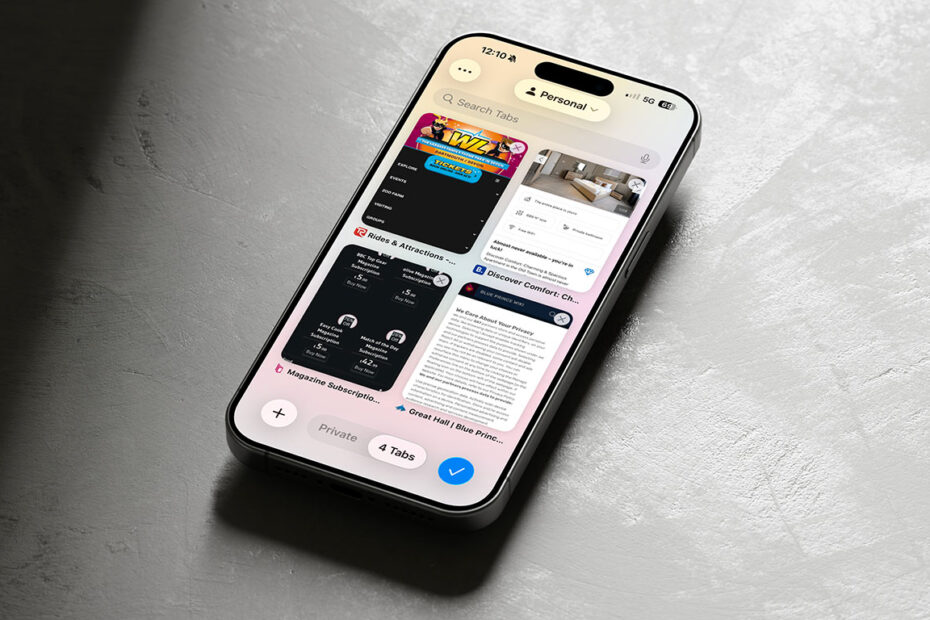

Safari has had a visual refresh in iOS 26, with Apple introducing a new compact layout alongside some improvements to web apps and security. This new mode will please minimalists, but it comes with a few trade-offs. Let’s take a look…
Less noise, more taps
In compact mode – which is the new default layout – several controls including Share, Bookmarks, and Tabs are hidden behind a pop-out menu in the bottom-right corner of the screen. It’s a bit cleaner visually, but the extra taps to get to those essential features might slow you down. The All Tabs view has also been similarly rearranged, which might throw you off at first if you rely on it frequently.

Thankfully, you can easily switch back to one of the older layouts – both of which have also been refreshed with the new liquid glass aesthetic. To choose your preferred layout, head to Settings > Apps > Safari, where you’ll find all three tab-view options: Compact, Bottom, and Top. Those last two control the placement of the address bar, while keeping the rest of the interface familiar with the most common features accessible with a single tap.

Web apps
iOS 26 also changes how web apps behave. Previously, only websites specifically designed to work as progressive web apps could be added to the Home Screen and open in their own app window. Now, any website you save this way (via Share > Add to Home Screen) will launch in its own standalone app-like view, separate from your Safari tabs. It’s a small change that makes a big difference if you like to keep certain sites – like to-do lists, newsletters, or daily games – just a tap away without cluttering your browser.
Security
Behind the scenes, Safari also tightens security with advanced fingerprinting protection and better link tracking prevention. Without going into too much technical detail, these features essentially continue the company’s push toward safer, more private browsing by default.