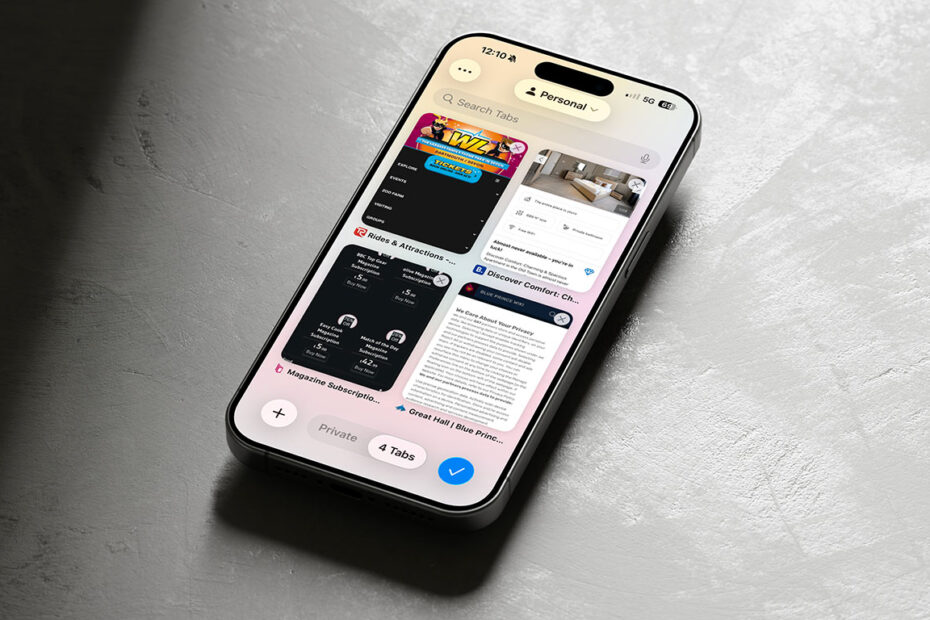

Safari got a visual refresh in iOS 26, with Apple introducing a compact layout alongside some improvements to web apps and security. The compact mode will please minimalists, but it comes with a few trade-offs. Let’s take a look…
Less noise, more taps
In compact mode – which is the default layout – several controls including Share, Bookmarks, and Tabs are hidden behind a pop-out menu in the bottom-right corner of the screen. It’s a bit cleaner visually, but the extra taps to get to those essential features might slow you down. The All Tabs view is similarly rearranged, which might throw you off at first if you rely on it frequently.

Thankfully, you can easily switch to one of the alternative layouts – both of which share the same liquid glass aesthetic. To choose your preferred layout, head to Settings > Apps > Safari, where you’ll find all three tab-view options: Compact, Bottom, and Top. Those last two control the placement of the address bar, while keeping the rest of the interface familiar with the most common features accessible with a single tap.

Web apps
Web apps are more flexible than they used to be. It was once the case that only websites specifically designed to work as progressive web apps could be added to the Home Screen and open in their own app window. Now, any website you save this way (via Share > Add to Home Screen) will launch in its own standalone app-like view, separate from your Safari tabs. It’s a small touch that makes a big difference if you like to keep certain sites – like to-do lists, newsletters, or daily games – just a tap away without cluttering your browser.
Security
Behind the scenes, Safari also offers advanced fingerprinting protection and link tracking prevention. Without going into too much technical detail, these features are part of Apple’s push toward safer, more private browsing by default.