
- Pull any frame out of a video as a proper photo
- Keep the original date, time, and location intact
- Skip the screenshot-and-crop workflow entirely
Have you ever captured a video, then screenshotted a freeze-frame of your favorite moment to save it as a “photo”? It works, but it’s a faff. You’ve got to crop out the menus or letterbox bars, and you’re left with something at the wrong resolution and stripped of its original metadata.
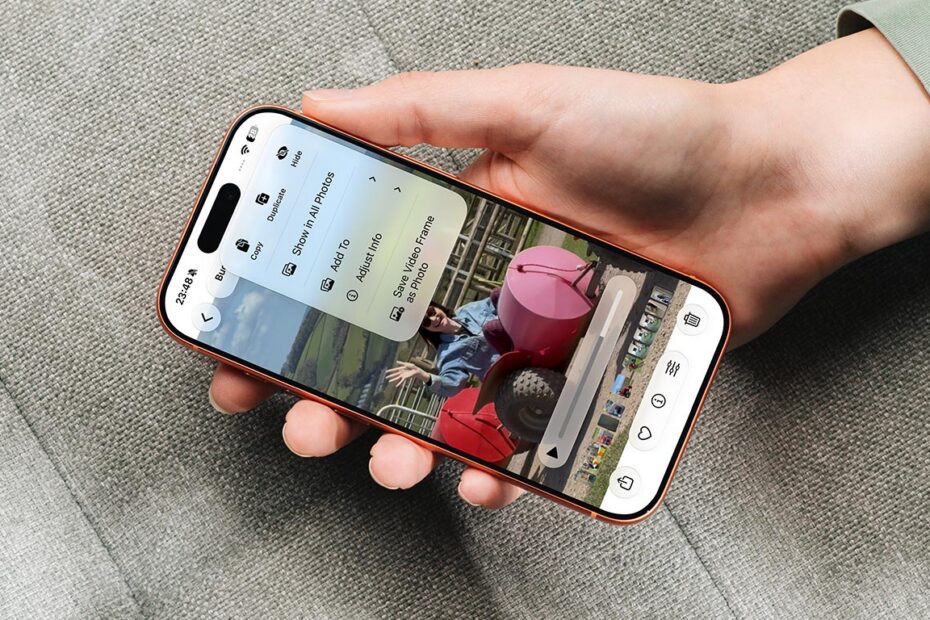
iOS 27 has a much tidier answer: lift the exact frame you want straight out of the video, no screenshotting required.
Note: this is a preview of an upcoming iOS 27 feature. To try it for yourself, join Apple’s beta testing program in July or wait for the public release in September.
How to grab a freeze-frame
Open the video in the Photos app and scrub through until you land on the perfect frame. Tap the three-dots menu button in the top right, then choose Save Video Frame as Photo. That’s it – the frame drops into your library as a new photo.

Doing it this way gives you a proper image rather than a screenshot of your entire screen. It keeps the video’s original datestamp and location data, and saves at a sensible, consistent size instead of whatever your display happened to be showing. Handy for pulling a clean still from a slow-mo clip, grabbing a frame where everyone’s actually looking at the camera, or making the most of a moment you only captured on video.
Note that because that original timestamp is retained, your new photo won’t appear at the top of your library. It’s filed chronologically alongside the video it came from, so if you go hunting for it in your recent shots, you may need to scroll back to whenever the video was taken.