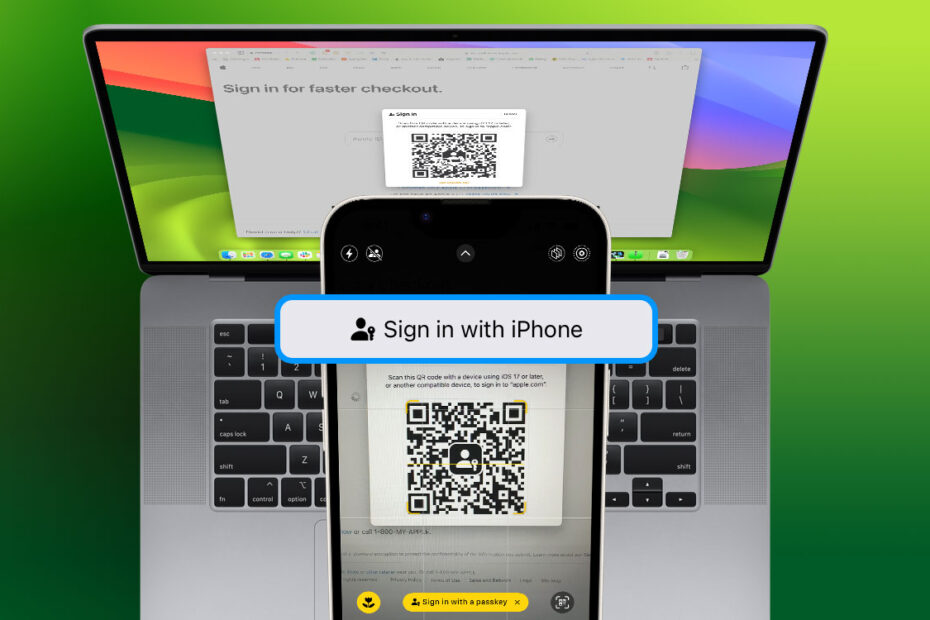

- Sign into websites without typing a password
- Approve logins securely using a nearby iPhone
- Use passkeys even on Macs, PCs, and shared devices
Apple offers a secure way to sign into websites without typing passwords or juggling verification codes. By using a nearby iPhone to confirm your identity, you can approve sign-ins instantly with Face ID or Touch ID, even on devices that don’t normally have access to your saved passwords.
This makes it easy to log into websites on a Mac, PC, or shared computer while keeping your credentials private and protected. Once approved on your iPhone, the sign-in happens automatically – no passwords required.
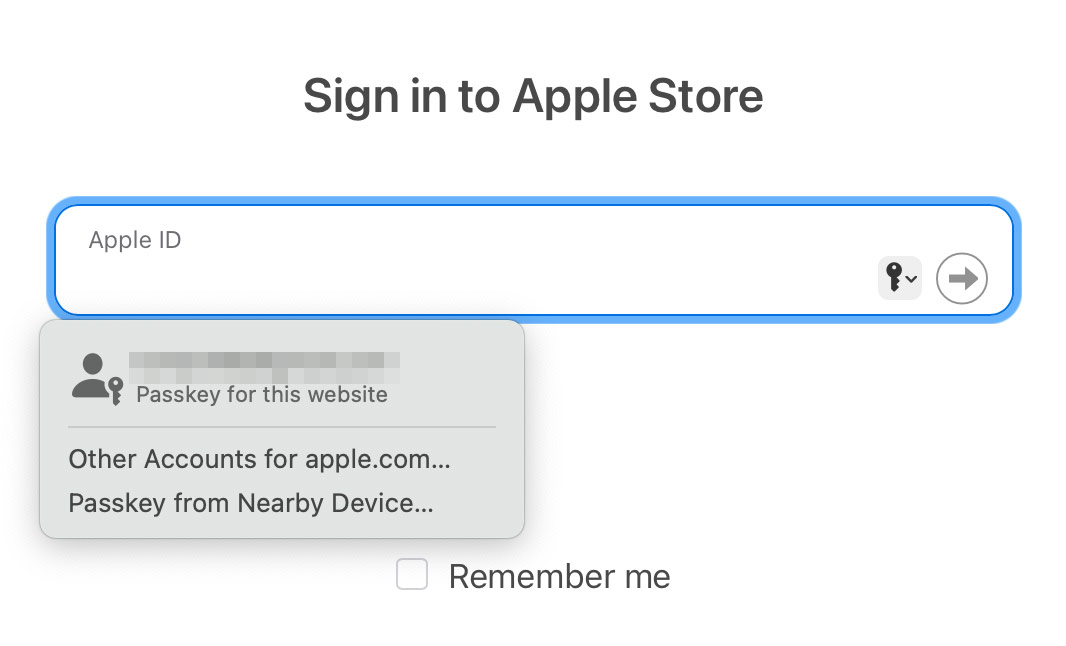
On any device, head to a website that’s compatible with the Sign in with Nearby Device feature. We can’t list all the sites that work, but you can test it out at the Apple Store website.
If you’re signed into your Apple ID, you’ll see an autocomplete option called Passkey from Nearby Device. Tap it to continue. Otherwise, fill out your email address and continue. At the next step, press the Sign in with iPhone button. Either way, the next step is the same.
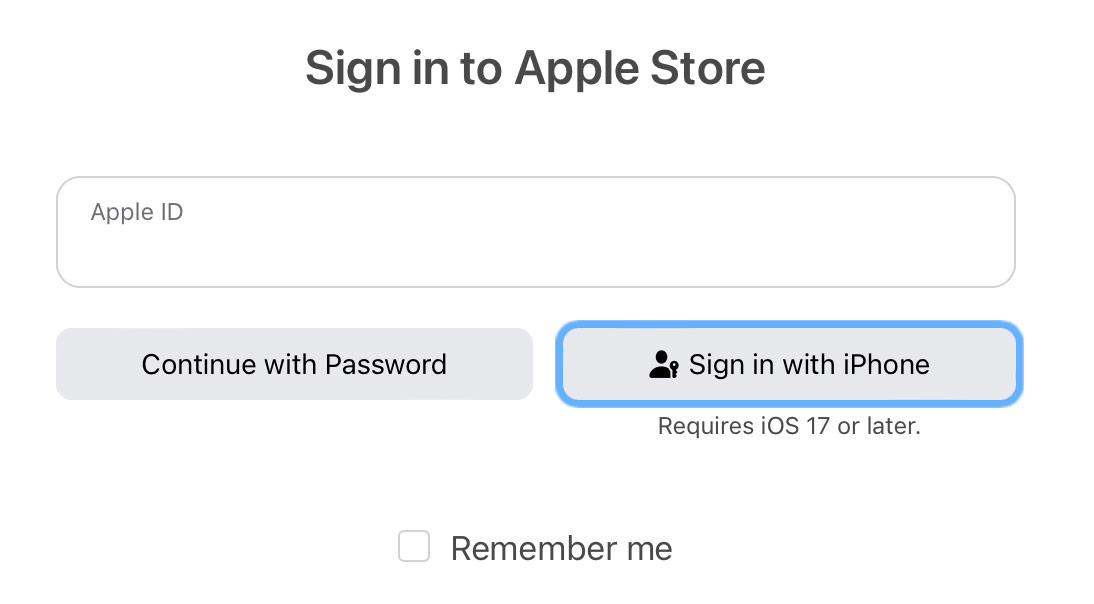
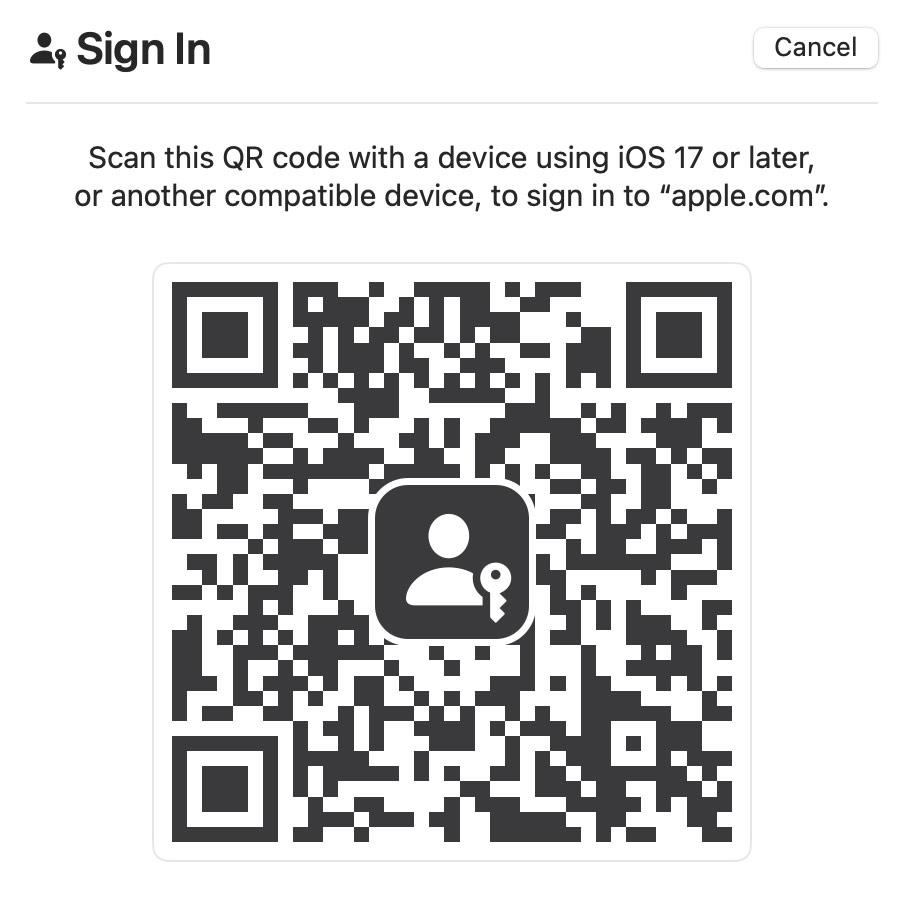
A large QR code will appear on screen. Open the Camera on your iPhone and scan the code. When the QR code is recognized, a yellow Sign in with a passkey button should appear. Tap it.
You’ll be asked whether you wish to sign in. Press Continue and verify your identity using Face ID / Touch ID.
That’s it! Once verified, your iPhone will notify the computer, which will automatically sign you in using your passkey. No typing required.