
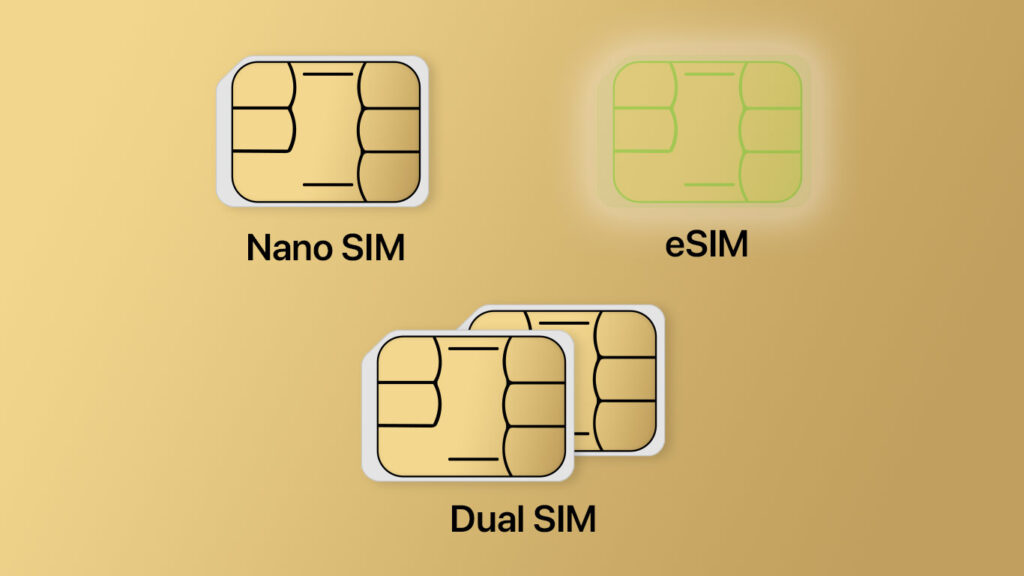


- Learn the difference between Nano SIM and eSIM
- Check which SIM type your iPhone or iPad supports
- Set up two phone numbers with Dual SIM
Every iPhone connects to a mobile network using a SIM, but the way that SIM works has evolved over the years. Depending on your model and region, your device may use a tiny physical Nano SIM, a fully digital eSIM, or a combination of both.
Understanding the differences matters – especially if you’re switching carriers, traveling abroad, or thinking about running two phone numbers on one device. Here’s a clear breakdown of the various SIM types, how to tell which one your iPhone uses, and what Dual SIM actually means in practice.
Nano SIM
Most iPhones released in the past decade (starting with iPhone 5) use a miniature version of the traditional SIM card called a Nano SIM. This works just the same as a regular SIM, but takes up less physical space. If you have a cellular iPad from the past decade, that uses Nano SIM too.
Accessing the Nano SIM on an iPhone is straightforward. You’ll find the SIM tray on the side of your device, which can be opened using the ejector tool that came in the box. A safety pin or paperclip will do the job if you don’t have the tool to hand. Once open, you can insert or replace your Nano SIM with ease, and it’s necessary to do so when switching carriers.
eSIM
eSIM is a digital SIM used in newer iPhone models in place of a physical SIM card. Unlike traditional SIM and Nano SIM cards, eSIMs are built into your device and can be activated electronically. They offer a more seamless experience, especially for travelers, as you can easily switch between different carriers or data plans without the hassle of a physical chip.
From the iPhone 14 series, eSIMs are mandatory with no SIM tray in sight. For a few years prior, from iPhone XS/XR onwards, users could choose either method. All Apple Watch models with cellular capabilities use eSIM.
Note that outside of the US, the SIM tray was removed a year later with the iPhone 15 series.
Dual SIM
This feature allows you to use two different phone numbers on the same device – a game-changer for those who want to separate personal and business lines, or for travelers juggling between local and international numbers. You can even have separate plans for voice and data.
Once set up, you choose a default cell number in Settings > Cellular. You’ll also get new capabilities in the Phone and Messages apps, allowing you to switch between numbers before starting communication with somebody. In Phone, tap the number as you dial it on the keypad to choose. In Messages, fill out the From section when starting a new chat. Opening Control Center at any time will show icons in the status bar to confirm which network(s) you’re currently connected to.
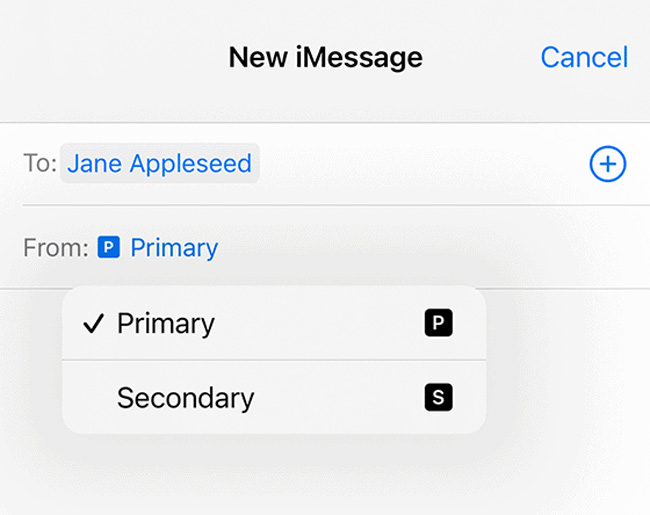
Dual SIM configurations either work via two eSIMS, or a combination of Nano SIM and eSIM, depending on your model. There are other considerations, too, like network compatibility and regional variations. Our advice if you’re interested in setting up Dual SIMs is to speak with an eSIM-compatible carrier and follow Apple’s official guidance.