

- Where Visual Intelligence went
- The buttons worth knowing
- Five things to point it at
Visual Intelligence has always had a discovery problem. When it arrived, the main way in was Camera Control – the touch-sensitive button on the side of most iPhone 16 and 17 models. Press and hold it, and your iPhone would look at whatever was in front of you and try to tell you about it. Useful, but you had to know the button did that, and iPhones without Camera Control had to make do with a Control Center toggle or an Action button assignment. Most people never found it at all.
There was a second problem too. Old Visual Intelligence could identify things – a plant, a landmark, a dog breed – but anything requiring actual reasoning got punted over to ChatGPT.
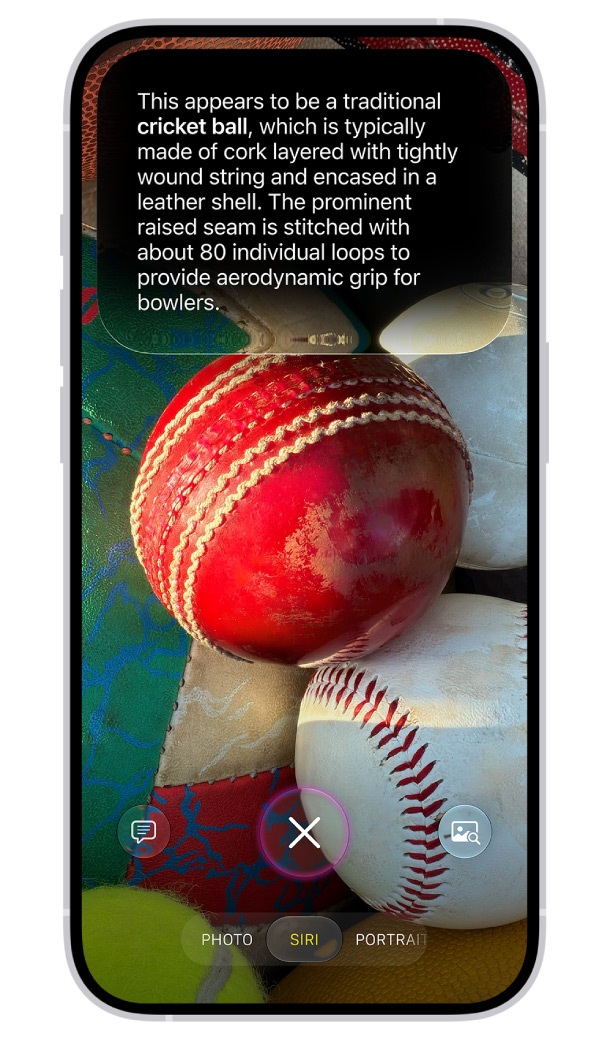
iOS 27 tackles both. Visual Intelligence now has a proper home in the Camera app as Siri mode, sitting alongside Photo, Video and the rest. And because Siri AI has broad world knowledge of its own, it can answer most questions itself rather than passing them to somebody else’s chatbot.
Before you start
Siri mode is part of Siri AI, so you’ll need that switched on first. It works on iPhone 15 Pro, iPhone 15 Pro Max and any iPhone 16 model or later, with Siri and your device language set to English. Siri AI is still officially in beta, isn’t available in the EU yet, and some requests count toward daily usage limits.
To turn it on, go to Settings > Siri and tap Try Siri AI (Beta) – if Siri is off, tap Turn on Siri first – then follow the onscreen instructions. Our guide to Siri AI covers everything else it can do.
Without Siri AI, the older Visual Intelligence is still there through Camera Control, the Action button or Control Center.
How to use Siri mode
Open the Camera app and swipe along the mode selector to Siri. If your iPhone has Camera Control, you can also click and hold it, then tap Siri to switch over – and that works from the Lock Screen too.
Point the camera at something and you’ve got three options. Tap the Siri button, where the shutter usually sits, for a quick answer about what’s in the frame. Tap Ask to ask something specific, like “What can I make with these ingredients?” Or tap Search to find similar images on the web.
Swipe down on Siri’s answer to keep the conversation going with follow-up questions. When you’re done, swipe up to close the conversation, then tap the close button to clear the results. Siri mode also suggests actions when it spots something it can help with. These appear as buttons you can tap straight away, which is where most of the tips below come in.
Here, then, are five cool things you can do with this new Siri mode. Try a few of them out for size to get used to the mode, and before you know it you’ll be pointing it at all sorts of things.
1. Check what’s in your dinner
Point Siri mode at a plate of food and ask what’s in it. It can give you a rough calorie count too – just treat that as a ballpark estimate rather than a nutrition label.
2. Split the bill
Point the camera at a restaurant check and tap Split Bill with Apple Cash when it appears. Siri works out what everyone owes, and you follow the onscreen steps to settle up. Apple Cash is US-only, so this one won’t work everywhere.
3. Get events into your calendar
Point it at a poster, flyer or printed schedule and Siri can add the dates to your calendar, rather than you typing them in one by one.
4. Save a business card
Point it at a business card and Siri pulls out the name, number and email so you can save them as a new contact.
5. Digitize a loyalty card
Siri mode can import cards straight into Apple Wallet – membership cards, gift cards, tickets. That’s a lot of plastic you can stop carrying.
Beyond the five
Because Siri can draw on world knowledge, the Ask button is handy for all sorts of one-off questions – what a laundry symbol means, what’s in a dish on a foreign menu, or how to play the sport whose ball you’ve just found in the garden. For anything that really matters, like allergens or safety warnings, check the label itself rather than relying on Siri’s answer.
If you want Siri to look at something that’s already on your screen rather than in front of your camera, that’s handled by onscreen awareness – we cover it in our guide to Siri AI’s personal context and onscreen awareness.
Finally, it’s worth knowing that your Siri conversations are gathered in the new Siri app, so you can pick up where you left off later instead of starting from scratch.