

- Make large iPhones easier to use with one hand
- Bring hard-to-reach controls closer to your thumb
- Use built-in accessibility features to reduce stretching
Since the iPhone 16e killed off the iPhone SE line, Apple no longer offers a an iPhone with a truly small form factor. Bigger screens can be awkward to use, especially if you have smaller hands or tend to hold your device one-handed. Even the long-fingered among us sometimes struggle to reach Control Center on the Pro Max models.
The good news is that iOS includes several features designed to make large iPhones more manageable. With a few simple tweaks, you can reduce thumb strain, reach key controls more easily, and stay in control without constantly shifting your grip.
Reachability
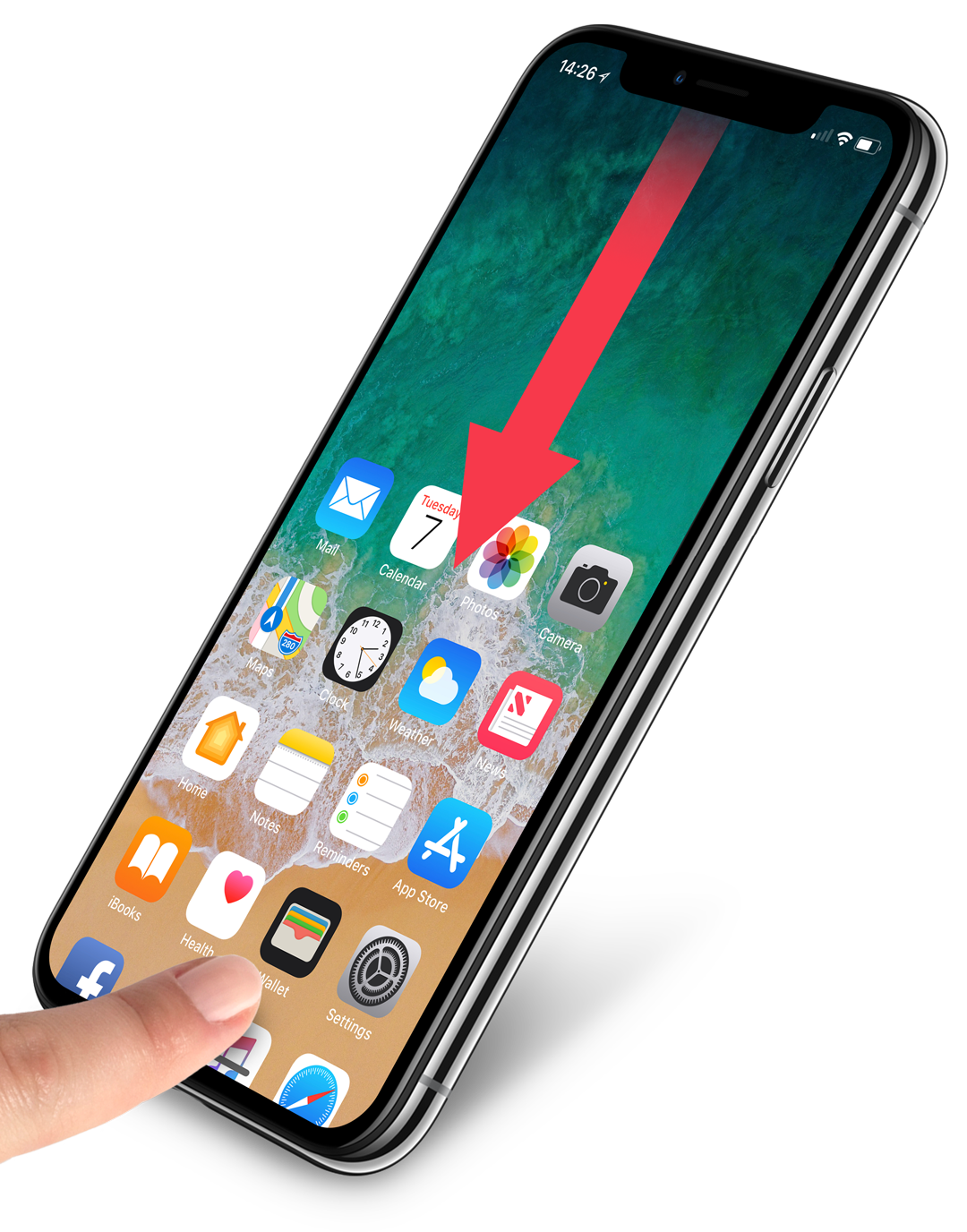
Reachability mode is a built-in feature that temporarily shifts the screen content downwards, making the top easier to reach. To activate it, simply swipe down on the home bar at the bottom of the screen (or double-tap the home button on older models). Everything will revert to normal after a tap. This quick trick puts items at the top of the screen within thumb’s reach without having to shift your grip.
One-handed keyboard
Typing with one hand can make it tricky to reach the opposite side of the keyboard, but a lesser-known keyboard feature solves this by shifting the keys closer to your thumb. To activate it, hold down the globe or emoji icon on the keyboard, and select either the left- or right-hand keyboard layout. This is ideal for quickly typing without straining your thumb across the screen.
Home screen layout
With iOS 18, Apple introduced more flexibility in arranging your apps, allowing users to add gaps rather than having all icons flowing in from the top left. Try arranging frequently used apps at the bottom in thumb-accessible locations, leaving blank space or a large widget at the top. This setup minimizes unnecessary stretching and makes daily navigation much smoother!
Improve your grip
An accessory like a PopSocket or case with a built-in grip can give you better control over your phone, making it easier to reach the top of the display without the risk of dropping it. This can also help with ergonomics while taking selfie photos or holding your iPhone at an awkward angle in bed, adding stability without requiring both hands.
Back Tap
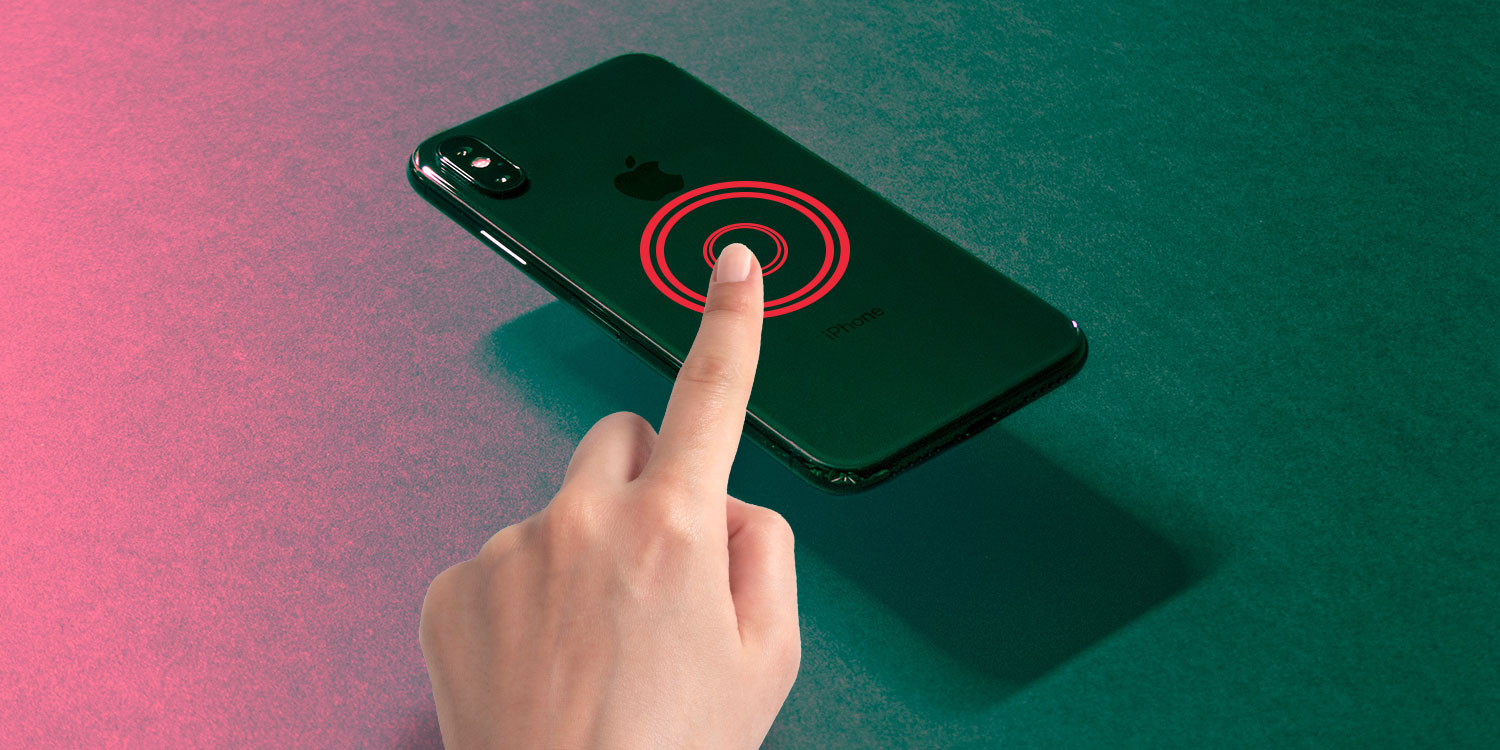
This feature, found in Settings > Accessibility > Touch > Back Tap, is like an invisible button on the rear of your iPhone. It lets you trigger actions by double- or triple-tapping the back of your device. You could set Back Tap to open Reachability, activate Control Center, or even take a screenshot – all without adjusting your grip. It’s an underrated tool that makes large devices more accessible for small-handed users.
With these tips, you can take full advantage of your iPhone’s large display without struggling to reach every corner!