
- How to log expenses and split them fairly
- How to create a group and add members
- How to settle up when the time comes
Sharing costs – whether you’re living with roommates or planning a group trip – gets complicated fast. Trying to track it all over text or in a notes app is a recipe for confusion and awkward conversations.
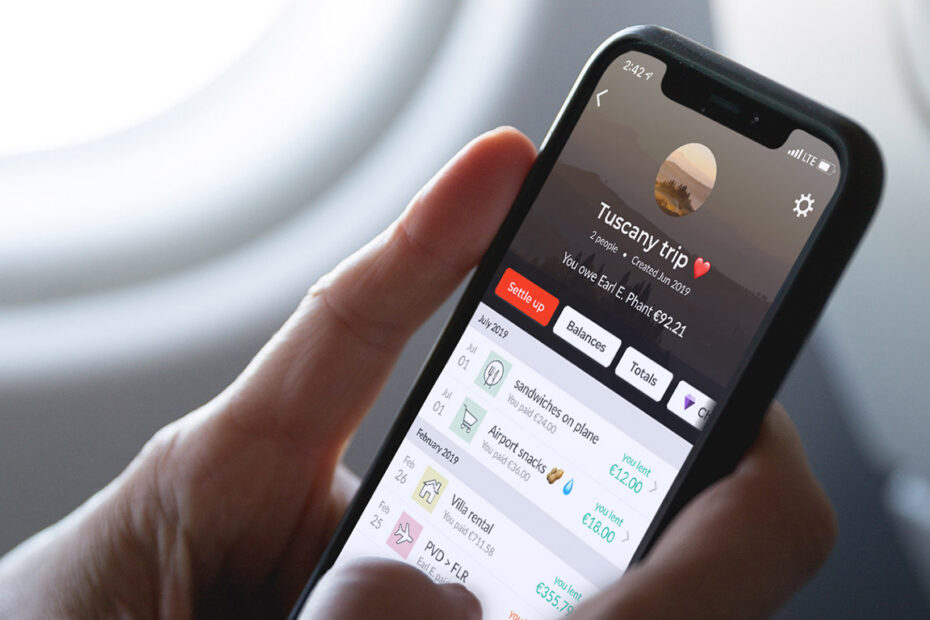
Splitwise is built specifically for this problem. It keeps a running tally of who owes what, and lets everyone in the group add their own expenses, and does some clever math to ensure everyone gets paid in the fewest steps. There’s an iOS app, but everything works through the website too, so no one needs an iPhone to take part.
Before you start
Everyone in your group needs a free Splitwise account for this to work. In practice, that means sending invites and waiting for people to sign up before things get going. If that’s a problem, consider our workaround at the end of this article.
There’s also a paid tier which adds receipt scanning, currency conversion, and spending charts. But for most people, the free version covers everything you’ll actually need.
Getting started with groups
First, head to splitwise.com or download the free app and sign up for an account.
Groups are the core of Splitwise. You create one for a specific shared context – a house, a trip, a joint ongoing tab with a friend – and everything stays neatly separated.
Tap Groups > Create a group, give it a name, and invite the other people by email or phone number. They’ll get an invite and can join via the app or website. For anything one-off, you can also add expenses with individual friends directly without creating a group, but for anything ongoing a group keeps things much cleaner.

Time for expenses
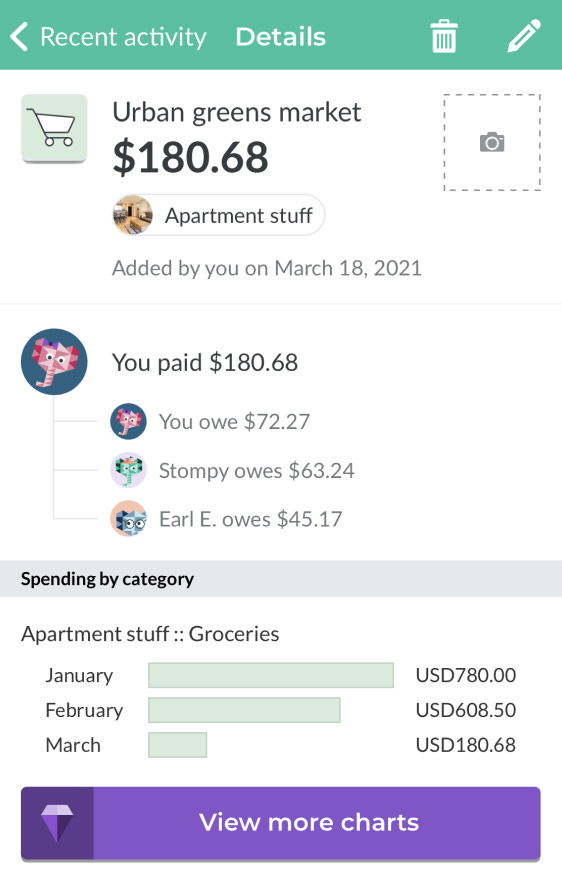
Once you’re in a group, tap Add an expense. Enter the total, a description, and who paid. By default, Splitwise splits the cost equally between everyone in the group, but you can change this – by exact amounts, percentages, or relative shares (useful if, say, one person has a bigger room). You can also attach a photo of the receipt and backdate the expense, which is handy if you’re logging something from last week.
Hit Save and everyone’s balances update automatically.
How the balances work
Splitwise doesn’t track every individual debt between every pair of people – it simplifies things. So if Alex owes Jamie $20 and Jamie owes Sam $20, Splitwise knows its easier if Alex just pays Sam directly. This debt simplification is on by default and is one of the most useful things about the app, especially as real life examples tend to be way more complicated than our example.
The group overview shows a running balance of who’s owed money and who owes it, and your dashboard shows your total position across all groups.
Paying your debts
When it’s time to square up, go to the group and tap Settle up. You can record a cash payment – handy if you’ve already handed someone money in person – or, in supported countries, pay directly via PayPal or Venmo within the app. Either way, recording a settlement updates everyone’s balances immediately.
It’s worth settling regularly rather than letting things build up; monthly works well for flatmates. And if someone leaves a group – end of a trip, change of flatmates – settle up with them before removing them.
What if someone won’t sign up?
Splitwise intentionally requires everyone to have their own account, which works fine until you’re dealing with an older family member who doesn’t do email, or a friend you can never trust to actually get around to registering. In that case, you can just create an account on their behalf using an email alias.
If you’re on an iPhone, Apple’s Hide My Email feature generates a unique address that forwards to your inbox – create one per person and you’re done. If you use Gmail, it’s even simpler: just add a plus sign and a label after your username, like youraddress+friendsname@gmail.com. Gmail ignores everything after the plus, so the messages still land in your inbox, but Splitwise treats it as a separate account. You then manage that account on their behalf.